
Learn how to close Metro Apps in Windows 8.
Until today all Windows operating systems (Windows 7, Vista, XP, etc.) had an easy way to close the running applications. You have just to press the “X” symbol at the open window, or by simultaneously pressing “ALT+F4” or by running Task Manager. Fortunately all above ways still work in Windows 8 while your are in the desktop, but many users are confused how to close Apps while in Metro UI Environment.
How to close APPS in Windows 8 Metro UI.
Method 1: Press “ALT+F4”.
The easiest way in by pressing simultaneously pressing “ALT+F4” .
Method 2: Using your mouse
This way is comfortable if you have touchscreen:
1. Put your mouse in the top edge of your active “App”, until your mouse becomes a “hand”.
2. Then click with your mouse and while clicking, drag the “App” window on the bottom edge of your screen.

Method 3: Using Apps Switcher
1. Put your mouse at the left up corner to unhide the Apps Switcher window.
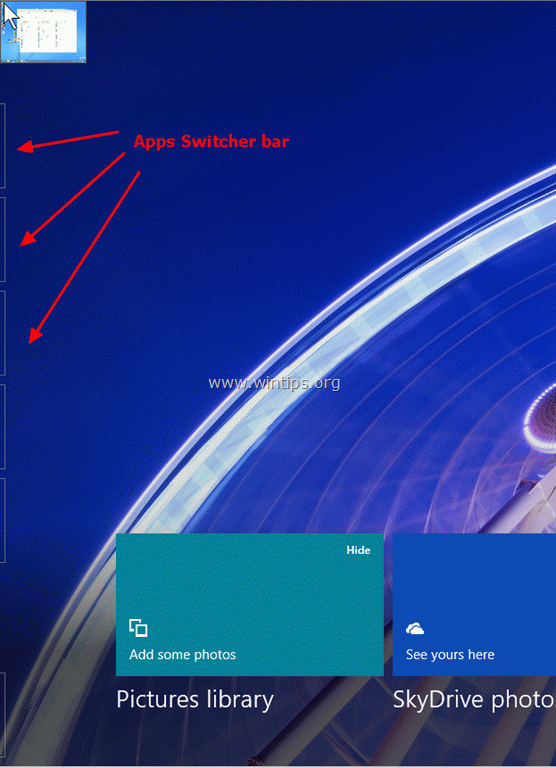
2. Then drag your mouse down to display Apps Switcher bar.
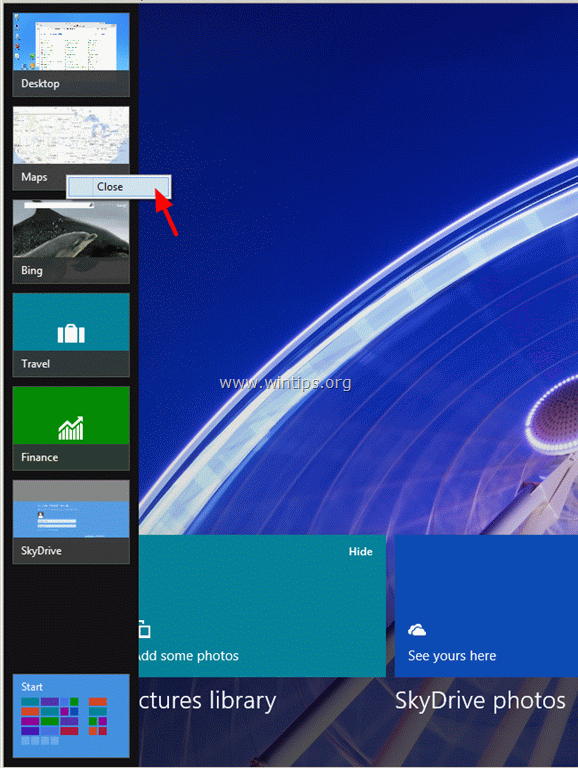
3. Right click the App that you want to close and choose “Close” from the menu:
Method 4: Using Task Manager.
The other way is by pressing simultaneously “ALT + CTRL + DEL” to open Task Manager .
At Task Manager’s “Processes” tab, look at “Apps” group, choose the “App” that you wish to close and press “End Task”.


- Remote Desktop (RDP/RDS) Stops Working After September 2026 Windows Update: How to Fix - September 15, 2026
- Windows 11 KB5124008 Causes No Sound or USB Audio Code 10: How to Fix - September 14, 2026
- Copilot Missing or Grayed Out in Outlook: How to Fix - September 10, 2026



