
How to Transfer VirtualBox Virtual Machines to Another Host easily.
In this tutorial I’ll show to you the easiest way to transfer the VirtualBox's Virtual Machine(s) to another host. The usual way to move a VirtualBox VM to another PC is by using the “Import/Export Appliance” utility that offered in VirtualBox’s ‘File’ menu. But, this method isn’t the fastest, so in this article you’ll learn a different method to move your Virtual Machines to another computer, easily and fast, without having to perform the Import/Export Appliance procedure.
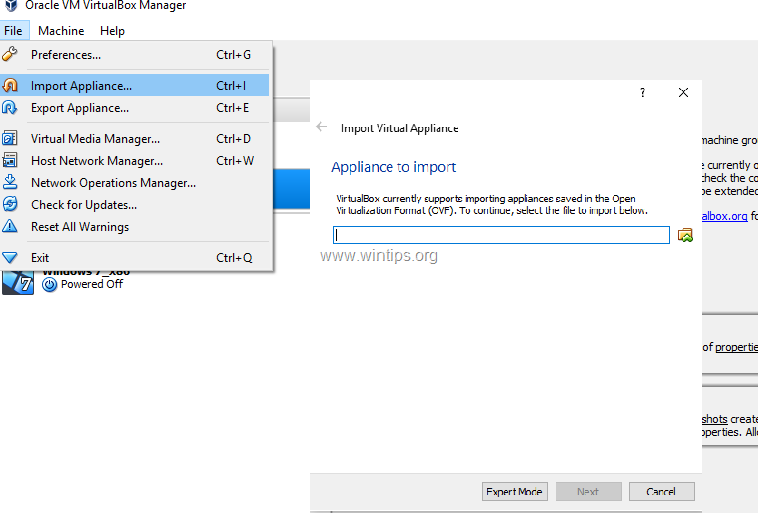
How to Move VirtualBox VMs to Another Computer (Host).
Step 1. Copy the VM Storage Folder from the Old Host to the New Host.
1. Close VirtualBox on the old VirtualBox host computer.
2. Then from the old host computer, copy the entire virtual machine folder (which contains both the .vbox and the .vdi files), to the new VirtualBox host computer.
Step 2. Add the VM Machines to the VirtualBox on the new Host.
1. Install Virtual Box on the new VirtualBox Host PC.
2. Then, from the Machine menu, click Add.

3. From the Virtual Machine folder, select the .vbox file of the VM machine that you want to add (import), in the new Host and click Open.

4. That’s it.
You 're done! Let me know if this guide has helped you by leaving your comment about your experience. Please like and share this guide to help others.


- Remote Desktop (RDP/RDS) Stops Working After September 2026 Windows Update: How to Fix - September 15, 2026
- Windows 11 KB5124008 Causes No Sound or USB Audio Code 10: How to Fix - September 14, 2026
- Copilot Missing or Grayed Out in Outlook: How to Fix - September 10, 2026




May 22, 2022 @ 6:30 pm
Yes, but the network does not work on the machines after copying them to the new host.
May 24, 2022 @ 11:23 am
What is the error?