
How to Uninstall Microsoft Security Essentials from Server 2012/2012R2 (FIX Error 0x8004FF04).
In a previous article, I mentioned the way to install Microsoft Essentials on Server 2012 or 2012R2. In this article, I will show to you, how to uninstall Security Essentials from Server 2012/2012R2, if you having problems while uninstalling it, from 'Programs and Features' in control panel, with error code 0x8004FF04: "Microsoft Security Essentials cannot be installed on your operating system. Your version of Windows in not supported by this program"
This tutorial contains instructions on how to uninstall Microsoft Security Essentials from Server 2012/2012R2 and to resolve the Security Essentials Uninstall error 0x8004FF04.
How to Remove Microsoft Security Essentials from Windows Server 2012R2 or Server 2012.
1. Navigate to Control Panel -> Programs and features.
2. Select the Microsoft Security Essentials and click Uninstall.
3. Without closing the "MSE installation error" window (see screenshot below), press CTRL + ALT + DELETE and open the Task Manager.
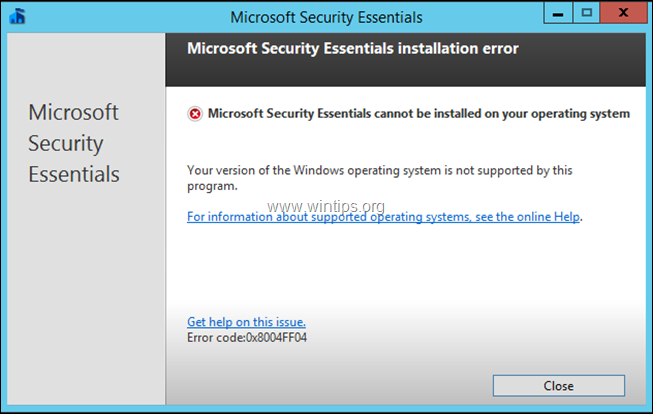
3. At the 'Users' tab, right click at Microsoft Security Essentials Client Setup process and choose Open file location.

4. Then right-click at the "Setup.exe" file and select Properties.
5. At Compatibly tab, select Run this program in compatibly mode for Windows 7 and click OK

6. Now, press the Windows + R keys, and then drag the "Setup.exe" file to the RUN command box.
![image_thumb[24]](https://www.wintips.org/wp-content/uploads/2019/06/image_thumb24.png "image_thumb[24]")
7. Then select and copy (CTRL + C), the full path of the "Setup.exe" file, from the RUN command box.
8. Open command prompt and paste (CTRL + V) the copied path.
9. At the end of the copied path, type "/disableoslimit /u" (without quotes) and press Enter:
e.g. At this point you should have a command, like this:
- C:\Users\Administrator\AppData\Local\Temp\{7F98308D-43D2-4B63-84B0-B8476794125B}\Setup.exe /disableoslimit /u
![image_thumb[28]](https://www.wintips.org/wp-content/uploads/2019/06/image_thumb28.png "image_thumb[28]")
10. Finally click Uninstall and follow the rest prompts, to completely remove the Microsoft Security Essentials from your server.
![image_thumb[30]](https://www.wintips.org/wp-content/uploads/2019/06/image_thumb30.png "image_thumb[30]")
That’s it! Let me know if this guide has helped you by leaving your comment about your experience. Please like and share this guide to help others.


- Remote Desktop (RDP/RDS) Stops Working After September 2026 Windows Update: How to Fix - September 15, 2026
- Windows 11 KB5124008 Causes No Sound or USB Audio Code 10: How to Fix - September 14, 2026
- Copilot Missing or Grayed Out in Outlook: How to Fix - September 10, 2026




May 1, 2023 @ 10:43 am
Nice! Thanks!
July 25, 2022 @ 11:06 am
Wow, this was so very cool and helpful. Great job, thnx!
May 12, 2022 @ 11:55 am
thank you. it works
November 4, 2021 @ 6:10 pm
Super. Hat sofort funktioniert!!!
July 21, 2021 @ 7:45 pm
Fantastic….that did it…!!!. Thank you
June 25, 2021 @ 4:25 pm
Thank You!!!! Very Helpful =)
February 15, 2021 @ 4:46 pm
Works fime for me too! Very usefull blog
January 28, 2021 @ 4:55 pm
This worked, very helpful. thanks!
December 17, 2020 @ 10:27 pm
Excellent! It worked like a charm. Thank you very much.