
FIX: Cannot type in Windows 10 Search bar. (Solved)
Many Windows 10 users, especially after a Windows update, cannot type in the File Explorer's search bar or in Cortana's search bar on the taskbar, because they cannot click on the search box to start typing.
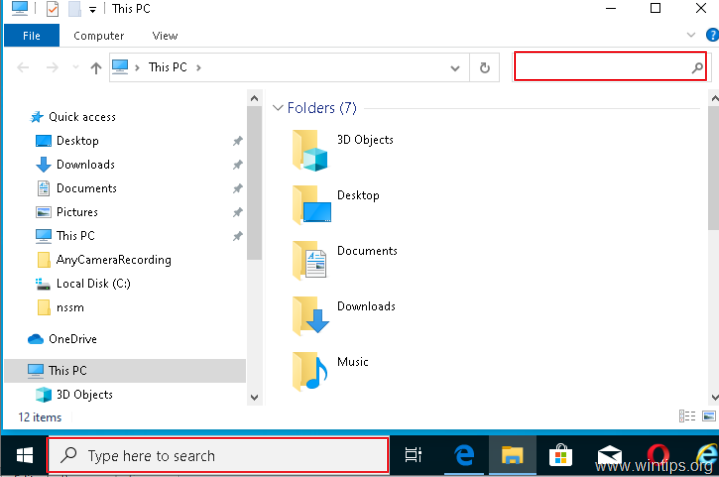
In this guide, you will find several methods to resolve the "Cannot type-search in Search Bar" issue in Windows 10.
How to FIX: Cannot Click to Type in Windows 10 Search bar. *
* Suggestions before proceeding to the methods below:
1. Install all available Windows Updates. To do that, navigate to Settings -> Update & security and click Check for Updates
2. If you cannot type in search bar, after installing an update, then proceed to uninstall it. To do that, go to Settings -> Update & security -> View Update History -> Uninstall Updates.
3. If you own Windows 10 v1903, download and install manually the KB4515384 update.
4. If you own Windows 10 v1909, download and install manually the KB4532695 update.
Method 1. Restart Windows Explorer & Cortana.
Method 2. Run 'CTF Loader' (ctfmon.exe).
Method 3. Re-register Modern Apps.
Method 4. FIX Windows corruption errors with DISM & SFC tools.
Method 5. Repair Windows 10 with an in-place Upgrade.
Method 1. Restart Windows Explorer & Cortana.
1. Press the CTRL + SHIFT + ESC keys to open the Task manager.
2. At Processes tab, highlight the Windows Explorer process and click Restart.
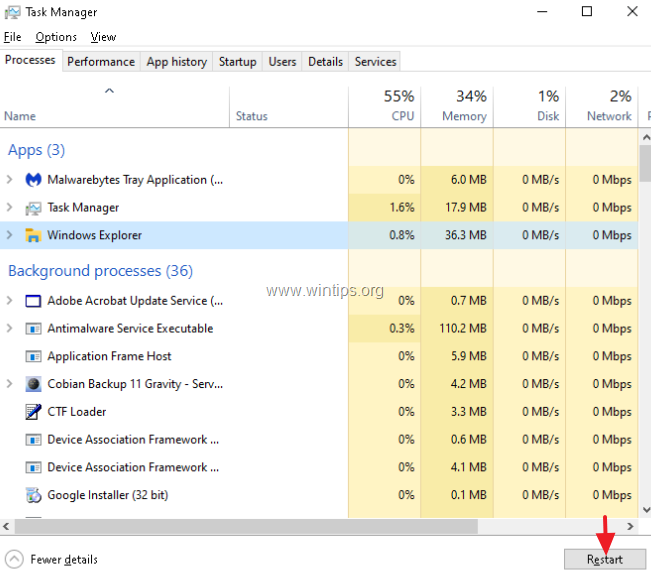
3. Now, right click at Search process and click End Task.
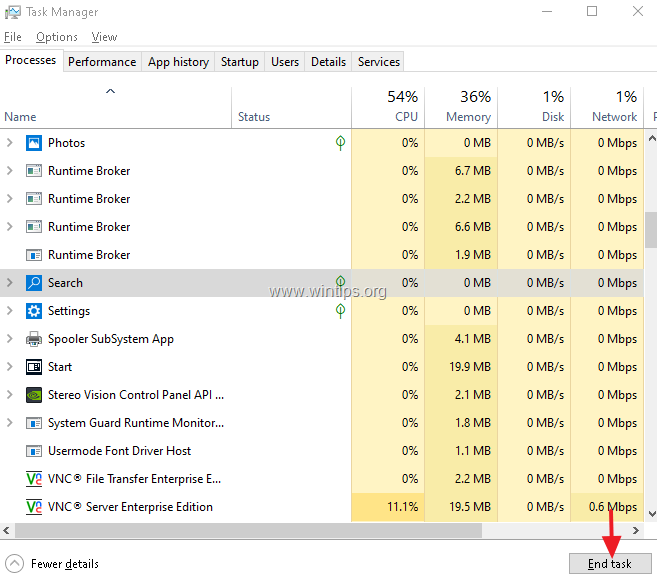
4. Now, try to type on the search bar.
Method 2. Run CTF Loader (ctfmon.exe).
The CTF Loader (ctfmon.exe), is a legitimate Windows process (ctfmon.exe), which controls the User Input and the Language bar. In some cases, the 'ctfmon.exe' process may not function properly and must be started again. To restart, the CTF Loader (ctfmon.exe) process:
1. Simultaneously press the Windows  + R keys to open run command box.
2. In run command box, copy paste the below command and press Enter:
- C:\Windows\system32\ctfmon.exe
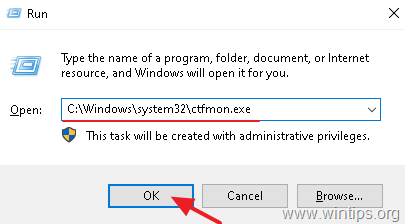
3. try to type on the search bar.
Method 3. Re-register Modern Apps.
1. Simultaneously press the Windows + R keys to open run command box.
2. Type powershell and then press CTRL + SHIFT + ENTER

3. Inside the Administrator PowerShell window, (copy &) paste the the following command & press Enter:
Get-AppXPackage | Foreach {Add-AppxPackage -DisableDevelopmentMode -Register "$($_.InstallLocation)\AppXManifest.xml"}

4. When the deployment operation process is completed, ignore any errors and close the PowerShell window.
5. Reboot your computer and then try to perform a search.
Method 4. FIX Windows corruption errors with DISM & SFC tools.
1. Open command prompt as administrator. To do that:
1. Open command prompt as administrator. To do that:
1. Simultaneously press the Windows
+ R keys to open the 'Run' command box
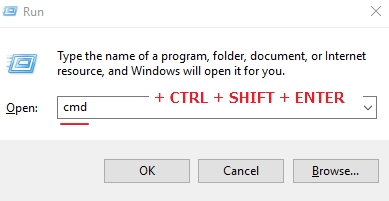
2. Type CMD and then press CTRL + SHIFT + ENTER to open an elevated command prompt.
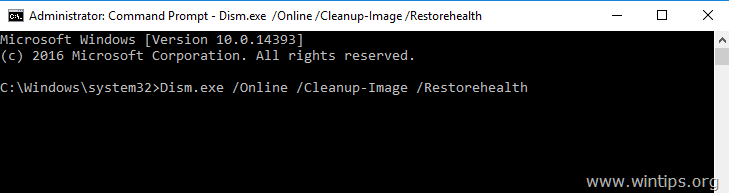
2. At the command prompt window, type the following command & press Enter:
- Dism.exe /Online /Cleanup-Image /Restorehealth
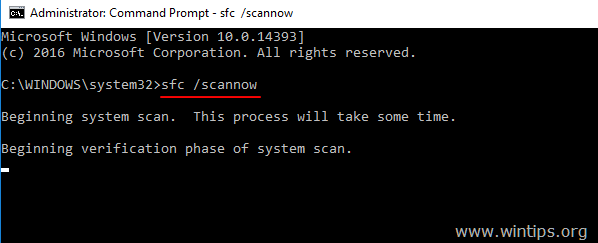
3. Be patient until DISM repairs component store. When the operation is completed, (you should be informed that the component store corruption was repaired), give this command and press Enter:
- SFC /SCANNOW
4. When SFC scan is completed, restart your computer.
Method 5. Repair Windows 10 with an in-place Upgrade.
The final method that usually works, to fix Windows 10 problems, is to perform a Windows 10 Repair-Upgrade, by using the detailed instructions on this article: How to repair Windows 10.
That's it! Which method worked for you?
Let me know if this guide has helped you by leaving your comment about your experience. Please like and share this guide to help others.


- Remote Desktop (RDP/RDS) Stops Working After September 2026 Windows Update: How to Fix - September 15, 2026
- Windows 11 KB5124008 Causes No Sound or USB Audio Code 10: How to Fix - September 14, 2026
- Copilot Missing or Grayed Out in Outlook: How to Fix - September 10, 2026




October 24, 2024 @ 9:58 pm
Tried everything I could find on the net without success until I found method 3 restored the function.
thank you.
GD
November 16, 2023 @ 9:08 am
Thank-you for your useful advice right at the beginning with solution # 1. It's not necessary to press the combination of shift, ctrl and esc if the Task Manager is in one's Task bar, so all that was required was to select Processes, then Windows Explorer, and from there Restart and voila! back in business. Thanks again from Stacey👧
August 17, 2023 @ 5:13 pm
Thank you.
C:\Windows\system32\ctfmon.exe worked for me. Has happened before…. wonder why it keeps happening
July 17, 2023 @ 5:01 pm
it was couple months I can't type any character in search bar windows 10, i cant type run,cmd, or anything. virtual keyboard didn't work as well as keypad. then I simply check the task manager and found SEARCH in Process tab and also SEARCH in Details tab which were suspended with leaf logo on it (eco mode/saving energy ???) and I chose END TASK. then I can type and search smoothly huhhuuu.
June 15, 2023 @ 1:01 am
thanks method 2 worked perfectly
May 4, 2023 @ 5:23 pm
method 2 works: God bless you
May 4, 2023 @ 5:32 am
Restart windows explorer work for me. Thank you
March 28, 2023 @ 3:33 am
thanks
I tries method 2 and working perfect
September 28, 2022 @ 4:11 pm
Thanks a lot. Method 2 [Run CTF Loader (ctfmon.exe).] worked for me.
September 27, 2022 @ 10:30 pm
Thank you so much! I was trying to fix this for so long!
September 4, 2022 @ 5:39 pm
Methode 2 works but only until the next restart. What to do to keep it even after the next restart. Your expertise is much appreciated, thanks.
Also tested all the other methodes but they are not retained by the system…
August 15, 2022 @ 1:49 pm
thanks alot the second method worked
July 9, 2022 @ 3:56 am
did all method 2 hit the spot, thank you
July 7, 2022 @ 9:07 pm
#3 works for me
June 6, 2022 @ 8:09 am
method 2 worked for me
June 4, 2022 @ 5:15 pm
I have another method
Start the "Touch Keyboard and Handwriting Panel Service"
on CMD
sc config "TabletInputService" start= auto
sc start "TabletInputService"
March 14, 2022 @ 6:48 pm
C:\Windows\system32\ctfmon.exe worked for me, thanks
January 26, 2022 @ 11:16 am
"Method 3. Re-register Modern Apps." worked for me
November 10, 2021 @ 11:40 pm
2# worked perfectly for me. Thanks
November 10, 2021 @ 3:52 pm
Tried #3, worked beautifully, thanks!
October 17, 2021 @ 2:41 pm
I tried #2 first and worked immediately. Thank you.
October 9, 2021 @ 1:07 pm
Apply all methods and only the last one works, thank you
August 27, 2021 @ 5:03 am
Working on trying Fix #4. 1, 2, and 3 did not work for me. Will update if #4 works and if it does not, I am on to Fix #5
August 26, 2021 @ 7:23 pm
Method 3 to Re-register Modern Apps. was the solution that worked for me after trying several solutions. Thanks for sharing.
July 29, 2021 @ 6:54 am
Thanks, man.
I tried Method 2 and t worked for me on the first try.
July 25, 2021 @ 1:07 am
I had to reset CTFmon.exe, thank you very much
July 22, 2021 @ 10:08 pm
Yay step 2 worked for me .. ! It was really getting frustrating for me.
Thank you so much for your help !!!
July 15, 2021 @ 12:04 pm
Method #2 worked thanks very much
September 11, 2021 @ 4:49 pm
If the problem Comes again, You could copy the cftmon File into shell:startup and it will run upon startup.
July 6, 2021 @ 4:08 pm
In Method 1, there was no Search process present.
Method 2 did not bring it back, but it was working again after Method 3, maybe from the reboot,
I did Method 4 anyway, as that is what I wanted to do in the first place, only to find I couldn’t use the search box in the first place 😛
DISM reported ‘The restore operation completed successfully’ but did not mention any corruption.
SFC /scannow did find corrupt files, and successfully repaired them.
June 24, 2021 @ 5:04 am
thank you so much. its fixed.
June 22, 2021 @ 9:18 pm
Method 3 worked for me thank you!
June 20, 2021 @ 11:09 am
#2 method works for me, thank alot!
June 17, 2021 @ 5:49 am
Thank you. Number 2 worked for me.
June 17, 2021 @ 12:01 am
Method 2 is really legit. Tried it once and it worked
June 9, 2021 @ 11:52 am
Thanks. method 2 worked for me
June 3, 2021 @ 12:29 pm
Method 2. Run CTF Loader (ctfmon.exe). worked perfectly for me!
January 31, 2021 @ 11:41 pm
I did method 3, rebooted. Then did method 2 then it fixed it.
Trying method 2 did not work for me in till I did method 3.
February 1, 2021 @ 9:48 pm
This problem will apear again btw but will be fixed by doing the same thing again. Microsoft needs to fix this because the latest update caused this for me.
July 4, 2021 @ 1:49 pm
Yes. When I restart my windows I need to do this ways again.
September 26, 2021 @ 12:10 am
This is this exact same thing that happen to me! Thank you for mentioning that Method #2 did not work until doing Method #3.
January 25, 2021 @ 8:37 pm
Went down the list one at a time. Method 2 did work, but only for the current session. Method 5 was the only one that produced a permanent solution. Thanks.
January 20, 2021 @ 12:41 am
Step 2 worked for me, thank you :)
January 18, 2021 @ 3:46 pm
Method 2: instant happiness and stupidly simple
January 16, 2021 @ 8:15 am
Method #2 worked perfectly! Shukran.
November 27, 2020 @ 3:56 pm
Method 2 work smoothly for me, thank you for sharing all this!
September 27, 2020 @ 8:49 pm
Method 3 worked for me. Thank you!
September 24, 2020 @ 11:04 pm
Option 1 and 2 did not work, but #3 did. Thanks!
September 21, 2020 @ 4:53 am
#3 work..
thanks a lot.
September 20, 2020 @ 4:16 pm
Method 3 worked for me
June 12, 2020 @ 8:30 pm
#2!
Thanks for this!
Cheers!
April 17, 2020 @ 4:39 pm
Neither the Search Bar nor left click on start button worked. Uninstalled HP Sure Click. Back in business.
February 8, 2020 @ 8:41 am
Hi.
Thank you for material.
About "Method 4. FIX Windows corruption errors with DISM & SFC tools.":
You write: "1. In the Search box type: cmd or command prompt".
Its in troubleshoot article about don't work SEARCH BOX.
:-)
February 8, 2020 @ 1:51 pm
You're right! Article updated. Thanks…
February 9, 2020 @ 9:55 pm
Hi.
Thank you for reply.