How to Stop Windows 11 from Downgrading GPU Drivers.
In this guide, you will learn how to prevent Windows Update from automatically downgrading GPU drivers or installing drivers in Windows 11.
One of the most frustrating issues in Windows 11 is when Windows Update automatically installs an older graphics driver after you have manually installed a newer version. This issue affects graphics drivers from AMD, NVIDIA, and Intel, and was officially acknowledged by Microsoft on May 12, 2026 (read the full post here).
Why does Windows 11 keep installing old GPU drivers?
Currently, Windows Update uses a broad 4-Part Hardware ID targeting system for display drivers. This can lead to Windows automatically replacing a newer graphics driver with an older version that it considers a better match, even if the user has manually installed the newer driver. As a result, many users experience unwanted display driver downgrades. Microsoft has initiated a pilot program (April-September 2026) to address this issue, but until the fix is released globally in 2027, you can manually resolve the issue by following the methods below.
How to Prevent Windows Update from Automatically Installing Drivers in Windows 11/10.
- Prevent Windows 11 from Installing a Specific Device Driver using Microsoft's "Show or Hide updates" tool.
- Prevent Windows 11 from Installing a Specific Device Driver using Group Policy or Registry.
- Prevent Windows 11 from Installing Drivers via System Properties.
- Block All Driver Updates in Windows 11 Using Group Policy.
- Block All Driver Updates in Windows 11 Using Registry.
* Info: Methods 1 & 2 only blocks automatic driver installation for a specific device (e.g., a GPU), while Methods 3, 4, and 5 can be used to prevent Windows Update from automatically installing drivers for all devices.
Method 1: Use Windows Update Show/Hide Tool
Microsoft provides a tool called "Show or Hide Updates" that can be used to prevent certain updates from being installed automatically. This tool can be particularly useful for blocking unwanted driver updates.
1. Download the "Show or Hide Updates" troubleshooter from Microsoft's official website.
2. Run the tool, select Hide Updates and then hide the specific driver update you want to block.
This method offers a user-friendly interface to selectively block updates without diving into system settings or registry changes.
Method 2. Prevent Windows Update from Installing Older Graphics Drivers Using the GPU Hardware ID.
If you want to block automatic driver installation for a specific device — such as your graphics card — follow the steps below:
* Note: The instructions can be used to block driver updates for any specific device.
Step 1. Find the Hardware ID of the device.
1. In the Search type "device manager" and press Enter.
2. In Device Manager expand Display adapters.
3. Right-click on your graphics adapter and choose Properties.
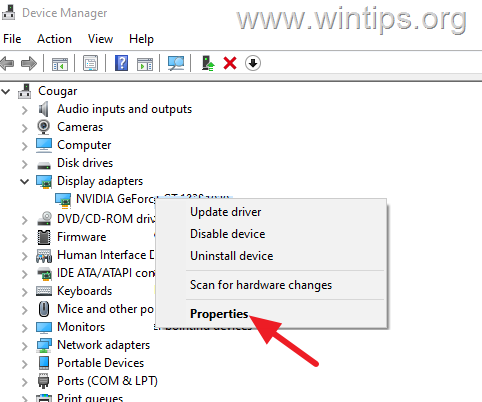
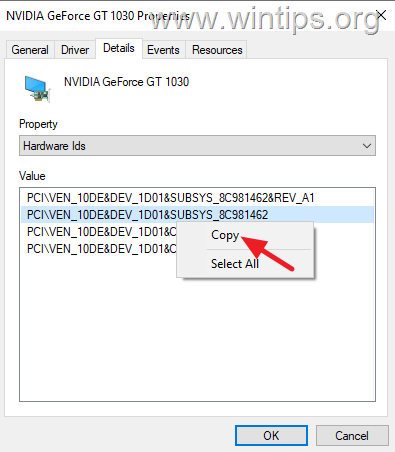
4. Select the Details tab, and then choose Hardware Ids from the Property drop-down menu.
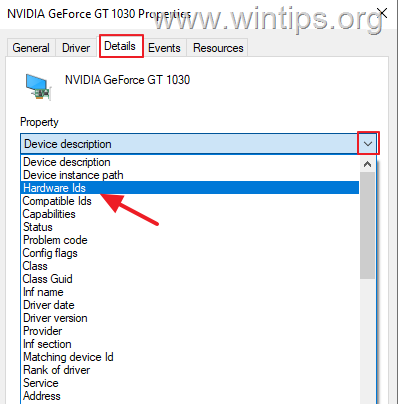
5. Copy the second hardware id (which is more generic) in notepad and continue to the next step.
Step 2. Block Specific Device Driver Installation using Group Policy or Registry.
Now, depending on your Windows edition (Home or Pro), follow the corresponding instructions below:
A. Windows 11/10 Pro: Prevent Windows Update from installing drivers for a specific device using the device's Hardware ID via Group Policy.
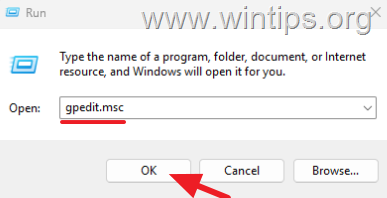
1. Press the Windows + R keys, type "gpedit.msc" in the 'Run' box and press Enter to open the Local Group Policy Editor.
2. In Group Policy Editor, navigate to:
-
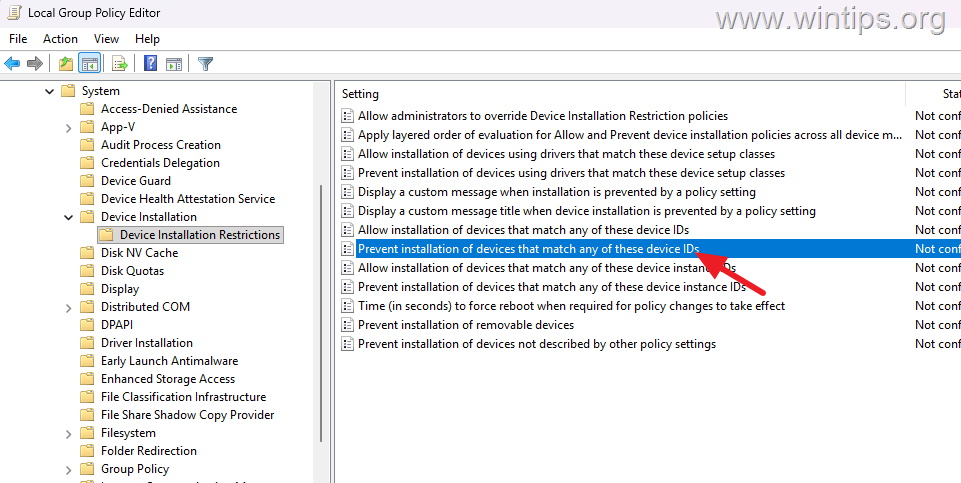
Computer Configuration > Administrative Templates > System > Device Installation > Device Installation Restrictions.
3. In the right pane, open the Prevent installation of devices that match any of these device IDs policy to edit it.
4. Set the policy to Enabled and then click Show.
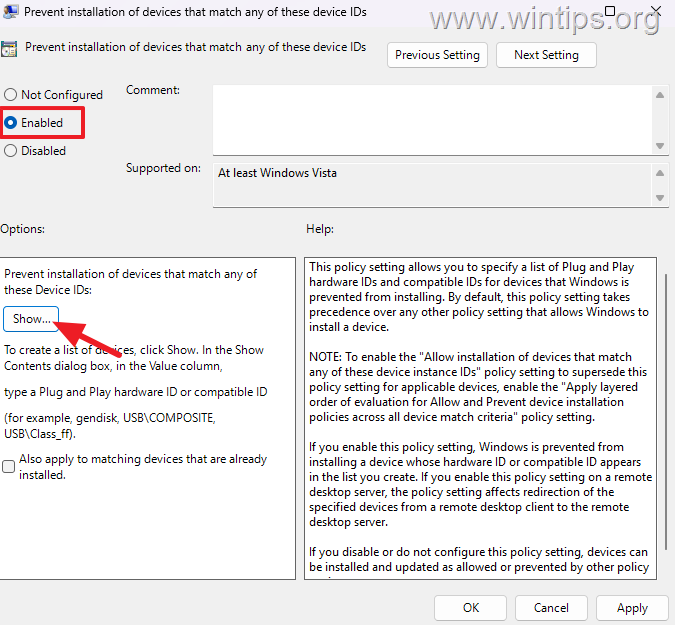
5. Here, paste the copied hardware id and click OK.
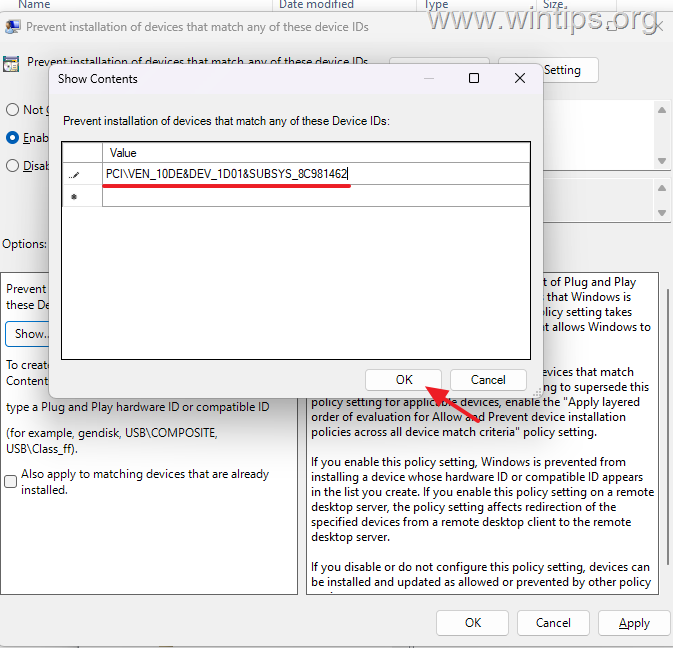
6. Click OK again to save the change, then close the Group Policy Editor and restart the computer to apply the change.
B. Windows 11/10 Home or Pro: Prevent Windows Update from installing drivers for a specific device by Hardware ID using the Registry Editor.
* Important: Since making changes to Registry settings is risky because even a small mistake can lead to system damage, it is important to back up the registry before modifying it & to create a System Restore point.
1. Open Command Prompt as Administrator and issue these commands:
reg add "HKLM\SOFTWARE\Policies\Microsoft\Windows\DeviceInstall\Restrictions" /f /v DenyDeviceIDs /t REG_DWORD /d 1reg add "HKLM\SOFTWARE\Policies\Microsoft\Windows\DeviceInstall\Restrictions" /f /v DenyDeviceIDsRetroactive /t REG_DWORD /d 0
2. Then run the following command, replacing "hardware-id" with the Hardware ID you copied earlier.
reg add "HKLM\SOFTWARE\Policies\Microsoft\Windows\DeviceInstall\Restrictions\DenyDeviceIDs" /f /v 1 /t REG_SZ /d "hardware-id"
* For example:
reg add "HKLM\SOFTWARE\Policies\Microsoft\Windows\DeviceInstall\Restrictions\DenyDeviceIDs" /f /v 1 /t REG_SZ /d "PCI\\VEN_10DE&DEV_1D01&SUBSYS_8C981462"
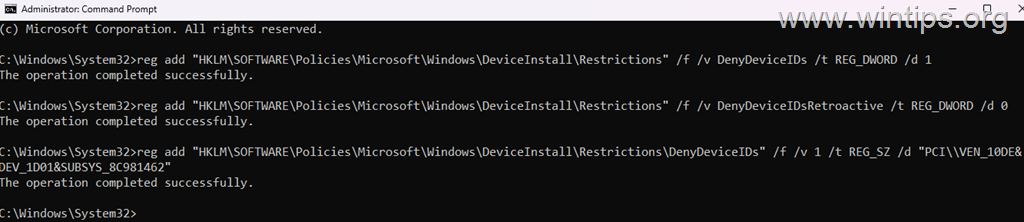
3. Restart the computer to apply the changes.
* Note: to undo the above changes in the registry, issue the command below and then restart the computer:
-
reg delete "HKLM\SOFTWARE\Policies\Microsoft\Windows\DeviceInstall" /f
Method 3. Prevent Windows from Automatically Installing Driver for All Devices via System Properties
* Note: This method may not always work reliably. For a more permanent solution, follow the instructions in Methods 1, 3, or 4.
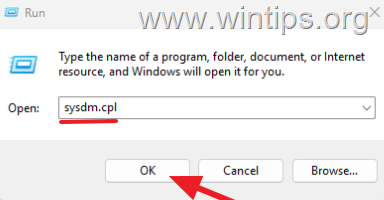
1 . Press the Windows + R keys to open the Run command box, type "sysdm.cpl" and press Enter.
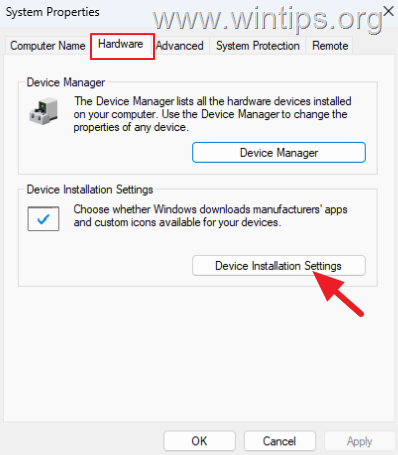
2. Select the Hardware tab and then open the Device Installation Settings.
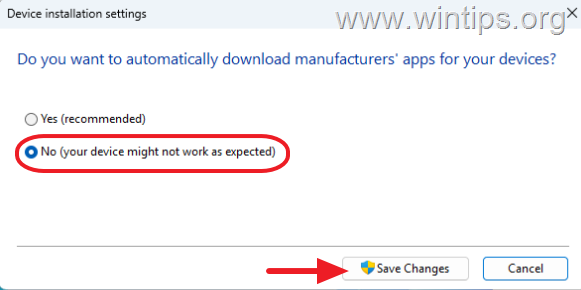
3. At the Device Installation Settings prompt "Do you want to automatically download manufacturers apps for your devices?”, select No (your device might not work as expected) and then click Save Changes.
Method 4. Disable All Driver Updates via Group Policy (Windows 11/10 PRO)
If you're using Windows 11/10 Pro, follow the steps below to prevent Windows Update from automatically installing drivers for all devices using Group Policy:
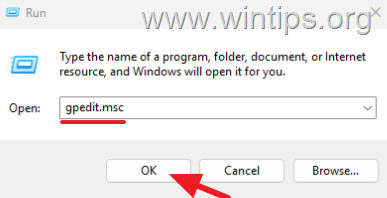
1. Press the Windows + R keys, type "gpedit.msc" in the 'Run' box and press Enter to open the Local Group Policy Editor.
2. In Group Policy Editor, navigate to:
-
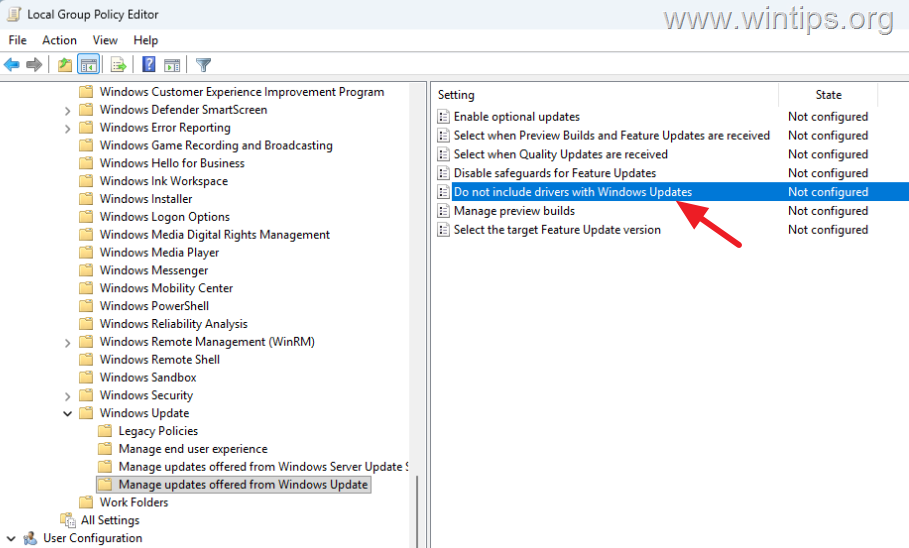
Computer Configuration > Administrative Templates > Windows Components > Windows Update > Manage updates offered from Windows Update.
3. In the right pane open the Do not include drivers with Windows Updates policy to edit it.
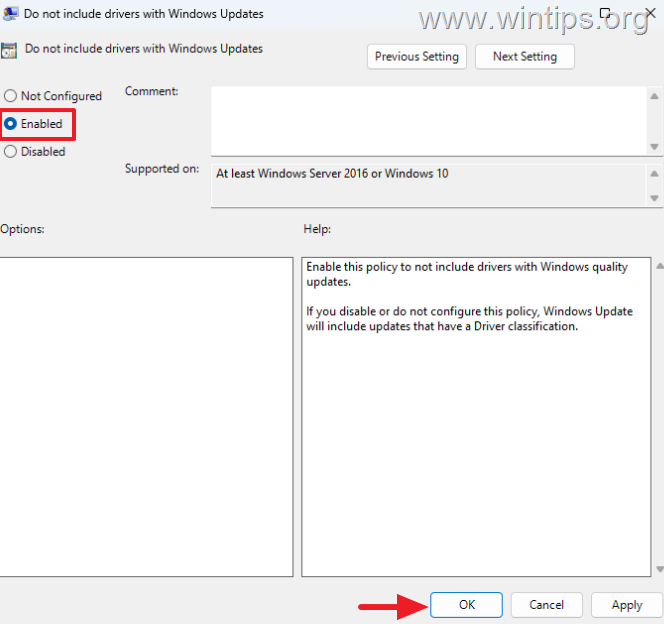
4. Set the policy to Enabled and then click Apply > OK to not include drivers with Windows quality updates.
Method 5. Disable Driver Updates via Registry (Windows 11/10 Home & Pro)
Windows 11/10 Home or Pro users can prevent Windows Update from automatically installing new device drivers -for all devices- by using the Windows Registry Editor.
To block all driver updates through the registry, you can use one of the following ways:
* Important: Since making changes to Registry settings is risky because even a small mistake can lead to system damage, it is important to back up the registry before modifying it & to create a System Restore point.
A. Block All Driver Updates using Command Prompt:
1. Open Command Prompt as Administrator and issue the following commands in order (press Enter after each command):
reg add HKLM\SOFTWARE\Policies\Microsoft\Windows\WindowsUpdate /f /v ExcludeWUDriversInQualityUpdate /t REG_DWORD /d 0x00000001reg add HKLM\SOFTWARE\Microsoft\Windows\CurrentVersion\DriverSearching /f /v SearchOrderConfig /t REG_DWORD /d 0x00000000reg add HKLM\SOFTWARE\Microsoft\WindowsUpdate\UpdatePolicy\PolicyState /f /v ExcludeWUDrivers /t REG_DWORD /d 0x00000001
2. Restart your computer to apply the changes
B. Turn Off Automatic Device Driver Installation for All Devices Using PowerShell.
1. Open PowerShell as Administrator and issue the following commands in order (press Enter after each command):
New-Item -Path "HKLM:\SOFTWARE\Policies\Microsoft\Windows\WindowsUpdate" -Force; New-ItemProperty -Path "HKLM:\SOFTWARE\Policies\Microsoft\Windows\WindowsUpdate" -Name "ExcludeWUDriversInQualityUpdate" -PropertyType DWord -Value 1 -ForceNew-ItemProperty -Path "HKLM:\SOFTWARE\Microsoft\Windows\CurrentVersion\DriverSearching" -Name "SearchOrderConfig" -PropertyType DWord -Value 0 -ForceNew-ItemProperty -Path "HKLM:\SOFTWARE\Microsoft\WindowsUpdate\UpdatePolicy\PolicyState" -Name "ExcludeWUDrivers" -PropertyType DWord -Value 1 -Force
2. Restart your computer to apply the changes
C. Prevent All Driver Updates through the Registry Editor.
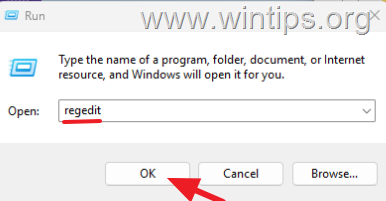
1. Press the Windows + R keys, type "regedit" in the 'Run' box and press Enter to open the Windows Registry Editor.
2. In Registry Editor, navigate to the following key:
HKEY_LOCAL_MACHINE\SOFTWARE\Policies\Microsoft\Windows
3. Right-click on Windows key and select New > Key
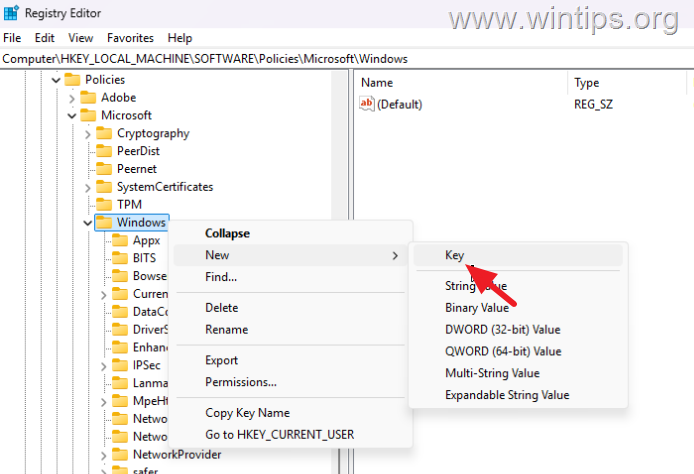
4. Rename the new key to "WindowsUpdate" and press Enter.
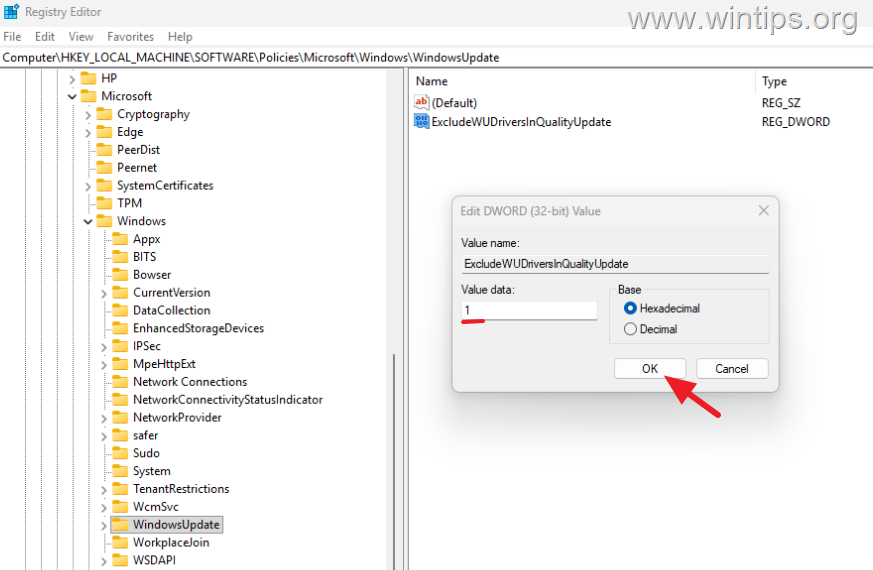
5. Now, right-click on WindowsUpdate key and select New > DWORD (32-bit) Value.
6. Rename the new value to "ExcludeWUDriversInQualityUpdate" and press Enter.
7 Double-click the newly created value, set its Value data to "1" and click OK.
8. Now navigate to this key:
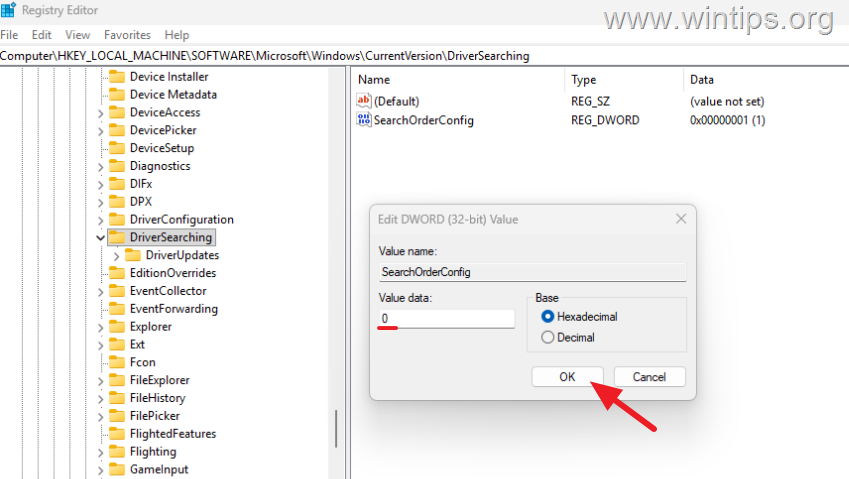
HKEY_LOCAL_MACHINE\SOFTWARE\Microsoft\Windows\CurrentVersion\DriverSearching
9. Right-click on DriverSearching key and create a new DWORD (32-bit) Value with name "SearchOrderConfig" and set its Value data to "0"
10. Finally, navigate to this key:
HKEY_LOCAL_MACHINE\SOFTWARE\Microsoft\WindowsUpdate\UpdatePolicy\PolicyState
11. Right-click on PolicyState key and create a new DWORD (32-bit) Value with name "ExcludeWUDrivers" and set its Value data to "1"
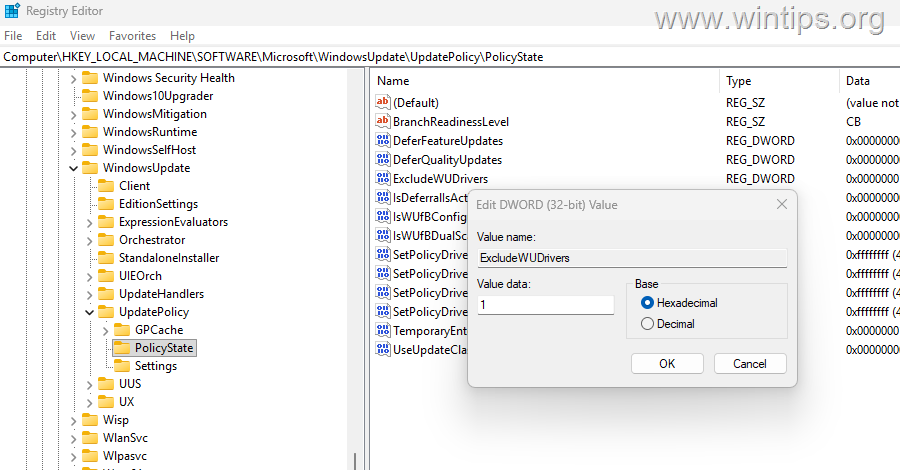
12. Close Registry Editor and restart the computer to apply the changes.
* Note: To undo the above changes in the registry, issue the following 3 commands as administrator and restart the computer:
reg delete HKLM\SOFTWARE\Policies\Microsoft\Windows\WindowsUpdate /f /v ExcludeWUDriversInQualityUpdatereg add HKLM\SOFTWARE\Microsoft\Windows\CurrentVersion\DriverSearching /f /v SearchOrderConfig /t REG_DWORD /d 0x00000001reg delete HKLM\SOFTWARE\Microsoft\WindowsUpdate\UpdatePolicy\PolicyState /f /v ExcludeWUDrivers
Summary
In summary, Windows 11 users can prevent automatic GPU driver downgrades by using several methods. These include blocking specific device drivers using Group Policy or Registry Editor, preventing all driver updates via System Properties, and using the Windows Update Show/Hide Tool. Each method offers a different level of control, allowing users to choose the best approach for their needs.
That's it! Which method worked for you?
Let me know if this guide has helped you by leaving your comment about your experience. Please like and share this guide to help others.
Frequently Asked Questions
Why does Windows 11 keep installing old GPU drivers?
Windows 11 uses a broad 4-Part Hardware ID targeting system for display drivers, which may lead to Windows automatically replacing newer graphics drivers with older versions. This happens because the system considers the older version a better match, causing unwanted downgrades.
How can I prevent Windows Update from installing older graphics drivers automatically?
You can prevent Windows Update from installing older graphics drivers by using one of several methods: blocking updates for devices via System Properties, using Group Policy, or editing the Registry to block updates for a specific device or for all devices.
Is it possible to block updates only for specific devices like my GPU?
Yes, you can block updates for a specific device like your GPU by using its Hardware ID. This can be done through Group Policy Editor in Windows Pro editions or by editing the Registry in Windows Home or Pro editions.
What precautions should I take before editing the Registry to block driver updates?
Before editing the Registry, it's crucial to back up the registry and create a System Restore point, as changes to the Registry can cause system damage if done incorrectly.


- How to Fix Windows 11 Update Error 0x80073712 - October 5, 2026
- How to Install Windows 11 26H2 on Unsupported Hardware - October 2, 2026
- How to Install Windows 11 version 26H2 - October 2, 2026