
How to Block YouTube Channels in Chrome & Firefox.
This tutorial contains instructions on how you can block YouTube channels in case you are interested. The instructions can be useful especially if you have children and you do not want to watch videos on YouTube that contains pornography, adult or other unwanted content or if you want to block a particular YouTube channel for any other reason.
As you already know, YouTube doesn't give users the option to block certain YouTube channels from appearing. The only security setting that YouTube offers is the "Restricted Mode",* which gives you the ability to hide videos which are flagged by other users as inappropriate content (adult, violence, etc.). So, if you want to block a YouTube video or channel continue reading below…
* To enable the Restricted Mode on YouTube:
1. Navigate to YouTube website.
2. Click at your profile picture, or at the three dotsmenu and click Restricted Mode: Off


3. Toggle ACTIVATE RESTRICTED MODE to ON.
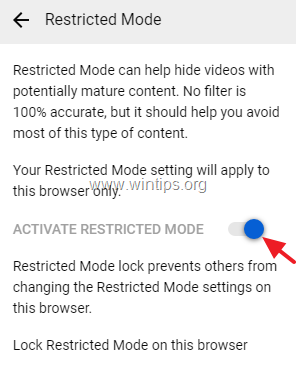
How to Block YouTube Videos or Channels in Chrome or Firefox.
The only way to filter and block unwanted YouTube channels, is to install a YouTube Video Blocker extension in your browser. For that task, you can use one of the extensions below:
How to Block YouTube Videos & Channels with BlockTube.
1. Download and install BlockTube* extension in your web browser.
* By using the BlockTube extension you'll be able to:
- Block videos via: Video Title / Channel Name / Channel ID / Video ID
- Block comments via User / Comment content
- Block videos within YouTube using context menus
- Block complete channels

2. After installing the 'BlockTube' extension, restart your browser.
3. Now if you want to block a particular YouTube channel:
1. Highlight the Channel Name or the Channel ID on the address bar and then right click on it and choose Copy.

2. Click on BlockTube icon
at the right end of the address bar.
3. Paste the channel name (or the Channel ID) into the corresponding field of the BlockTube filter options.

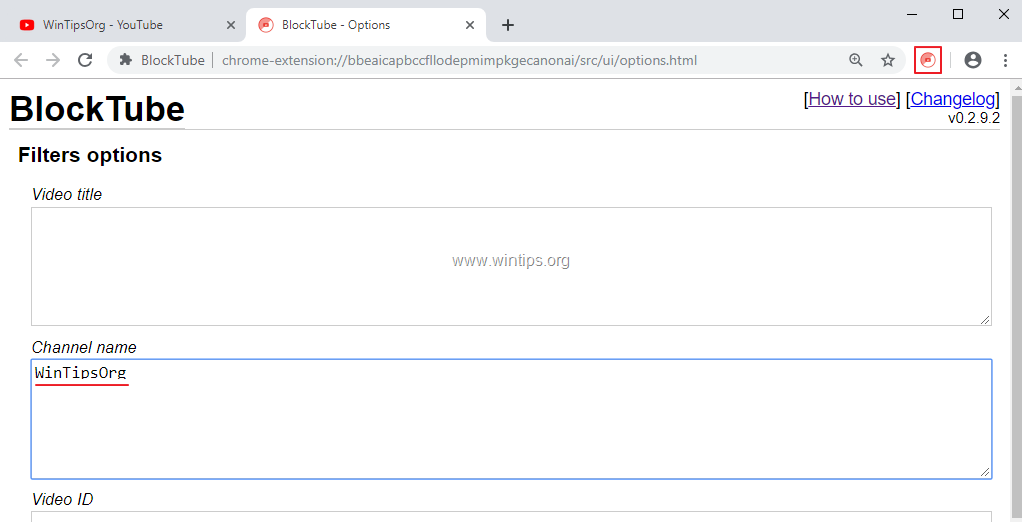
4. When done, scroll down to Other options, type a password to protect your restriction settings from being modified and click Save.

5. That's it!
How to use Video Blocker to Block a YouTube Channel
1. Download and install VideoBlocker* extension in your web browser.
* By using the Video Blocker add-on you'll be able to:
- Block all videos from channels specified by you.
- Block groups of channels by using wildcards.
- Block videos by keywords in their titles.

2. After installation restart your browser.
3. Now if you want to block a YouTube channel with Video Blocker:
1. Highlight the channel name and then right-click and select Copy.

2. Click the Video Blocker icon
at the right end of the address bar.
3. Right-click and Paste (or you can type it manually) the channel name of the YouTube channel that you want to block and the Add button.

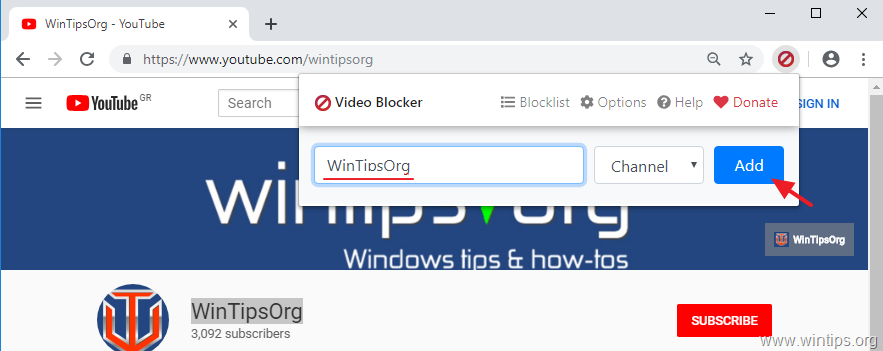
4. You 're done. From now on, all videos from that channel will be blocked. *
* Notes:
1. If you want to protect your blocking settings from unwanted modifications, then:
1. Click the Video Blocker icon

2. At Security options, specify a password and click Set Password.

2. If you want to remove a blocked YouTube channel from the block list, then:
1. Click the Video Blocker icon

2. Click Remove next to the channel that you want to unblock.

You 're done! Let me know if this guide has helped you by leaving your comment about your experience. Please like and share this guide to help others.


- Always On VPN Stuck on Connecting After KB5124008 Update: How to Fix - September 24, 2026
- How to Disable Passkey Prompts and Delay Enforcement in Microsoft 365 - September 24, 2026
- Remote Desktop (RDP/RDS) Stops Working After September 2026 Windows Update: How to Fix - September 15, 2026




October 2, 2018 @ 8:05 pm
as an opra user, i can say there is no video blocker anymore for opera. really should update your article.