
How to Fix CapabilityAccessManager.db-wal Taking up Huge Disk Space on Windows 11.
This guide explains what the Capability Access Manager is, why its database file (CapabilityAccessManager.db-wal) can grow too large, taking up many gigabytes of disk space, and how you can safely fix high disk usage without harming your computer.Many Windows 11 users have discovered a huge multi-gigabyte file called "CapabilityAccessManager.db-wal" consuming storage space. In some cases, this file can exceed 100GB, leading to "Low Disk Space" warnings and severe system lag.
What Is CapabilityAccessManager.db-wal?
The CapabilityAccessManager.db-wal file is a database created by the Windows Capability Access Manager service (camsvc), which manages application permissions and logs app requests to access privacy-sensitive resources such as the camera, microphone, and location in Windows 11.
The CapabilityAccessManager.db-wal file is usually located at:
C:\ProgramData\Microsoft\Windows\CapabilityAccessManager\CapabilityAccessManager.db-wal
Why is the CapabilityAccessManager.db-wal file getting so large in size?
Normally, the CapabilityAccessManager.db-wal file should stay relatively small (usually under 100 MB). However, a known bug in Windows 11 24H2 and 25H2 can cause the Capability Access Manager (camsvc) service to enter a continuous loop and repeatedly write entries to the log file, resulting in excessive disk usage and an abnormally large WAL file.
How to Fix CapabilityAccessManager High Disk Usage in Windows 11.
To reclaim the disk space used by the CapabilityAccessManager.db-wal database file, you must delete it using one of the methods below so that Windows can recreate it from scratch.
Method 1. Delete CapabilityAccessManager.db-wal in WinRE Command Prompt.*
* Info: Because the CapabilityAccessManager.db-wal file is used by the system, it cannot be deleted while Windows is running in Normal Mode.
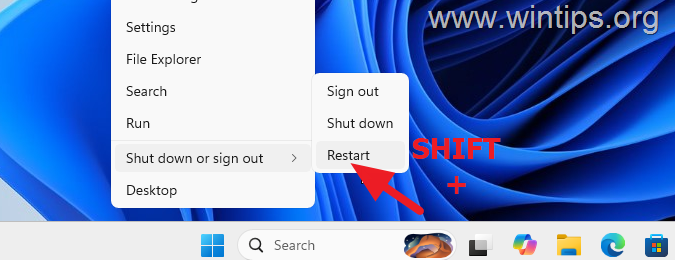
1. While holding down the SHIFT key on your keyboard, right-click on the Start menu and then click the Restart option.
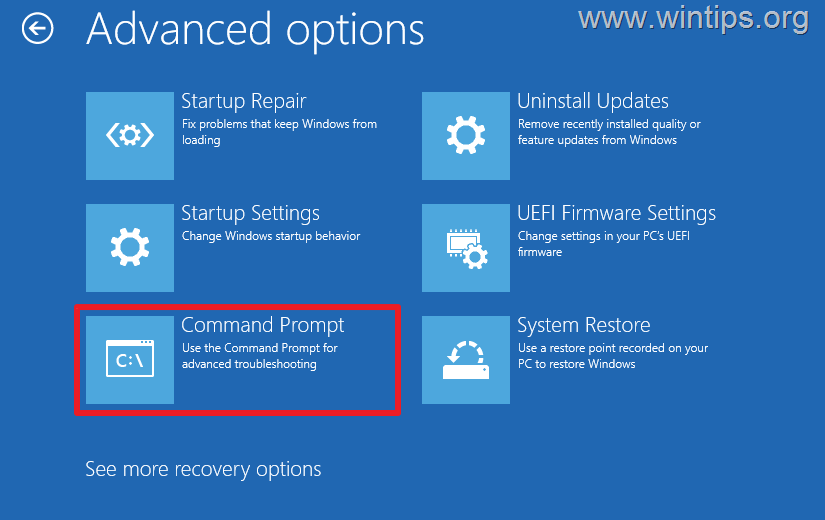
2. After restarting, go to Troubleshoot > Advanced options > Command Prompt.
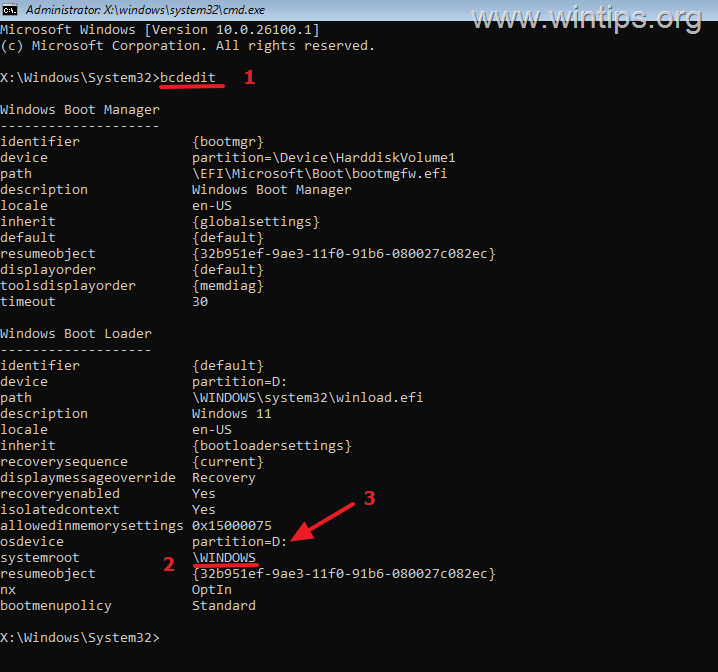
3a. In Command Prompt type the following command, then press Enter:
- bcdedit
3b. Identify the drive letter of the partition where Windows are installed (for example, D: in this case).
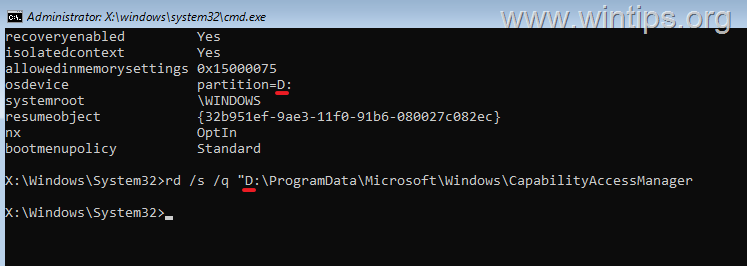
3. Now type the following command, replacing Z: with the drive letter of the Windows installation drive (e.g. D: in this example) to delete the CapabilityAccessManager folder:
rd /s /q "Z:\ProgramData\Microsoft\Windows\CapabilityAccessManager"
4. Close Command Prompt windows and click Continue to exit and start Windows normally.
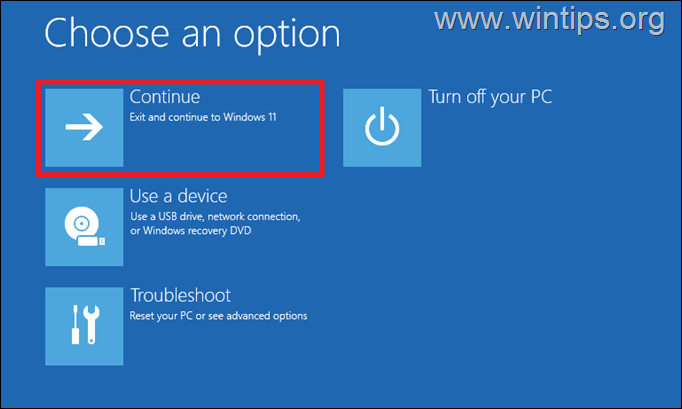
5. At this point, you're done! If you experience Wi-Fi or other problems after performing the steps above, or if you notice after a few days that the database size continues to grow rapidly, read the Additional Help section below.
Method 2. Delete CapabilityAccessManager.db-wal in Safe Mode.*
* Info: Because the CapabilityAccessManager.db-wal file is used by the system, it cannot be deleted while Windows is running in Normal Mode.
1. While holding down the SHIFT key on your keyboard, right-click on the Start menu and then click the Restart option.
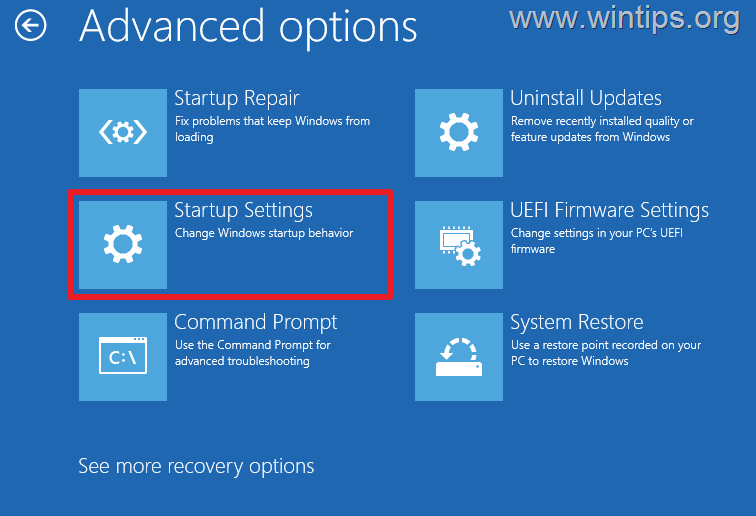
2. After restarting, go to Troubleshoot > Advanced options > Startup Settings and click Restart.
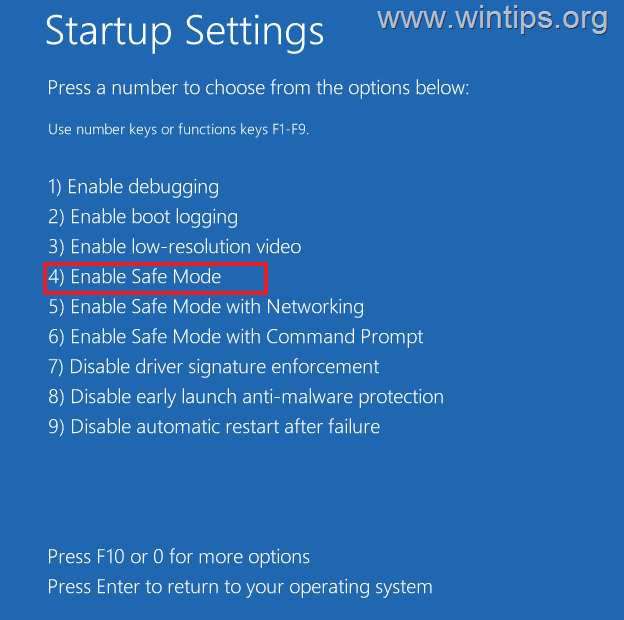
3. Then press "4" or "F4" to enter Safe Mode.
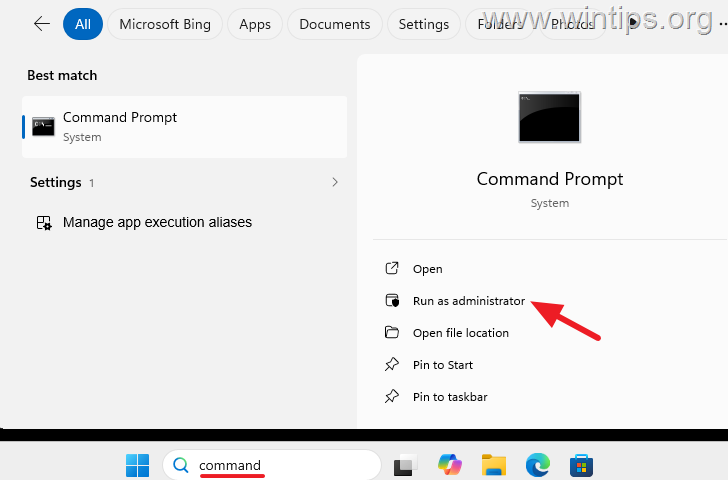
4. Once in Safe mode, open Command Prompt as Administrator. (To do this, type "command" in Search and then select Run as Administrator in the first result.)
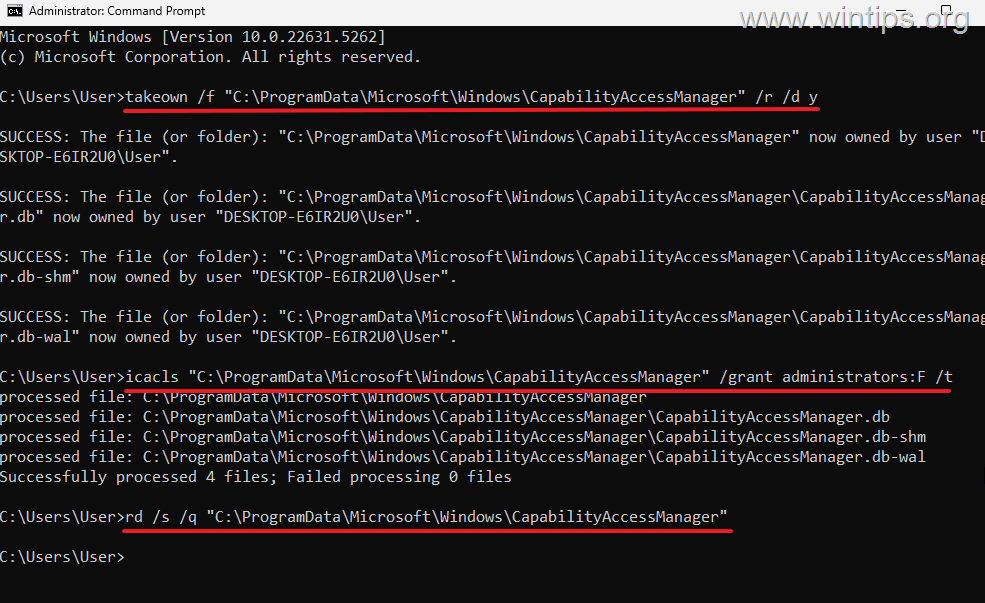
5. In the command prompt, type the below commands in order to take ownership, grant permissions, and completely delete the CapabilityAccessManager folder (press Enter after typing each command).
takeown /f "C:\ProgramData\Microsoft\Windows\CapabilityAccessManager" /r /d yicacls "C:\ProgramData\Microsoft\Windows\CapabilityAccessManager" /grant administrators:F /trd /s /q "C:\ProgramData\Microsoft\Windows\CapabilityAccessManager"
6. Restart the computer to boot to Windows normally and you're done! *
* Note: If you encounter Wi-Fi or other system issues after applying the steps above, or if the database file starts growing rapidly again after a few days, continue reading the Additional Help section below for further troubleshooting steps.
Additional Help.
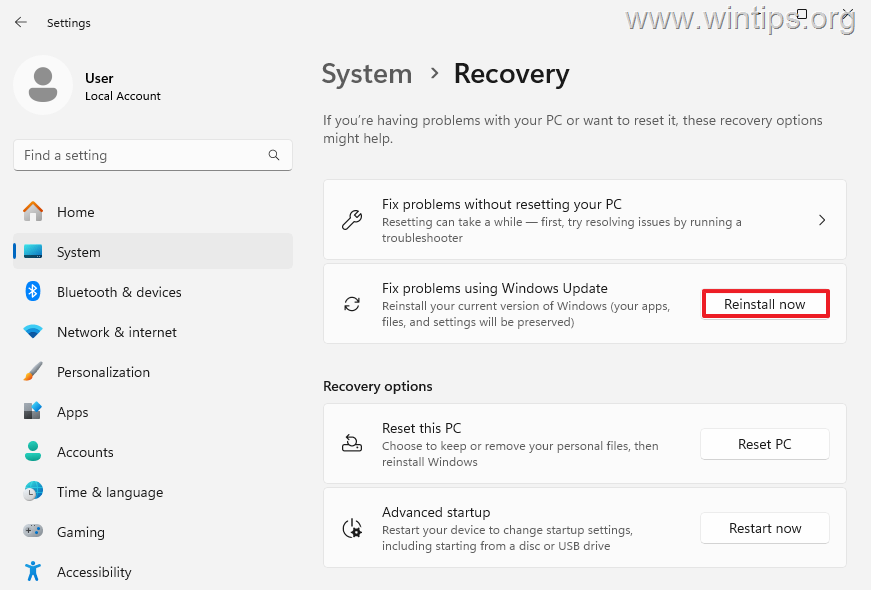
1. Some users reported that after deleting the "CapabilityAccessManager" folder, Wi-Fi does not work (cannot detect available wireless networks). To fix this problem:
- Navigate to Start > Settings > System > Recovery and next to Fix problems using Windows Update, click Reinstall now. Finally, click OK to repair Windows without losing files and settings.
2. For DELL users: If, after following the steps above, you notice that the size of the CapabilityAccessManager folder starts growing rapidly again after a few days, check whether the Dell SmartByte application is installed on your computer, as it is known to cause this issue.
If so, uninstall SmartByte from both Programs and Features in Control Panel and the Installed Apps section in Windows Settings. Once SmartByte is removed, check if the size of CapabilityAccessManager.db-wal has stopped growing.
* Info: SmartByte is a preinstalled application from Dell that automatically detects browsing or video streaming activity and prioritizes the available Internet connection for the activity.
3. Update Windows: Ensure your Windows 11 system is up to date. Microsoft periodically releases updates that may contain bug fixes for issues like the one affecting the Capability Access Manager. Check for updates by navigating to Settings > Update & Security > Windows Update and clicking Check for updates.
Summary
In this guide, we explored various methods to address the issue of the CapabilityAccessManager.db-wal file consuming excessive disk space on Windows 11. We covered techniques such as deleting the file in Safe Mode and using the WinRE Command Prompt. Additionally, we discussed troubleshooting steps if you encounter issues with Wi-Fi or other system components. Updating Windows is also a reliable solution to prevent the problem from recurring.
That's it! Which method worked for you? Let me know if this guide has helped you by leaving your comment about your experience. Please like and share this guide to help others.
Frequently Asked Questions
What is CapabilityAccessManager.db-wal and why is it so large?
The CapabilityAccessManager.db-wal is a database file created by the Windows Capability Access Manager service (camsvc) to log app requests for accessing privacy-sensitive resources. Its large size, sometimes exceeding 100GB, is due to a bug in Windows 11 24H2 and 25H2 causing a loop that excessively writes to the file.
How can I reduce the size of the CapabilityAccessManager.db-wal file?
To reduce the size of CapabilityAccessManager.db-wal, you can safely delete it by booting into Safe Mode or using the WinRE Command Prompt. Detailed steps include using commands to remove the file and allow Windows to recreate it.
What if my Wi-Fi stops working after deleting CapabilityAccessManager.db-wal?
If Wi-Fi issues arise after deletion, navigate to Start > Settings > System > Recovery. Click on 'Fix problems using Windows Update' and then 'Reinstall now' to repair Windows without losing files.
Why might the CapabilityAccessManager.db-wal file grow again after deletion?
If the database file starts growing rapidly again, it's likely due to the persistent bug in Windows 11. Consider looking at the Additional Help section or check if system updates are available to resolve ongoing issues.



June 20, 2026 @ 11:04 pm
Let me start off by saying: "I would be arrested for impersonating a computer technician!" After spending way too many hours using ai to analyze the disc space issue (db-wal reached 89 GB) until my free disc space was zero, I did a search the file type and found this article. I copied it into ai and asked its opinion. It thought it was worth a try. About fifteen minutes later I had 91 GB of free space and the db-wal file went from 89 GB down to 117KB. Thank You WinTips.org.!
June 11, 2026 @ 7:52 pm
ありがとうございました。大変有用で助かりました。
以前から使用しているパソコンのCapabilityAccessManager.db-walが122GBと肥大化して困ってました。
方法.1 で問題なく消去できました。
心配だったWiFiのトラブルも発生してません。
Thank you. It was useful very much.
CapabilityAccessManager.db-wal of the PC which I used from the past was enlarged with 122GB and was troubled.
There was no problem with Method .1 and was able to erase it easily.
A trouble of WiFi which was worry did not occur.
June 6, 2026 @ 12:38 am
Thank you very much,
Method 1 fixed the problem for me. The db-wal file took up almost 500 GB (!) on my hard disk and I was almost out of disk space.
May 30, 2026 @ 8:07 am
Very helpful tip, thanks. I had to suspend bit locker first which was easy enough to do via a PS command line before jumping into WinRE:
manage-bde -protectors -disable C:
This suspends bitlocker for just one reboot which is perfect for this procedure.