
How to transfer Android contacts to Windows phone
If you recently bought a new Windows phone to replace your old Android phone, then you will probably want to transfer all your contacts from the Android mobile to your Windows mobile. This tutorial is written for all users that want to migrate all (or specific) contacts from their Android Phone to their new Windows phone. The method described here is very simple and can be followed by everyone.
Before you continue to follow these steps, make sure that you already have a Google (Gmail) account and you have setup (Added) that account on your Android phone. If you don’t have a Google Account you can easily create one here (it’s free): Create Google Account.
The next thing that is required to transfer your contacts from your Android mobile device to your Windows mobile (by using this method) is to have a Microsoft Account (Windows Live, Hotmail, Outlook) and to have setup (Added) that account in your Windows Phone. If you don’t have a Microsoft account, then you can create a new one here: Sign-Up Microsoft Account.
How to move contacts from an Android to a Windows Mobile.
From your Android Phone, after you have added your Google account, synchronize your Android phone contacts with your Google account contacts. To do that:
- On the Android phone, go to “Settings” > “Accounts and Sync”.
- Under “Manage Accounts”, select (or “Add”) the Google account you used to import WLM contacts.
- Finally press “Sync Contacts”.
Info: When you are syncing your Android mobile with your Google account, then you also sync all your contacts, calendar & Google mail from your phone to that account and vice versa. So if you open your Google account from any computer or mobile device and navigate to e.g. Google contacts page, you can find that all your Android Phone contacts are also stored online.
The next step is to export your Google contacts:
Step 1: Export Google contacts.
From a desktop computer:
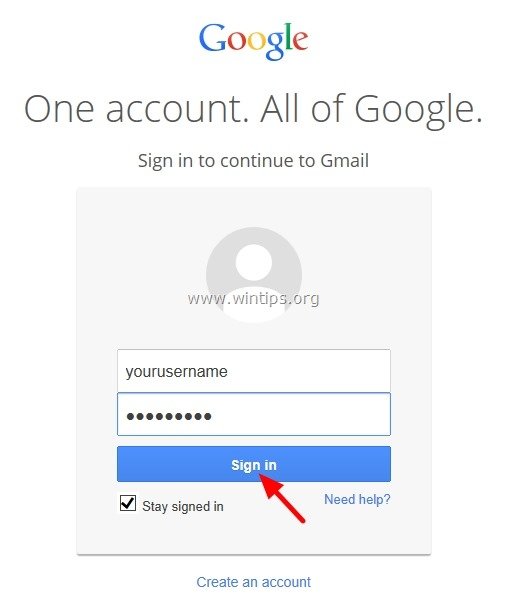
1. Sign-in to your Gmail account.
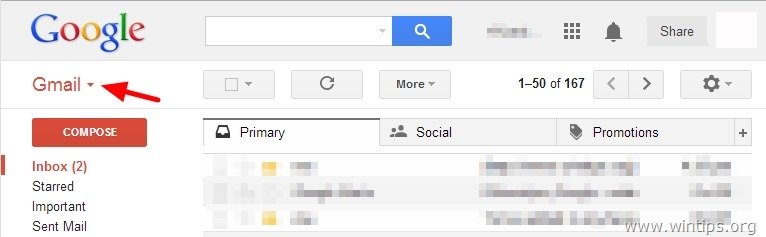
2. In the main Gmail window, press the drop-down arrow next to “Gmail” and choose “Contacts”.

3. In “Contacts” page, press the “More” menu and select “Export”. *
* Note: By doing this you ‘re going to export (and transfer) all your Android contacts to your Windows Phone. In the case that you want to transfer specific contacts or (or Group(s)) then you must select these contacts (or Groups) before you select the “Export” option.

4. At “Export contacts” page, select the “Google CSV format (for importing into a Google account)” option and press “Export”.*
Note: At “Which contact do you want to export section” you have to select “Selected contacts” if you want to transfer only the selected contacts contacts to your Windows phone, or “The group (Group Name)” if you want to transfer a specific group or groups.

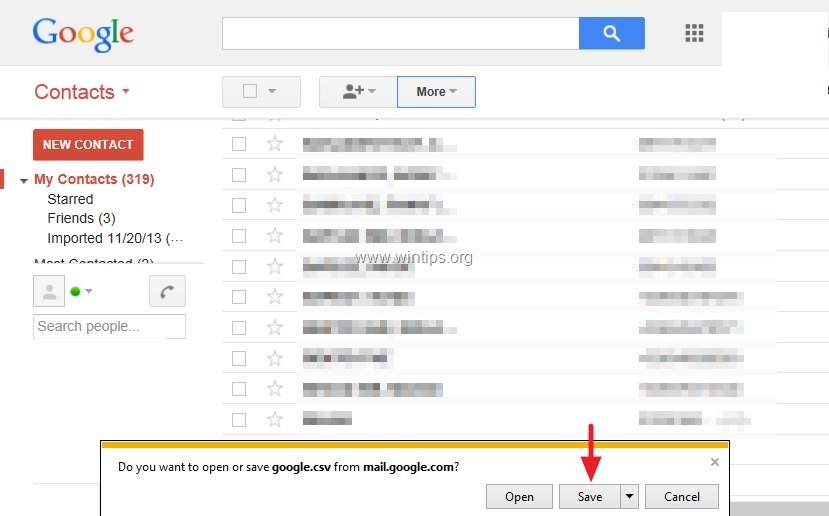
4. Finally press “Save” and store the exported contacts file “google.csv” on your computer (e.g. on your “Downloads” folder).
5. Close Google Mail.
Step 2. Import Google contacts into Windows live (Hotmail, Outlook live).
1. Sign-In to your Windows Live (Hotmail) account using a desktop computer: Windows Live (Hotmail) Login Page

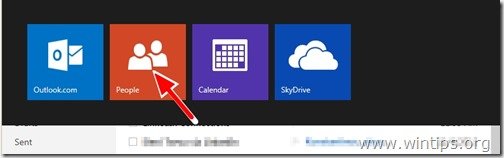
2. While on the main window, press the drop-down arrow next to “Outlook” and choose “People”.

3. In “People” page, click at “Start import” icon.
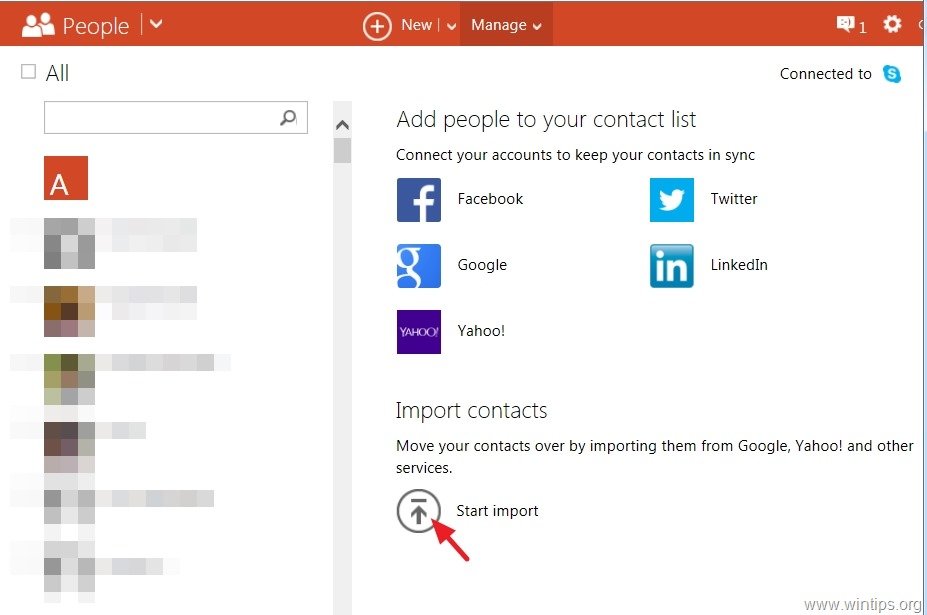
4. At “Import contacts” page, select import from “Google” (icon).

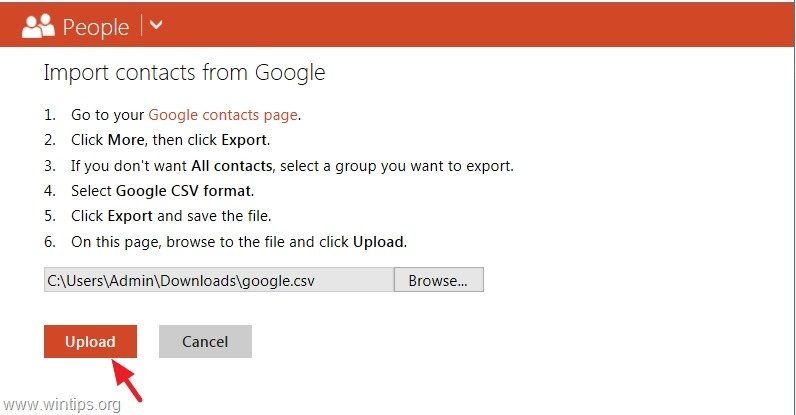
5. At “Import contacts from Google” page, select “Browse”.

6. Navigate to the location where you saved the “google.csv” file, in the previous step, select the “google.csv” file and click “Open”.

7. Press “Upload”.
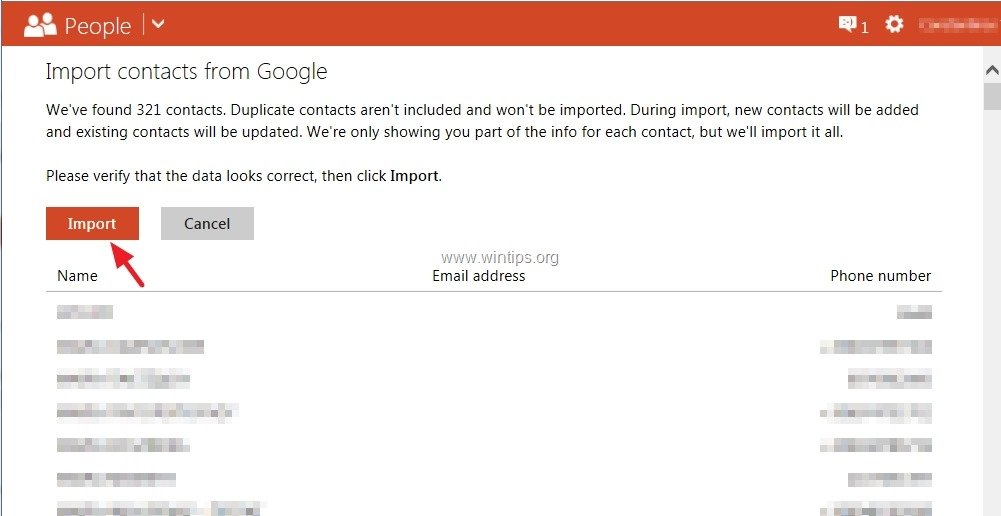
8. Finally verify that all the imported contacts look correct and then press the “Import” button.
Close Windows live and sync your Windows phone with your Windows live Account.
How to Sync Windows live Contacts to your Windows phone.
Before continuing, first add your Microsoft account (if you haven’t already done that) to your Windows phone. {“Add an account” > “Microsoft account” (or “Windows Live”) > type your MS account username and password and press “Sign in”}.
1. From Windows phone “App list” go to “Settings” > “Email + accounts”.*
2. Tap and hold your finger at your Microsoft account until you see the “sync” option.
3. Tap “sync” to synchronize your Windows live contacts with your Windows phone .
You ‘re done!


- Apps and Games Crash After KB5124010 Due to AC-3 Audio: How to Fix - October 5, 2026
- How to Fix Windows 11 Update Error 0x80073712 - October 5, 2026
- How to Install Windows 11 26H2 on Unsupported Hardware - October 2, 2026

October 18, 2023 @ 8:20 am
thank you very much
July 2, 2023 @ 5:39 am
Thanks so much. The post was very helpful and the contacts were transferred successfully.
January 21, 2017 @ 11:07 pm
very very verrrrry good , like
January 18, 2017 @ 2:21 pm
That was very helpful! Thank you so much!
August 13, 2016 @ 11:55 am
That's an excellent teach on how to migrate from Android to Windows..!
It's absolutely clear.
June 24, 2016 @ 1:16 pm
Great, Great, Great……..
April 17, 2019 @ 10:47 pm
Thank you! My contact import in my MS account but unfortunately do not sync to my people in my cell phone. Please help me…
May 28, 2016 @ 8:25 pm
Thank you soo much..gr8 help.
May 16, 2016 @ 9:23 pm
You should try to import sms messages form WP to Android! This is impossible for. If you have some ideas, tell me. I know, there is just sms, but I have some things there and this is important.
I am migrating to Android from Lumi 535. Big difference.
Thank you
May 17, 2016 @ 11:16 am
@Octavian: See this link: http://forums.androidcentral.com/general-help-how/380667-transferring-windows-phone-texts-sms-android.html
April 19, 2016 @ 11:19 am
Hello I tried what you said and all worked fine, except that all the phone numbers of my contacts are imported on my new windows phone as notes, so I can't really call anyone or send them texts or whatsapp. The only way I found to resolve this is to manually copy and paste the numbers on the notes as phones but this is taking too long. Any advice on how to resolve this ?
Thanks again for the nice tutorial!
February 23, 2016 @ 11:29 am
thanks man . you are to good.
January 30, 2016 @ 10:20 pm
Thanks a lot!
I saved a lot of time and headache thanks to your tutorial!
December 2, 2015 @ 7:46 pm
Thanks man, really saved my day!!!
November 26, 2015 @ 11:08 am
Excellent tutorial, worked perfectly. I will certainly bookmark and share this site. Many thanks
November 17, 2015 @ 12:50 am
Great tutorial!! Worked to a T! Thanks.
September 8, 2015 @ 10:31 pm
very helpful n clear. Thanks
August 12, 2015 @ 7:41 pm
This stuff worked for me as I was searching for the same from last 8days.
Great suggestion…
Thanks…
July 22, 2015 @ 7:16 am
Ton of thanks man.. Great help. :)
July 16, 2015 @ 2:15 pm
Many thanks! Spot on!
May 20, 2015 @ 8:54 am
thnx man , u done awsm job. help me alot. save my time too.
thnx a ton
March 27, 2015 @ 1:06 pm
very thanks…nice
March 26, 2015 @ 2:19 pm
Thank u so much for a wonderful tutorial.
March 15, 2015 @ 11:51 pm
Thank you!
December 19, 2014 @ 6:06 pm
thank you for the information!
I want to try windows phone – microsoft 535, its one of my prob to switch into windows bec of my google contacts, now, i know it can be transfer also to windows…. no doubt to buy 535 this time. Thanks
March 3, 2015 @ 10:50 am
Mara, give some your personally review about Microsoft lumia 535, because I want to buy it….
December 13, 2014 @ 12:53 pm
shortcut: do the sync on your phone (android) then on your WP go to settings>email+account>add account> tap google, enter your credentials and sync contacts. this works on WP8.1 not sure about 8.0. in WP7.x you have to use a PC.
November 19, 2014 @ 12:47 pm
Nice Tutorial, thanx