
FIX: There is a system repair pending which requires reboot to complete in SFC command (Solved)
If you receive the SFC /SCANNOW command* error "There is a system repair pending which requires reboot to complete. Restart Windows and run SFC again", continue reading below to resolve it.
* The "SFC /SCANNOW" command scans the integrity of the Windows operating system files and replaces the incorrect or damaged files with the correct versions where possible.

How to Solve Error: "There is a system repair pending which requires reboot to complete" in SFC /SCANNOW command in Windows 10.
In most cases the SFC error "There is a system repair pending which requires reboot to complete…" can be resolved after rebooting the computer but if the error remains after the reboot, you have to cancel the pending actions from the Windows Recovery environment by following the instructions below.
Method 1. Revert Pending Actions in WinRE with DISM.
Method 2. Run SFC Command Offline.
Method 1. Revert Pending Actions by running DISM command from WinRE.
The first method to resolve the SFC error "There is a system repair pending which requires reboot to complete", is to cancel the pending system repair by using the DISM command from the Windows Recovery environment (WinRE). To do that:
1. Hold down the SHIFT key on your keyboard, and go to Start  menu -> Power
  and click Restart.

2. In Recovery options, go to Troubleshoot -> Advanced Options -> Command Prompt. (Your computer will restart).
* Note: If Windows fails to boot in WinRE, then you have to apply the instructions below, after starting your system from a USB Windows installation media.
3. After restart, select an account with administrative privileges, type the password (if any) and click Continue.
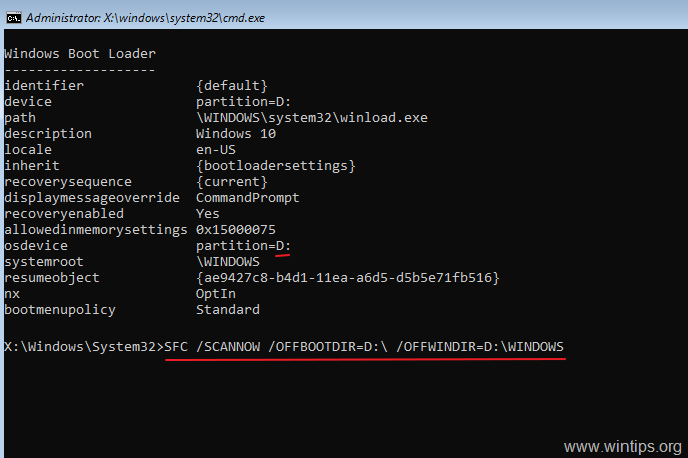
4. In command prompt, type: bcdedit and press Enter.
5. Notice the drive letter of OS partition (e.g. "osdevice –> partition=D: ")

6. Now navigate to the OS Partition, by typing its drive letter. At this example, the OS partition is located at drive "D:", so we have to type:
- D:
7. Create a new folder and name it "Scratch", by typing this command:*
- mkdir D:\Scratch
* Note: Change the drive letter D according to your case (the drive letter of the OS partition).

8. Finally type the following command, to rollback your system, after the unsuccessful Windows update:
- DISM /Image:D:\ /ScratchDir:D:\Scratch /Cleanup-Image /RevertPendingActions
* Note: Change the drive letter D according to your case (the drive letter of the OS partition).

9. Once the above command executed, you should receive the following message on screen:
"Reverting pending actions from the image….
The operation completed. Any revert of pending actions will be attempted after the reboot
The operation completed successfully."

10. Close the command prompt window and restart your computer normally.
11. After restarting, you 'll see a message that says "Getting Windows Ready". Just wait for the operation to complete and to login to Windows normally.
12. After login, run the "sfc /scannow" command again to repair the system files. If you still receive the same error, continue to method-2 below.
Method 2. Run SFC Command Offline (WinRE).
The second method to bypass the "system repair pending" error, is to run the SFC /SCANNOW command from the Windows Recovery environment (Offline). To do that:
1. Follow the steps 1-5 from the method 1 above to find out the drive letter of the OS Partition. (e.g. "D:" in this example).

2. Then at the command prompt window, type the following command to scan and repair system files. *
- SFC /SCANNOW /OOFBOOTDIR=D:\ /OFFWINDIR=D:\WINDOWS
* Note: Change the drive letter D according to your case (the drive letter of the OS partition).
That's it! Which method worked for you?
Let me know if this guide has helped you by leaving your comment about your experience. Please like and share this guide to help others.


- Fix New Outlook and Teams Not Opening After KB5121003 on ARM PCs - September 3, 2026
- Windows 11 KB5120998 Breaks Mouse Cursor and Wallpaper Personalization (FIX) - September 1, 2026
- Microsoft Defender Antivirus Is Turned Off Even Though It Is Running – How to Verify Your Protection - August 31, 2026


May 3, 2025 @ 3:12 am
Sadly I got the error trying to do a sfc /scannow on the offboot dir command. Trying to revert pending actions fails with error 0x800f082f.
May 5, 2025 @ 2:37 pm
Hold down the SHIFT key and go to Start > Power button and click Restart. After restarting choose Troubleshoot > Advanced options > Startup settings > Restart. After the restart choose press "8" to Disable early launch anti-malware protection".
By doing this the system will boot to Windows normally. If you have installed any third-party antivirus (e.g. malwarebytes) uninstall it. Then try to sun SFC /SCANNOW again.