Windows Update Error 0x800F0989: How to Fix
In this guide, you'll learn how to troubleshoot Windows Update error 0x800F0989 and repair Windows so that updates can install successfully, without unnecessarily removing your applications or personal files.
If a Windows 11 or Windows 10 cumulative update fails to install with error 0x800F0989, the problem may be related to the Windows servicing components used to install updates. The error can appear repeatedly when Windows attempts to install a cumulative update, even after restarting the computer or downloading the update again.
What Causes Windows Update Error 0x800F0989?
Error 0x800F0989 corresponds to the servicing error PSFX_E_REVERSE_DELTA_MISSING.
It indicates a problem involving reverse-delta servicing data used during Windows updates. However, the error code alone doesn't identify the exact missing component or explain why the update failed on your computer.
Depending on the underlying condition, repairing the Windows component store or reinstalling the current Windows version may resolve the problem.
Do you need help with your Windows computer? Try our remote support service.
Learn More About WinTips.org Remote Support →How to FIX Windows Update Error 0x800F0989 on Windows 11.
Note: The steps below focus on Windows 11. DISM/SFC and CBS.log diagnostics also apply to Windows 10, but some Settings paths differ, and the Fix problems using Windows Update feature in Method 4 is available only in Windows 11.
Before you begin:
- Restart your computer once and try installing the update again.
- Open Settings > Windows Update > Update history and note the KB number of the failed update.
- Make sure you have sufficient free disk space and back up important files before attempting more extensive repairs.
If you're using a work or school computer managed by your organization, contact your IT administrator before performing a Windows repair installation.
Method 1. Run the Windows Update Troubleshooter
Start with the built-in Windows Update troubleshooter, which can identify and resolve some common update configuration problems.
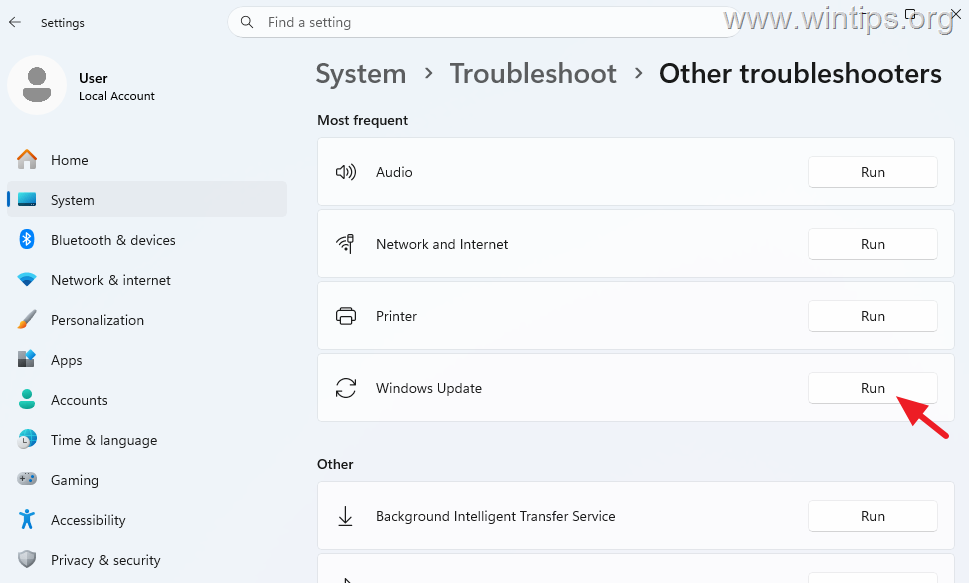
1. Open Settings and navigate to System > Troubleshoot > Other troubleshooters.
2. Locate Windows Update and click Run.
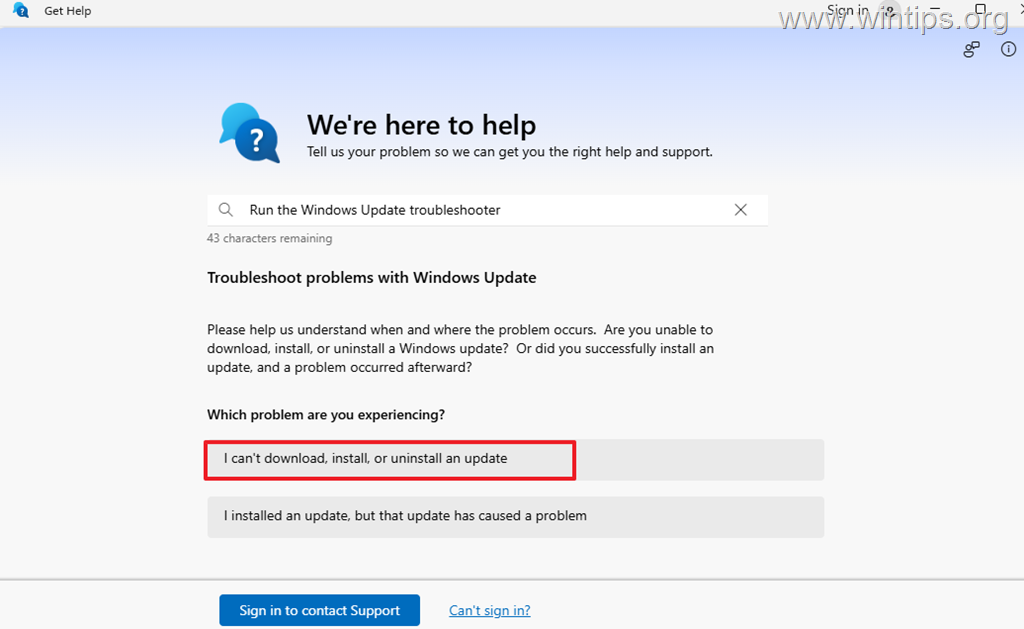
3. On the Get Help application, select I can't download, install or uninstall an update.
4. Select Yes to run the Windows Update automatic diagnostics.
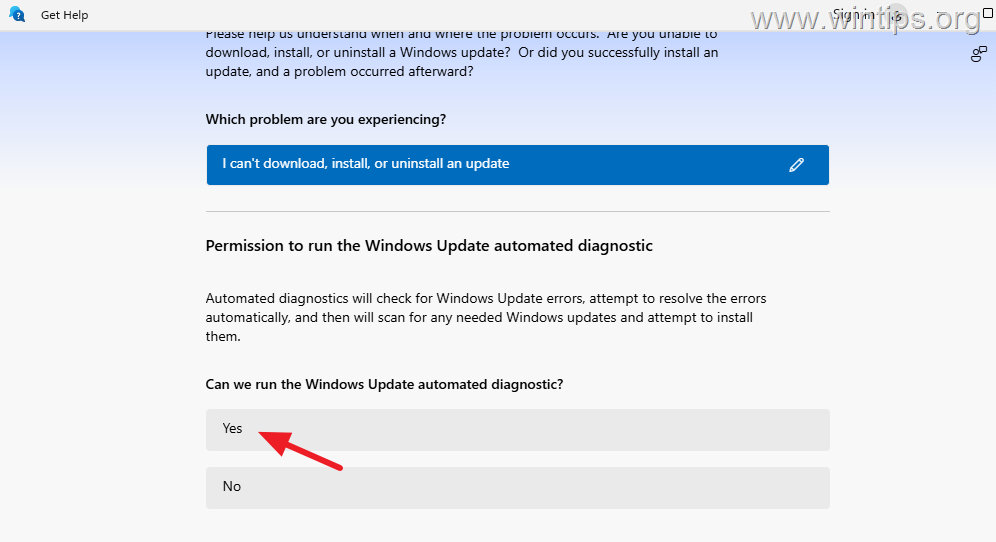
5. When the troubleshooter finishes, restart your computer if prompted and try installing the failed update again. If error 0x800F0989 persists, continue to the next method.
Method 2: Repair Windows System Files with DISM and SFC
The next method to fix Windows Update errors is to repair the Windows component store and check for damaged system files using DISM and System File Checker (SFC).
1. In Search, type cmd and click Run as administrator to open Command Prompt as Administrator.
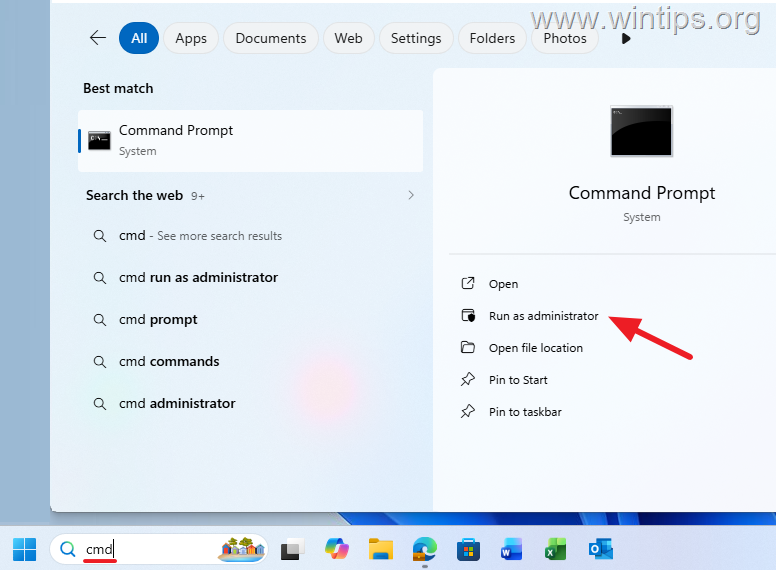
2. In the command prompt window, type the following command and press Enter:*
DISM /Online /Cleanup-Image /RestoreHealth
Note: If DISM reports “The source files could not be found”, it may need a compatible repair source. See How to Fix DISM Error 0x800F081F. (That guide uses Windows 10/8 examples; for Windows 11, use an appropriate Windows 11 source.)
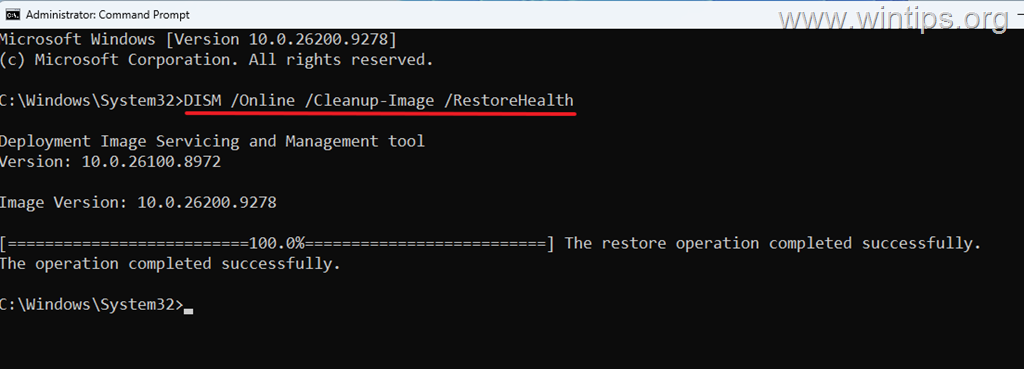
3. Wait while DISM scans and repairs the Windows component store.
4. Next, run the following command:
sfc /scannow
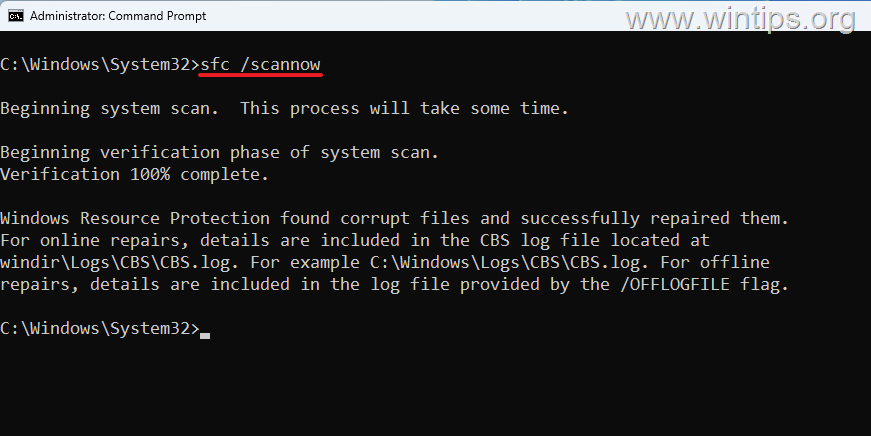
5. When the scan is complete, restart your computer and try installing the update again.
Method 3. Diagnose the Update Failure Using CBS.log or SetupDiag
If error 0x800F0989 persists, examine the appropriate diagnostic log according to the type of installation that failed:
- For a regular cumulative update, check CBS.log.
- For a Windows feature upgrade or an unsuccessful in-place repair upgrade, check the SetupDiag results.
These logs can help identify the package, component, or installation operation associated with the failure.
A. Check CBS.log for a Failed Cumulative Update
For a failed cumulative update, one of the most useful diagnostic files is: %windir%\Logs\CBS\CBS.log
1. Open CBS.log in Notepad and review the entries recorded around the time the update failed. The file may contain errors from previous servicing operations, so focus on the most recent installation attempt.
2. Use Find to search for:
0x800F0989PSFX_E_REVERSE_DELTA_MISSING
3. Examine the surrounding entries for package names, component identities, file paths, or additional error codes.
4. Then, perform a web search for the exact error message together with the KB number of the failed update. Prioritize Microsoft documentation and solutions that match your installation.
B. Check SetupDiag for a Failed Windows Upgrade
If the error occurs during a Windows feature upgrade or an in-place repair upgrade, use SetupDiag to investigate the Windows Setup failure.
SetupDiag analyzes installation logs. Windows Setup normally runs it automatically after an unsuccessful upgrade and you can find its results at: C:\Windows\Logs\SetupDiag\SetupDiagResults.xml
1. Open SetupDiagResults.xml in a text editor or web browser. For help interpreting the results, see Microsoft's SetupDiag documentation.
2. Review the matched rule, error details, and installation phase or operation, where available.
Note: If SetupDiagResults.xml is missing or belongs to an earlier upgrade attempt:
- Download the latest version of SetupDiag from Microsoft.
- Open Command Prompt as administrator and navigate to the folder containing the downloaded tool.
- Run:
SetupDiag.exe - When the analysis finishes, open SetupDiagResults.log in that folder. Review any matched rule and suggested action.
Method 4. Reinstall Windows Through Windows Update
If none of the above methods fixed the problem, use Windows 11’s built-in Fix problems using Windows Update feature. This repair option reinstalls the current version of Windows to repair system files and components while preserving your apps, personal files, and settings.
To repair Windows through Windows Update:
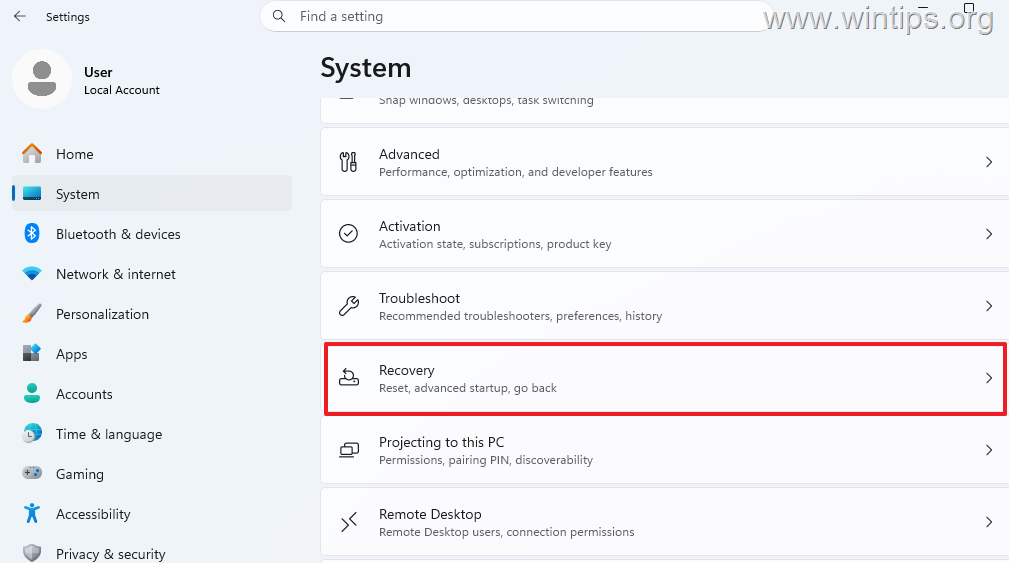
1. Go to Start > Settings > System > Recovery.
2. Find Fix problems using Windows Update and click Reinstall now.
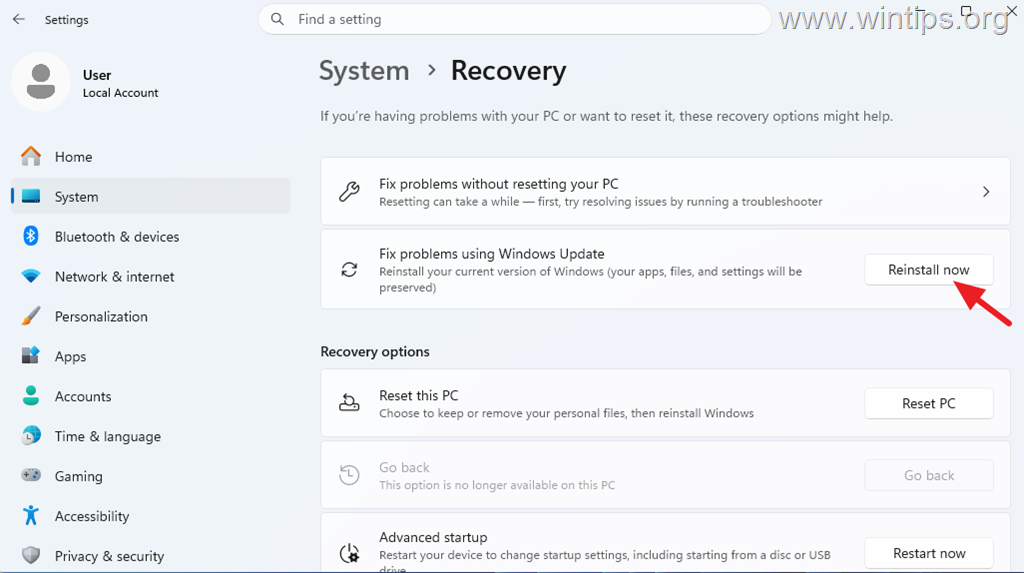
3. Follow the instructions to reinstall the current version of Windows. The process can take some time and the computer will need to restart.
4. When the repair is complete, navigate to Settings > Windows Update and Check for updates to download and install all available updates.
Method 5. Perform an In-Place Repair
If Reinstall now isn't available or doesn't repair the problem, the next option is an in-place Windows 11 repair using Windows installation media.
For this task, read the instructions in this article: How to Repair Windows 11 with an In-Place Upgrade.
When the repair finishes, check for updates again and confirm that the failed update, or an applicable newer cumulative update, installs successfully.
Important: Back up important files before proceeding. Start setup.exe from within Windows and confirm that Keep personal files and apps is selected before installation.
Summary
Windows Update error 0x800F0989 indicates a servicing problem involving reverse-delta data, but its exact cause can vary.
Start with the Windows Update troubleshooter and DISM/SFC. If the update still fails, Windows 11 users can try Fix problems using Windows Update, while an in-place repair installation provides another supported recovery option for compatible Windows 10 and Windows 11 systems.
If the problem persists, collect the latest CBS and DISM logs, note the failed KB number and Windows build, and contact your IT administrator or Microsoft Support before attempting manual package or component-store changes.
That's it! Which method worked for you?
Let me know if this guide has helped you by leaving your comment about your experience. Please like and share this guide to help others.
Frequently Asked Questions
What causes Windows Update error 0x800F0989?
Error 0x800F0989 is associated with the servicing error PSFX_E_REVERSE_DELTA_MISSING. It indicates a problem with reverse-delta servicing data used during Windows updates, but it doesn’t pinpoint the exact missing component or reason for the update failure.
Can I fix error 0x800F0989 without losing my applications or personal files?
Yes, the guide provides troubleshooting steps to fix Windows Update error 0x800F0989 without removing applications or personal files, such as running the Windows Update Troubleshooter and repairing system files using DISM and SFC.
What should I do before trying to fix Windows Update error 0x800F0989?
Before attempting to fix the error, restart your computer and try installing the update again. Ensure you have sufficient free disk space and back up important files. If using a work computer, contact your IT admin before performing repairs.
How can DISM and SFC help in fixing Windows Update errors?
DISM can repair the Windows component store, and SFC can check for damaged system files, both of which may resolve errors like 0x800F0989. Run the commands in Command Prompt as an administrator to perform the repairs.


- Windows Update Error 0x800F0989: How to Fix - November 24, 2026
- How to Deploy – Install Company Portal App in Intune Enrolled Windows Devices. - November 17, 2026
- How to Fix PowerShell Script Signature Errors After KB5132061. - November 13, 2026