
How to Shutdown, Restart or Logoff Windows 8 with just one click.
Windows 7 and earlier operating systems, display the “Shutdown, Restart and Logoff” button in the Start menu options. But with Windows 8 operating system, you must perform four (4) actions to Power Off , Restart or Logoff your system.
You have to open the "right charms" menu and then choose: "Settings" > "Power" > "Shutdown" or "Restart”. However there is an easy way to put these functions on a shortcut in the Windows 8 task bar (or on your Desktop) and do these operations with just one click.
How to shutdown Windows 8 with just one click.
First of all you must create shortcuts using the following steps.
(Watch this tutorial in YouTube.)
Step 1. Create “Shutdown, Restart and Logoff” shortcuts.
1. Right-click at the screen’s bottom-left corner and from the pop-up menu, choose “Desktop“.

2. Right click on the desktop and select “New > Shortcut”.
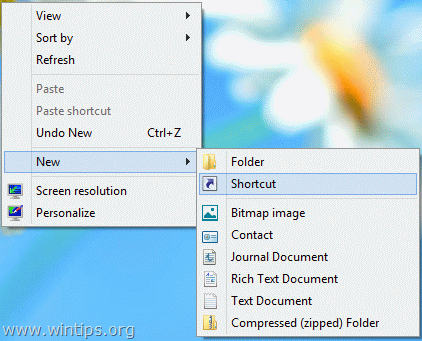
3. In the location box type one of the commands bellow for the corresponding button that you want to create:
A. For “Shutdown” button type:
C:\Windows\System32\cmd.exe /C C:\Windows\System32\shutdown.exe /s /t 0
and press “Next”.
Note: The last character of the command is “zero”.
B. For “Restart” button type:
C:\Windows\System32\cmd.exe /C C:\Windows\System32\shutdown.exe /r /t 0
Note: The last character of the command is “zero”.
C. For “LogOff” button type:
C:\Windows\System32\cmd.exe /C C:\Windows\System32\shutdown.exe /l
Note: The last character of the command is “L”.

Type a name for the shortcut: e.g. Shutdown and click "Finish".
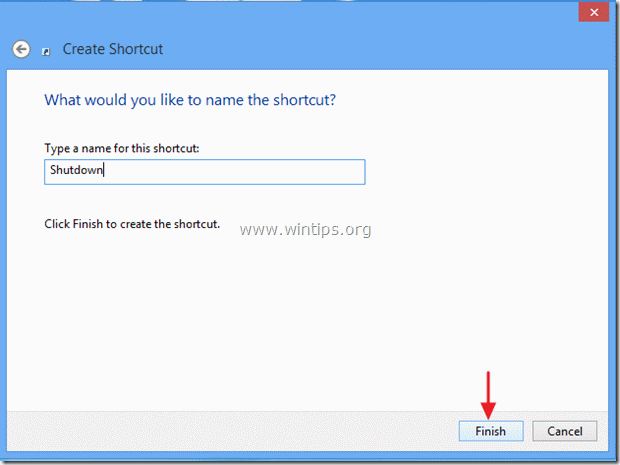
4. Now specify an icon for your new shortcut.
4a. Right click on the shortcut and select Properties.

4b. In shortcut’s properties window, go to “Shortcut” tab and select “Change Icon”.

4c. Click “Browse” at the right of “Look for icons in this file” box.

4d. Then navigate to “C:\Windows\System32” folder and open “shell32.dll” file.

4e. Select an Icon from the list of available icons and press “OK”.

4f. Press “OK” again to close shortcut properties.

Step 2: Place your button shortcut where you want:
A. To place your button in the taskbar: Right click on it and choose “Pin to Taskbar”.


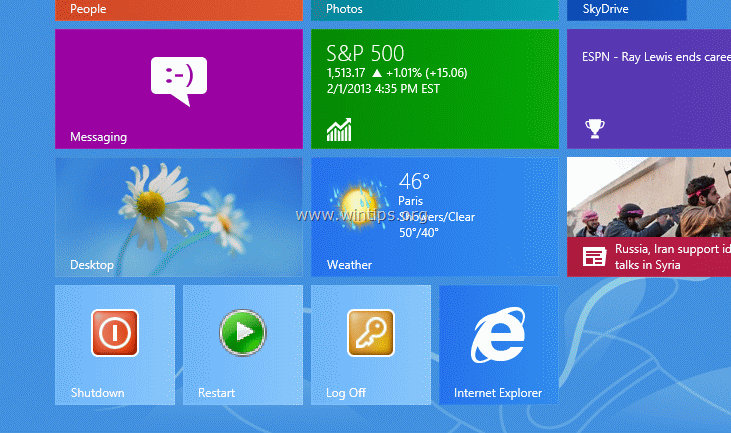
B. To place your button shortcut to Start: Right click on it and choose “Pin to Start”
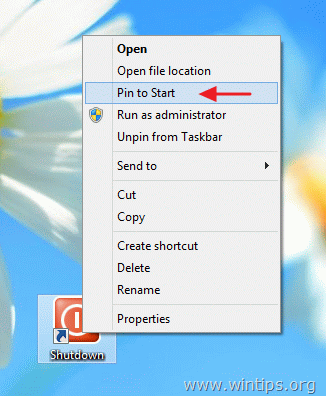
Notice*:
-
You can drag ‘n drop the new shortcut in any place you like.



- Remote Desktop (RDP/RDS) Stops Working After September 2026 Windows Update: How to Fix - September 15, 2026
- Windows 11 KB5124008 Causes No Sound or USB Audio Code 10: How to Fix - September 14, 2026
- Copilot Missing or Grayed Out in Outlook: How to Fix - September 10, 2026




October 3, 2015 @ 3:41 pm
Just what I was looking for – Thank you.
October 2, 2015 @ 1:43 pm
U are making my day!
FOUR thumbs up! hands and feet!
For desktop short cut
https://www.wintips.org/how-to-place-show-desktop-icon-windows-8-taskbar/#comment-267651
February 10, 2014 @ 6:24 am
EXCELLENT tutorial. ! ! ! I enjoy having the quick buttons on the taskbar. One click to shutdown, restart, or log off. I also utilized your instructions for the 'show desktop' icon. Placed that one right in the toolbar too !
Thank you Much !!
October 12, 2013 @ 2:35 pm
Thanks….I did this and it works. I have noticed lately that my PC starts up by itself at night. Does this method completely shut down the PC or put it in sleep mode?
October 13, 2013 @ 10:34 am
Hello Roy, yes this method completely shutdown the PC.
May 3, 2013 @ 7:06 am
this was VERY instructive, Thank You!