
FIX: Wi-Fi Connected But No Internet Access in Windows 10/11 (Solved)
This tutorial contains instructions to fix the following issue on Windows 11, 10, 8 or 7 OS: Wi-Fi is connected but Windows displays "No Internet". So, if your device is connected to a Wireless network but you're unable to access the Internet, then read the detailed steps below to solve the problem.

This tutorial contains detailed instructions to resolve the following network connection issues on Lan (Ethernet) & Wi-Fi (Wireless) adapters on Windows 10, 8/8.1 or 7 OS:
- Network Connected but with Limited Access
- Network Connected but No Internet Access
- This connection has limited or no connectivity.
How to FIX: No Internet Access but Connected to Network on Windows 11/10.
The "network is connected with no Internet access" problem, can be caused for several reasons, but before you continue to the methods below to fix the problem, perform these simple steps:
- Step 1. Verify that other devices on your network access the Internet.
- Step 2. If the problem appears after installing updates, then proceed to uninstall the latest installed updates.
- Step 3 . Turn off or unplug the Router/Access point for at least one (1) minute. Then turn-on the router and after one (1) minute restart the computer and see if you have Internet access.
- Step 4. If you 're using a third-party Security/Firewall software, temporarily disable it and check if Internet access has been restored.
- Step 5. Check if you can fix the problem, with the Network Troubleshooter wizard. To do that:
1. From Start
menu, select Settings
and select Network and Internet.
2. Select Status on the left pane, and then click Troubleshoot. At next, select to diagnose the Wi-Fi network adapter, click Next, and then follow the onscreen instructions to fix the problem.

Method 1. Disconnect and Reconnect to Wireless Network.
Method 2. Reset Network
Method 3. Disable TCP/IP v6 Protocol & Change DNS settings.
Method 4. Unregister Network connection's addresses in DNS.
Method 5: Reset TCP/IP parameters.
Method 6. Uninstall and Reinstall Network Adapter.
Method 7. Download Latest Network Drivers from Manufacturer's site.
Method 8. Check that Required Network Services are Running.
Method 9. Replace Network Adapter.
Method 10. Repair or Clean Install Windows.
Method 1. Forget and Reconnect to Wireless Network.
The first method to fix the mentioned problem, is to forget and reconnect to Wi-Fi network.*
* Note: If you're connected to network through LAN (Ethernet cable), skip to next method.
1. Click Start  > Settings
  and select Network and Internet.

2. Select Wi-Fi on the left side and click Manage known networks.

3. Select the Wireless network and click Forget.

4. Connect to the Wireless network again and check if you have Internet access.
Method 2. Reset Network.
1. Click Start -> Settings , select Network and Internet and click Network Reset –> Reset now.*
* On Windows 11, go to Start -> Settings -> Network & Internet -> Advanced network settings -> Network reset and click Reset now.
2. Restart your PC and then check if the "No Internet" problem is solved.

Method 3. Disable TCP/IP v6 Protocol & Change DNS Server addresses.
In most cases, the mentioned problem is caused by invalid Network settings. So, do the following:
1a. Press the Windows  + R keys to open the Run command box.
1b. Type ncpa.cpl and press OK or hit Enter to open Network Connections.

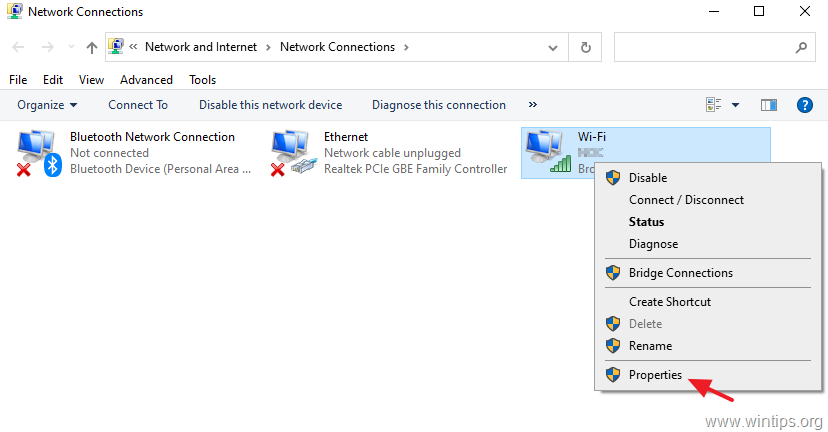
2. Right click on the the active network connection and choose Properties.
3. In Network Properties, uncheck the Internet Protocol Version 6 (TCP/IPv6) checkbox (1), then highlight the Internet Protocol Version 4 (TCP/IPv4) (2) and click Properties (3).

4. Here, select "Use the following DNS server addresses" and type below the following Google's DNS Server addresses in Preferred & Alternate DNS server fields:
- 8.8.8.8
- 8.8.4.4
5. When done, click OK (twice) to save and close the network properties.

6a. Now, open Command Prompt as Administrator. (To do that, type "cmd" in Search and then at "Command Prompt" result, select "Run as Administrator")

6b. Now, type the following command and press Enter to clear the DNS cache:
- ipconfig /flushdns

7. Finally, restart you computer and check if the problem persists.
Method 4. Unregister Network Connection's addresses in DNS.
1. Follow the steps 1-2 on above method to open the Properties of Internet Protocol Version 4 (TCP/IPv4).

2. Click Advanced.

3. Uncheck the Register this connection's addresses in DNS checkbox and click OK twice and Close to close all windows.

4. Restart your computer.
5. Forget and re-add the wireless network. (see Method-1 above).
Method 5: Reset TCP/IP parameters.
The "Wi-Fi Connected but no Internet access" issue may appear if the TCP/IP settings have improperly configured. To reset the TCP/IP settings:
1. Open Command Prompt as Administrator.
2. At command prompt, type the following command and press Enter.
- netsh winsock reset
3. Then type the following command and press Enter.
- netsh int ip reset
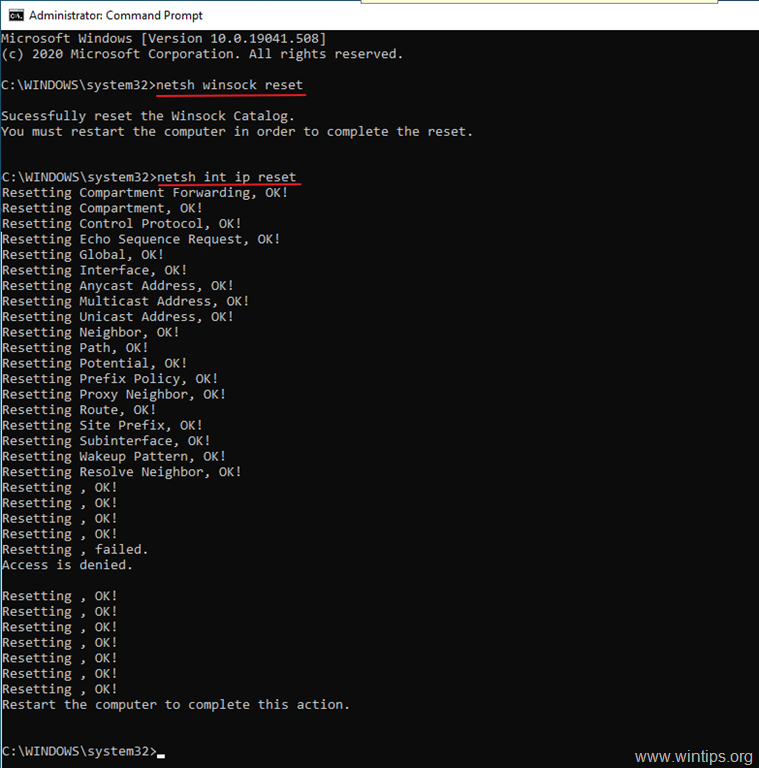
4. Close the command prompt window and restart your computer. *
* Note: If after restart, you still haven't Internet access, do the following:
a. Follow the steps 1-2 on method-2 to open the Properties of the Wi-Fi adapter.
b. At 'Wi-Fi Properties' window:
- Uncheck the Internet Protocol Version 6 (TCP/IPv6) checkbox (1).
- Then click to select the Internet Protocol Version 4 (TCP/IPv4) and click Properties (2,3).

c. In TCP/IP v4 properties, make sure (as in the screenshot below) that the "Obtain IP address automatically" and "Obtain DNS server address automatically" options are checked, and that there are no numbers in any of the fields. (IP Address, Subnet Mask, Default Gateway & DNS Server).

d. When done, click OK twice and then check if the problem is fixed.
Method 6. Uninstall and Reinstall the Network Drivers.
The "No Internet access" problem can be caused by a faulty network driver. So, proceed to uninstall the network driver and then let the Windows to reinstall it automatically the next time you restart your system. To uninstall your network driver, follow the steps below:
1. Navigate to Device Manager. To do that:
-
- Press Windows
 + “R” keys to load the Run dialog box.
 - Type devmgmt.msc and press Enter to open the device manager.
- Press Windows

![image_thumb[22]](https://www.wintips.org/wp-content/uploads/2019/05/image_thumb22.png "image_thumb[22]")
2. In device manager, expand the Network adapters.
3. Right-click on the network adapter you're using and choose Uninstall.
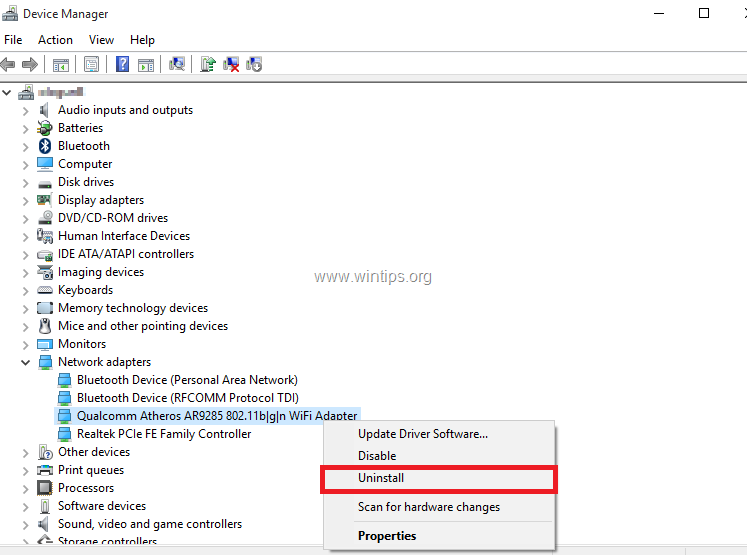
4. Mark the checkbox "Delete the driver software for this device" (if it appears) and click OK on the confirmation window.

5. Restart your PC.
6. After restart let Windows to reinstall the network driver and then check if you have Internet access.
Method 7. Download Network Drivers from Manufacturer's site.*
* Note: This method can be applied only if you can connect your PC to Internet using another way (e.g. via Hotspot, or another LAN or Wi-Fi adapter), or if own another working computer with Internet access.
1. Download the latest driver for the network adapter from manufacturer's support site. To download the driver, use one of the following options:
a. Connect your PC (if you can) to Internet via Hotspot or the Ethernet Adapter (LAN Cable), or…
b. Download the driver, from another working computer and use a USB drive to transfer the Wi-Fi driver on the PC with the Wi-Fi connection error.
2. If the driver, comes on an ".exe" file, then run it to install the driver, otherwise use the device manager to install the driver. To install the driver for Device Manager:
1. Navigate to Device Manager.
2. Right click on the Wireless adapter and choose Update Driver Software.

3. Choose Browse my computer for driver software.
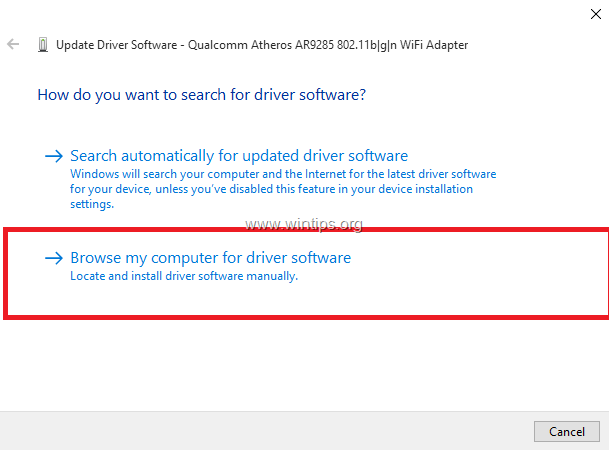
4. Click Browse and choose the location (folder) of the downloaded driver.

5. If Windows can found an updated version of the driver, click Next to install it.

6. When the driver installation is completed. restart your computer.
Method 8. Check that the Required Network Services are Running.
Check if the following required services for the Internet access are up and running, with the steps below:
1. COM+ Event System (for WZC issues)
2. Diagnostic Policy Service
3. DHCP Client
4. DNS Client
5. Network Connections
6. Network Location Awareness
7. Remote Procedure Call (RPC)
8. Server
9. TCP/IP Netbios helper
10. WLAN AutoConfig
11. Workstation
1a. Simultaneously press the Windows  + R keys to open run command box.
1b. In run command box, type: services.msc and press Enter.

2. Locate one by one all the services listed and see if the 'Status' is Running.

3. If you locate that a service is not running, then right-click on it and select Properties.
4. Set the Startup type, to Automatic and then click OK.
5. Restart your computer.

6. After the restart, make sure that the service is started and test your Internet connection.
Method 9. Replace Network Card.
In rare cases, the reported problem can be caused by a damaged network card (Wi-Fi or Ethernet). So I suggest you to get another network card and check if the problem persists.
Method 10. Repair or Clean Install Windows.
If the above methods did not help to solve the problem, then your Windows installation is damaged. At this case, try to repair Windows or backup your files and perform a fresh installation of Windows.
That's it! Which method worked for you?
Let me know if this guide has helped you by leaving your comment about your experience. Please like and share this guide to help others.


- Remote Desktop (RDP/RDS) Stops Working After September 2026 Windows Update: How to Fix - September 15, 2026
- Windows 11 KB5124008 Causes No Sound or USB Audio Code 10: How to Fix - September 14, 2026
- Copilot Missing or Grayed Out in Outlook: How to Fix - September 10, 2026




February 1, 2026 @ 2:45 pm
For me method 3 and 4 worked. After that, I had to disable proxy in windows settings. Thanks alot.
June 23, 2025 @ 5:17 pm
Hi, Thanks for your amazing vast knowledge but none of this has made a difference I am afraid. I am still connected to wi fi wirelessly but internet sites wont open! ill need to get someone to come to the house to help me I suspect.
Thanks
Anne