
How to Disable Login Screen in Windows 10/11.
In this tutorial we will show you several ways to disable the login screen prompt in Windows 10/11 in order to log in to your computer without having to enter a password or PIN.
With every new Windows operating system, Microsoft makes security improvements to keep your computer and sensitive data private and secure. Thus, in Windows 10/11, in addition to the classic way of login to Windows by using a password, there is the possibility of gaining access to your system using a PIN or through your biometric data if your computer has a fingerprint reader.
Although using the above options to sign in to Windows helps maintain your privacy and the security of your device, some users, especially older people or those who don't need to share their computer with others, find it inconvenient to type the password or PIN every time they start their computer.
If you belong to one of the above categories of users, or for any other reason you want to bypass the login screen and log in automatically to Windows 10, below we will show you how you can turn off the login screen and log in straight to Windows without having to enter your password or PIN.
How to Remove Login Password/PIN prompt in Windows 11/10.
Method 1: Disable Login Screen in Windows 10 (GUI).
The most straightforward method to disable the login screen is to stop Windows 10 to require a username and a password to sign-in. To do that, follow the steps below:
Step 1. Disable the username and password requirement in the account options.
1. Press the Windows + R keys to launch the Run command window.
2. Type netplwiz and hit Enter, to open the User Accounts window.

3a. In User Accounts window, uncheck the Users must enter a user name and password to use this computer checkbox and click Apply. *
* Note: If the 'Users must enter a user name and password to use this computer' option is missing see the instructions on this article.
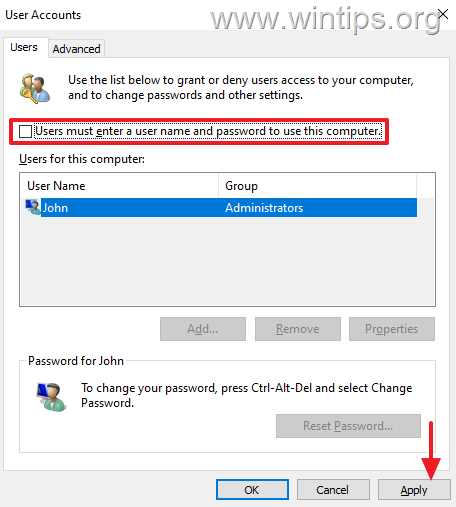
3b. Now, you will be asked to enter the password for the selected account. Type the password (twice) and click OK.
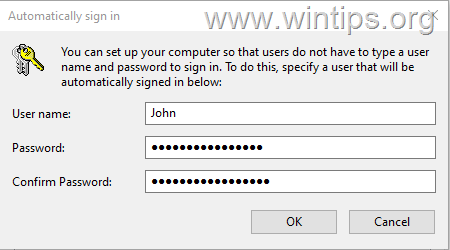
4. Close the User Accounts options and continue to step-2.
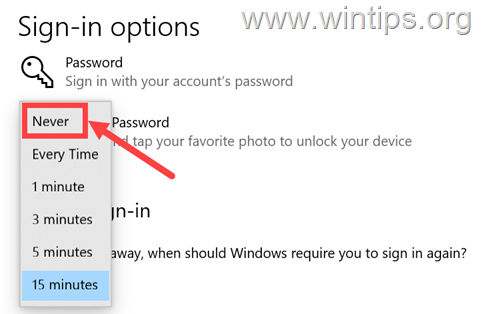
Step 2. Disable Login screen after your absence.
Now, proceed and turn off the login screen prompt after you are away from the computer.
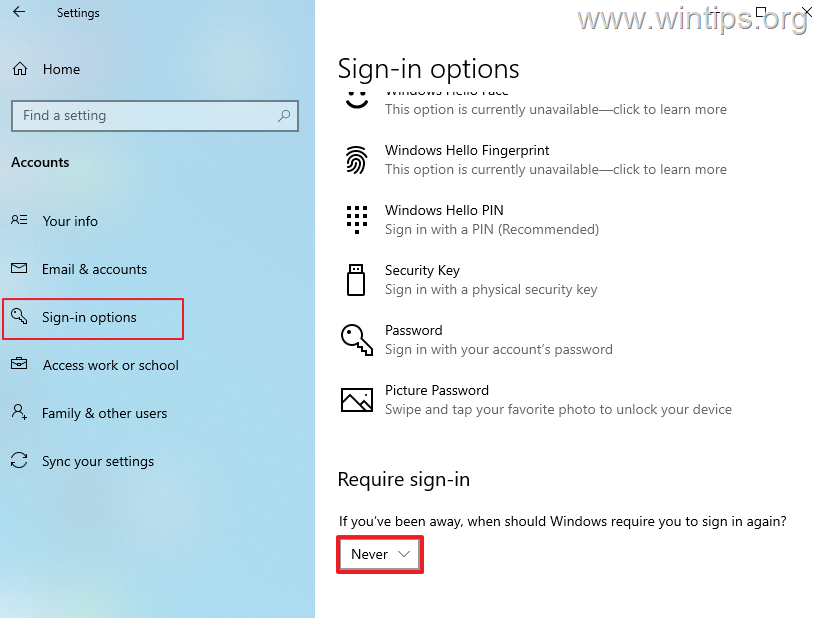
1. From the Start menu, click Settings and select Accounts.

2. Select Sign-in options tab on the left pane and at the right side, find the Require sign-in setting and set it to Never.
Method 2: Bypass Login Screen prompt in Registry.
The second method to bypass (remove) the login screen and password requirement in Windows 10, is by using the registry editor. To do that:
* Important: Since making changes to Registry settings is risky because even a small mistake can lead to system damage, it is important to back up the registry before modifying it and to create a System Restore point.
1. Open Registry Editor. To do that:
1. Simultaneously press the Win
+ R keys to open the run command box.
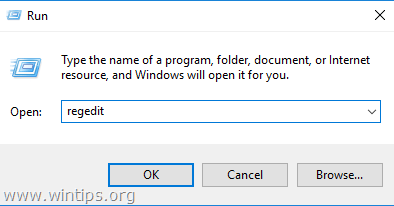
2. Type regedit and press Enter to open Registry Editor.

2. Navigate to this key at left pane:
- HKEY_LOCAL_MACHINE\SOFTWARE\Microsoft\Windows NT\CurrentVersion\Winlogon
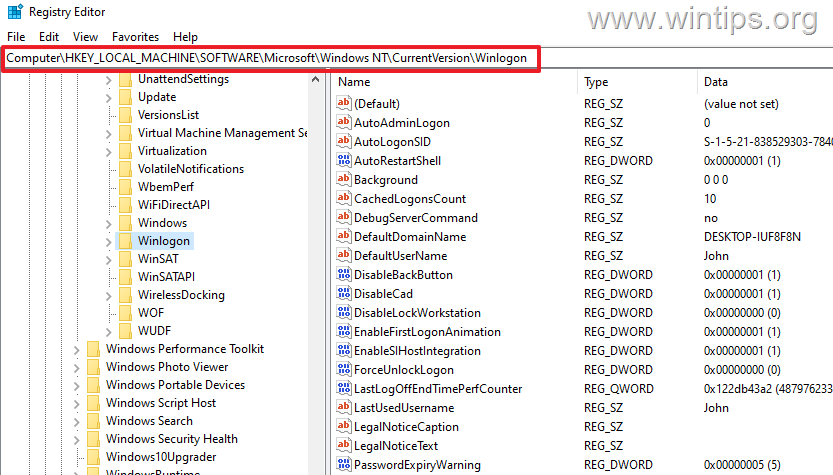
3. Now, at the right pane, make the following changes:
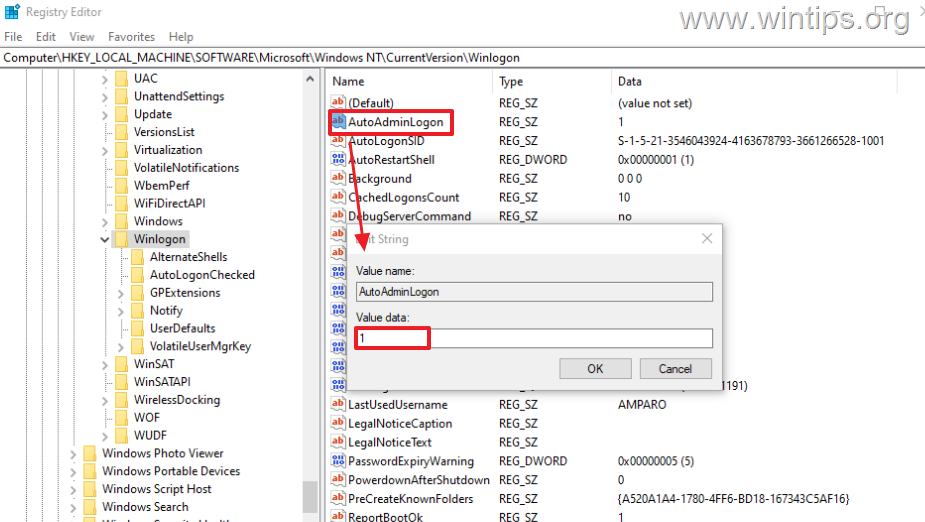
a. Double-click on the AutoAdminLogon REG_SZ value,* change its value data from 0 to 1 and click OK
* Note: If you don't find the 'AutoAdminLogon' value, right-click on Winlogon key and select New -> String Value. Name the new value as AutoAdminLogon and press Enter.
b. Next, double-click on the DefaultUserName REG_SZ value, and type in the value data box your username. (e.g. "John" at this example). *
* Note: If you don't find the 'DefaultUserName' value, right-click on Winlogon key and select New -> String Value. Name the new value as DefaultUserName and press Enter.

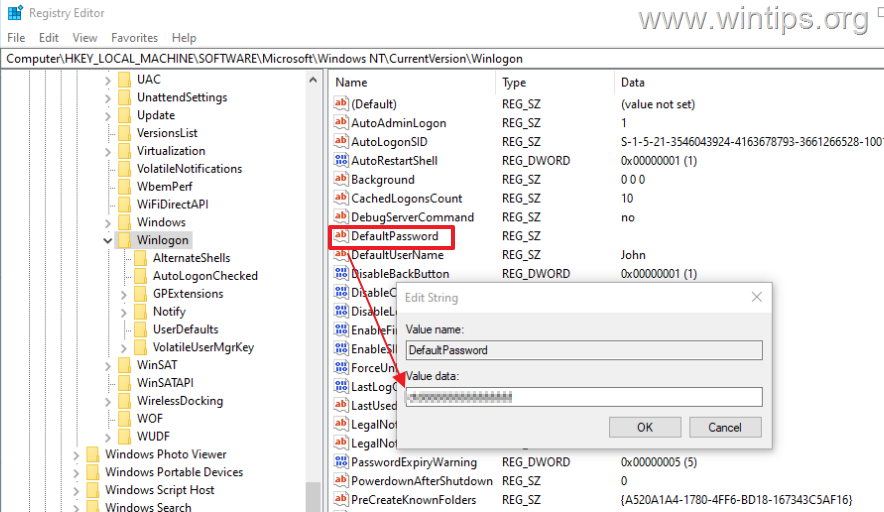
4a. Now, right-click on the Winlogon key on the left, and select New -> String Value.

4b. Name the new string as DefaultPassword and press Enter.
4c. Finally double-click to open the DefaultPassword string, type in the Value data box the user's password and then click OK.
5. Close the Registry Editor and restart your PC to apply the change. *
* Note: To re-enable the login screen on Windows 10, set the AutoAdminLogon value from 1 to 0 and delete the DefaultUserName & DefaultPassword values.
That's it! Which method worked for you?
Let me know if this guide has helped you by leaving your comment about your experience. Please like and share this guide to help others.


- Windows Update Uninstall Failed with Error 0x800F0825: How to Fix - October 7, 2026
- Apps and Games Crash After KB5124010 Due to AC-3 Audio: How to Fix - October 5, 2026
- How to Fix Windows 11 Update Error 0x80073712 - October 5, 2026



August 2, 2026 @ 11:05 pm
it did !
thanks
the registry values
are a most
thanks again
sincerely
Fray Jose Lozada
December 29, 2024 @ 6:31 pm
No help at all. Method 1 Option 1 could not work because the line to be unchecked was not there (“Users must enter a user name and password … “). Additionally, in that same explanation, this line appeared: “* Note: If the 'Users must enter a user name and password to use this computer' option is missing see the instructions on this article” and there was no article linked to the word “article” which was in red.
Step 2 did not work, either, regardless of checking the word, “Never” as instructed in the User Accounts/Sign-In Options settings.
Also, there was no option in the Sign-In Options settings that simply said “Require sign-in.” Consequently, there was no way to choose “Never.”
Method 2 I did not attempt; I never mess around in the Registry.
January 2, 2025 @ 1:10 pm
Thanks for your comment. The guide has been updated and the link to resolve the "Users must enter a username and password to use this computer" issue has been added.
November 10, 2024 @ 6:59 pm
This guide worked perfectly – thank you so much!
September 27, 2024 @ 9:42 pm
Great stuff….so glad that I found you!! The 1s version worked perfect – a million thanks
will send you some good ol' $$$$…enjoy!
September 20, 2024 @ 7:53 am
Thank you! Method 2 worked (but not Method 1). Windows 11.