
FIX: 'Users must enter a user name and password to use this computer' option is Missing.
If you're running Windows 10/11 and the option "Users must enter a user name and password to use this computer" is missing in the 'User Accounts' options, continue reading below to fix the problem.
Windows gives users the option to bypass the login screen and to sign-in directly to Windows, by deselecting the option "Users must enter a username and password to use this computer" in User Accounts settings.
But in newer versions of Windows 10 & Windows 11, this option is missing, (as you can see in the screenshot below). If you face the same issue, follow the instructions below to restore that option in order to login to Windows without having to type a username/password.

How to Restore the option "Users must enter a user name and password to use this computer" in Windows 10/11.
In order to force Windows 10/11 to display the "Users must enter a username and password to use this computer" option in the "User Accounts" settings, proceed and make the following modification in Windows Registry:
1. Open Registry Editor. To do that:
1. Simultaneously press the Win
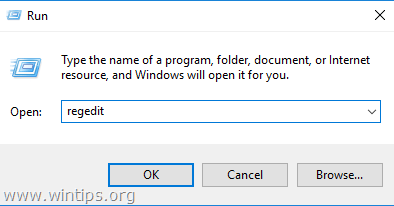
+ R keys to open the run command box.
2. Type regedit and press Enter to open Registry Editor.
2. Navigate to this key at left pane:
- HKEY_LOCAL_MACHINE\SOFTWARE\Microsoft\Windows NT\CurrentVersion\PasswordLess\Device
3. On the right side, open the DevicePasswordLessBuildVersion REG_DWORD value, change the value data from 2 to 0 and click OK.

5. Close the Registry Editor and RESTART the PC.
6. Now press the Win  + R keys to open the run command box.
7. Type netplwiz and hit Enter, to open the User Accounts window.
![image_thumb[2]](https://www.wintips.org/wp-content/uploads/2022/11/image_thumb2.png "image_thumb[2]")
3a. In User Accounts window, the Users must enter a user name and password to use this computer option should be appear now.

That's it!
Let me know if this guide has helped you by leaving your comment about your experience. Please like and share this guide to help others.


- Remote Desktop (RDP/RDS) Stops Working After September 2026 Windows Update: How to Fix - September 15, 2026
- Windows 11 KB5124008 Causes No Sound or USB Audio Code 10: How to Fix - September 14, 2026
- Copilot Missing or Grayed Out in Outlook: How to Fix - September 10, 2026




January 8, 2026 @ 5:26 pm
Your solution worked perfectly. Thank you!
July 29, 2025 @ 9:43 pm
Was about to comment this wasn't working for me, but just realized what was up. If like me you're running this in a HyperV environment, your console window won't auto-login because it's operating like RDP and would require you to log in to cause the local (automatic) login to disconnect. If you're using something else to remote into it you'll see it's still logging into the desktop on whatever the local console is for the VM.
May 22, 2025 @ 7:40 am
Thank you so much for this!
February 28, 2025 @ 5:01 pm
Thank you! Worked perfectly in Win10 22H2.
February 13, 2025 @ 9:41 pm
You rule. Thanks
November 16, 2024 @ 8:24 pm
It's almost 2025 so maybe things have changed, but after I was able to get the check box item to appear, and I UNCHECKED it, immediately a window popped up demanding I designate one user to be able to sign in without a password. That's NOT working the way it should, and I don't know how to fix it. I eventually did designate a user but things got all screwed up and it kept saying the user name and p/w don't match. Eventually I opted for the longer period when it goes to sleep, but every time I'd be loading a program that needed a reboot it was enter the p/w all over again. Wash. Rinse. Repeat. Very frustrating.
August 21, 2023 @ 9:22 pm
Thank you so much, this worked perfectly!
July 12, 2023 @ 3:15 am
Great it work
April 25, 2023 @ 7:48 pm
tried on windows 10 and did not work
April 26, 2023 @ 4:22 pm
Just checked in Windows 10/11 and works (26 April, 2023)
April 27, 2023 @ 12:59 pm
I've just tried and is still not working. The registry key is already set to zero and I still can't see the "Users must enter a user name and password to use this computer" checkbox. Very frustrating…
July 6, 2023 @ 4:51 am
Try Start Button>Settings>Accounts>Sign-in options>Under option Require sign-in,, "If you've been away, when should Windows requires you to sign in again?" change drop down from "When PC wakes up from sleep" to "Never" then repeat the steps again from netplwiz, You should find that you now have the option to uncheck "Users must enter a user name and password to use this computer"
August 2, 2023 @ 7:51 am
I'm having the same issue. I manually entered in the registry key for PasswordLess and Device, then entered and set the DevicePasswordLessBuildVersion to 0. Also added Freeman's suggestion to turn of the login requirement for "When PC wakes up from sleep". Still not getting the check box.