How to Fix Windows 11 Update Error 0x800F0922
If a Windows 11 cumulative or feature update fails with installation error 0x800F0922, continue reading to learn how to fix the problem.
Error 0x800F0922 can occur during Windows 11 updates for various reasons, including insufficient disk space, corrupted update files, Windows Update delivery problems, an issue specific to a particular Microsoft update, or—in some cases—insufficient free space on the EFI System Partition (ESP).
Therefore, finding the right fix for error 0x800F0922 depends on which update failed and at what stage the failure occurred.
For example, Microsoft confirmed in May 2026 that KB5089549 could fail with error 0x800F0922 on some Windows 11 24H2 and 25H2 computers with very little free space on the EFI System Partition. However, this does not mean that every occurrence of error 0x800F0922 has the same cause.
What causes Windows Update error 0x800F0922?
Error 0x800F0922 is not always caused by a problem with a specific Windows update. In Windows 11, it can occur for several reasons, including:
- A known Microsoft issue affecting a specific cumulative or feature update.
- Insufficient free space on the Windows system drive.
- Insufficient free space on the EFI System Partition (ESP) in certain update or maintenance scenarios.
- Corruption in the Windows component store or system files.
- Corrupted or inconsistent Windows Update cache data.
- VPN or network connectivity issues that interfere with Windows Update.
The error may occur while installing a cumulative update or during a Windows 11 feature update or version upgrade.
In this guide, you will learn how to identify the possible cause of Windows Update error 0x800F0922 and fix it using step-by-step troubleshooting methods.
How to Fix Windows 11 Update Error 0x800F0922 Step by Step.
Method 1: Check Microsoft Support for Known Issues
Before making extensive changes to Windows, check Microsoft's support information and Windows Release Health for the specific KB that failed.
Step 1: Find the Failed Update
First, determine which update failed to install with error 0x800F0922. To do that:
1. Go to Start > Settings > Windows Update.
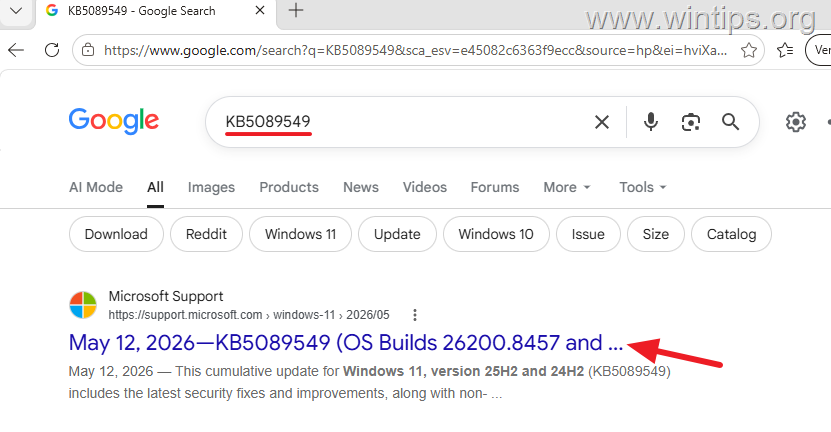
2. Note the KB number of the failed update (e.g. KB5089549 in this example).
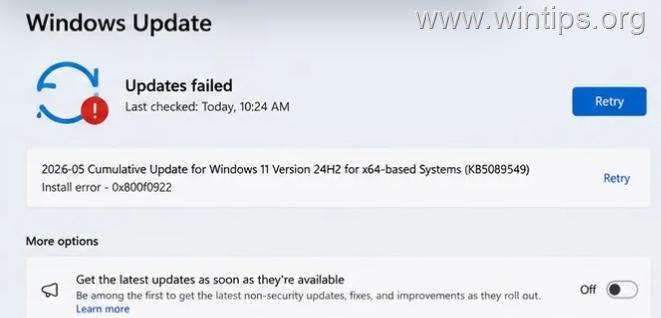
Step 2: Check Whether Microsoft Has Documented the Issue.
Next, search the web for the KB number of the failed update. Then, check Microsoft’s official support page for any known issues and available fixes.
For example, Microsoft confirmed that KB5089549 could fail with error 0x800F0922 on some Windows 11 24H2 and 25H2 systems because of insufficient free space on the EFI System Partition. Microsoft resolved this specific issue with the subsequent KB5089573 update.
If Microsoft has documented a known issue affecting the update you are trying to install, apply its recommended workaround or install the available fix before proceeding with the troubleshooting methods below.
Method 2. Restart Windows and Perform Basic Checks
Before proceeding further, restart your PC and perform the basic steps below:
Step 1. Disconnect from a VPN
If you're connected to a VPN, temporarily disconnect it and try Windows Update again.
Step 2. Restart the Computer.
Sometimes, simply restarting the computer can fix problems with Windows Update.
1. Restart the computer.
2. Go to Settings > Windows Update.
3. Click Check for updates and retry the failed update.
Step 3. Disconnect Unnecessary Devices
Temporarily disconnect nonessential USB devices and other external hardware, leaving only the devices you need to operate the computer. Then, restart Windows and retry the update.
Step 4. Check Free Space on the Windows Drive
Windows Update needs available disk space to download, install or roll back updates when necessary.
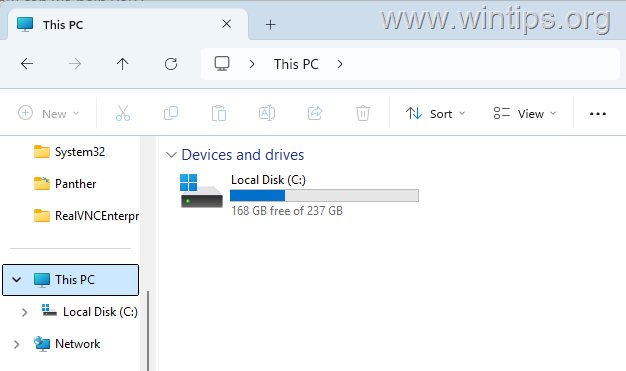
1. Open File Explorer and select This PC on the left.
2. Check the available space on the drive where Windows is installed, normally C:.
3. If the drive is nearly full, free some space, restart Windows, and retry the update.
Method 3. Run the Windows Update Troubleshooter
Windows 11 includes a built-in Windows Update troubleshooter that can identify and correct some update problems. To run it:
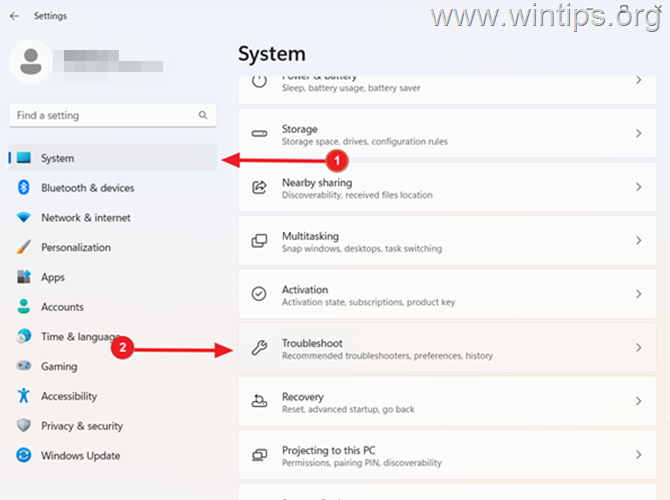
1. Go to Start > Settings.
2. Select System > Troubleshoot.
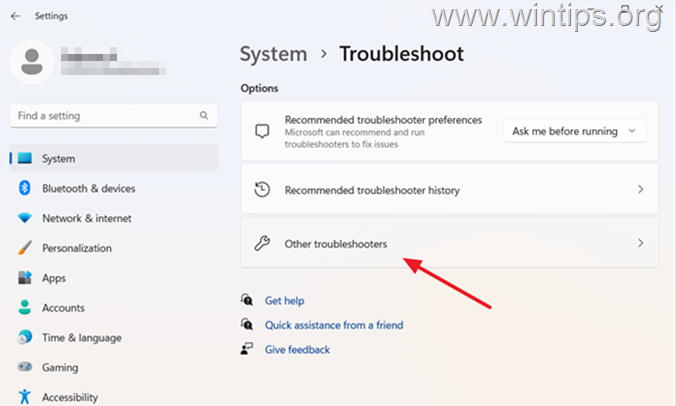
3. Select Other troubleshooters.
4. Find Windows Update and click Run.
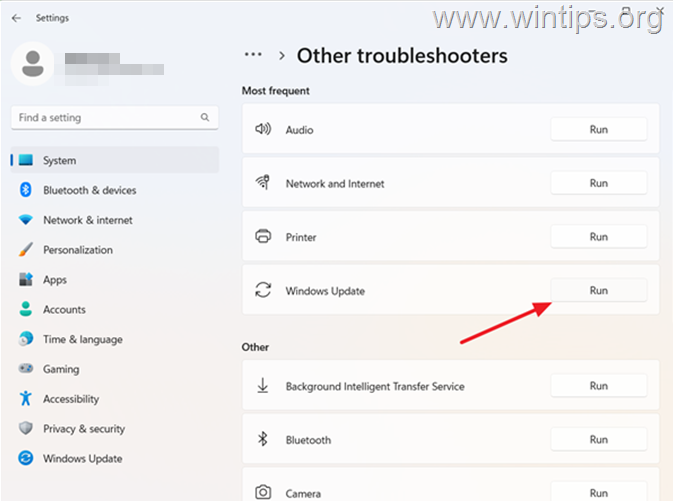
5. The Windows troubleshooter will begin scanning your computer for issues related to updates. If the troubleshooter recommends any solution, apply the fix to resolve the problem.
Method 4: Try Installing the Failed Update Manually
The next method to fix the update error 0x800f0922, is to download and install manually the failed update.
1. In Windows Update, notice the KB number of the failed update. (e.g. "KB5089549" in this example).
2. Go to the official Microsoft update catalog website and search for the KB number of the failed update.
3. From the list of updates, locate the one that corresponds to your Windows version and click on the Download button next to it.
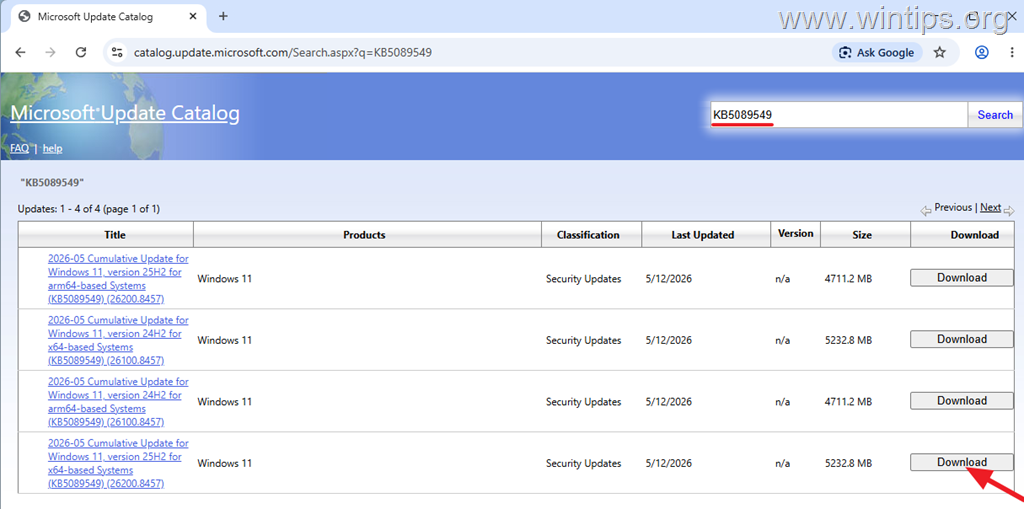
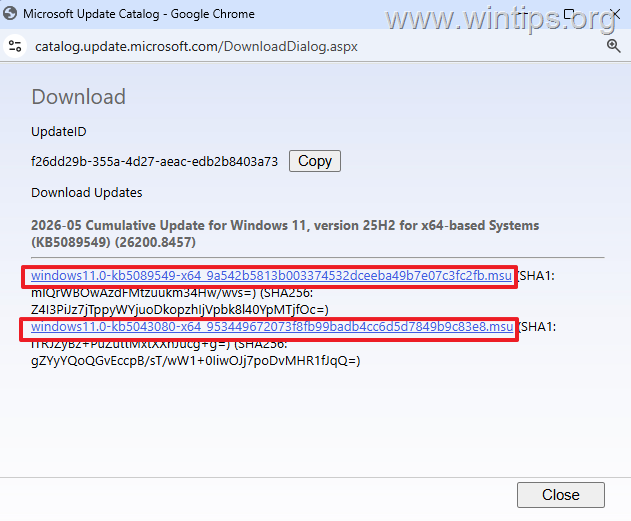
4. On the popup window, click on the link(s) to download the MSU file or files.
5. When the download is completed, double-click the downloaded file(s) and follow the on-screen instructions to install the update.
Method 5: Reset Windows Update Components
If Windows Update's download or cache data is damaged or inconsistent, resetting the Windows Update storage folders can allow Windows to download a clean copy of the update.
To reset the Windows Update components:
1. Open Command Prompt as Administrator. To do that:
-
- Type cmd or command prompt in Windows Search.
- In the search results, select Run as administrator under Command Prompt.
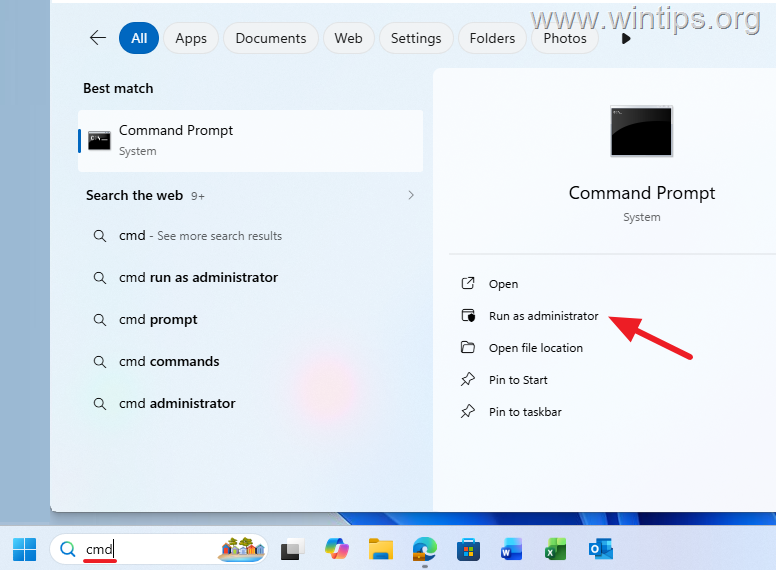
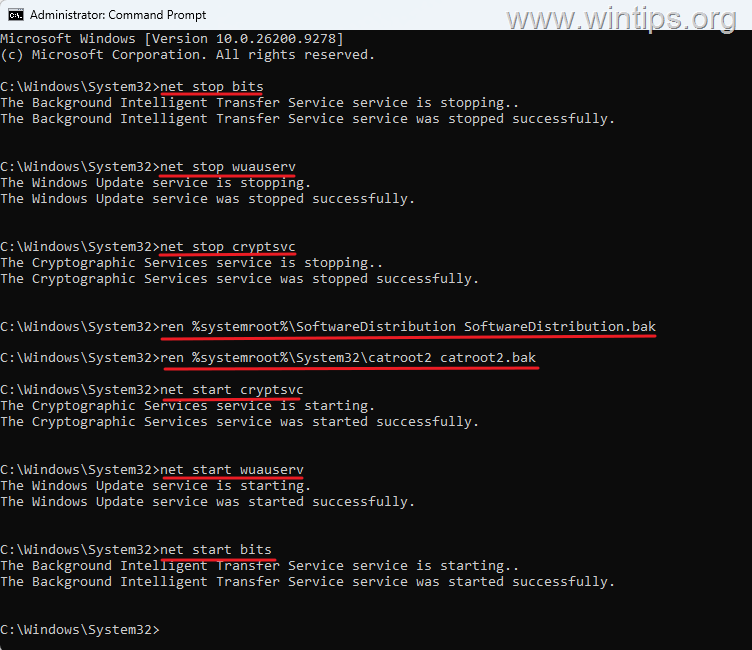
2. In the Command Prompt window, type the following commands in order (hit Enter after typing each command):*
net stop bitsnet stop wuauservnet stop cryptsvcren %systemroot%\SoftwareDistribution SoftwareDistribution.bakren %systemroot%\System32\catroot2 catroot2.baknet start cryptsvcnet start wuauservnet start bits
* Info: The commands stop the Background Intelligent Transfer Service, the Cryptographic service and Windows Update service, rename the Windows Update storage folders, and then start the services again.
3. After giving the above commands, restart your computer.
4. Go to Settings > Windows Update and click Check for updates. If the same update still fails with 0x800F0922, continue to the next method.
Method 6: FIX Windows Update Error by Repairing System Files
The next method to solve the Windows 11 update error 0x800f0922, is to repair the Windows System Files, using the steps below:
1. Open Command Prompt as Administrator.
2. In the command prompt window, type the following command and press Enter:
DISM /Online /Cleanup-Image /RestoreHealth
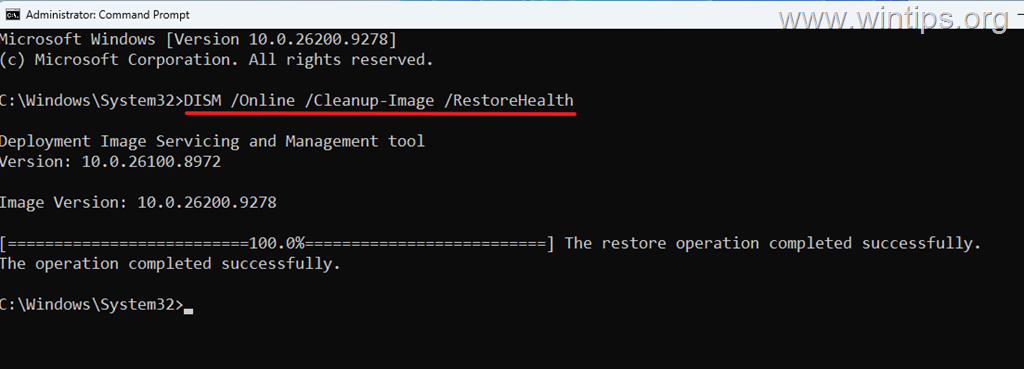
3. Wait while DISM scans and repairs the Windows component store.
4. Next, give this command and press Enter:
sfc /scannow
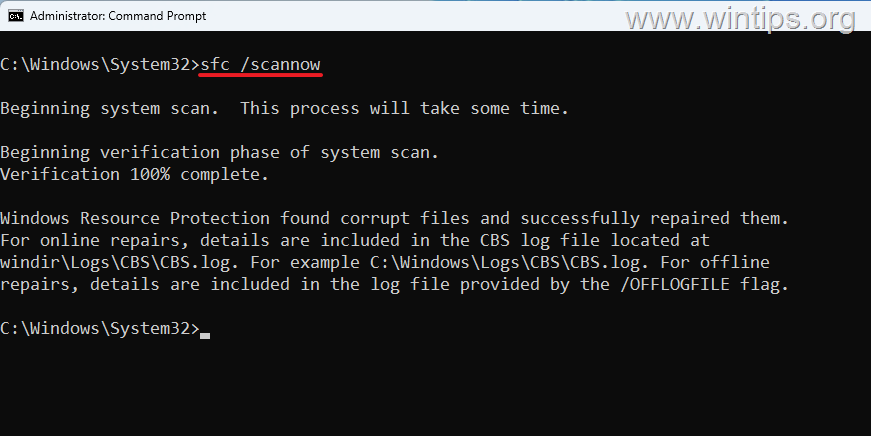
5. Wait for the scanning process to finish and repair corrupt files (if any), then restart your PC and try to install the update(s) again.
Method 7. Check Whether the EFI System Partition Is Involved
Insufficient free space on the EFI System Partition (ESP) is a documented cause of error 0x800F0922 in certain Windows Update scenarios.
However, before attempting to resize or modify the EFI System Partition, look for evidence that the failed update is actually experiencing an ESP-related problem.
IMPORTANT: The EFI System Partition contains essential boot files. Incorrectly modifying the partition or deleting its contents could prevent Windows from starting.
Symptoms That May Indicate an EFI Partition Problem
1. "Something didn’t go as planned. Undoing changes."
Microsoft confirmed a specific issue with the May 2026 Windows 11 update KB5089549, in which insufficient free space on the EFI System Partition caused the update to fail on some Windows 11 24H2 and 25H2 computers. Affected devices could experience the following symptoms:
- The update would initially begin installing normally.
- The installation would fail during the restart at approximately 35–36%.
- Windows would roll back the update.
- Users would see the message "Something didn’t go as planned. Undoing changes."
- Windows Update would then report error 0x800F0922.
Microsoft resolved this specific issue with the subsequent KB5089573 update.
2. "We couldn’t update the system reserved partition."
Another indication of insufficient free space on the EFI System Partition may appear during a Windows 11 feature update—for example, when upgrading from Windows 11 24H2 to version 25H2.
In this case, the upgrade may fail with message: "We couldn’t update the system reserved partition" with error code 0x800F0922 or 0xC1900201.
If you encounter this error, follow the instructions in this guide: FIX: We Couldn't Update System Reserved Partition on Windows 11 24H2 Update (0xC1900201, 0x800F0922).
Method 8. Fix Error 0x800f0922 in Windows 11 Update by Reinstalling Windows.
If none of the above methods fixed the problem, use Windows 11’s built-in Fix problems using Windows Update feature. This repair option reinstalls the current version of Windows to repair system files and components while preserving your apps, personal files, and settings.
To repair Windows:
1. Go to Start > Settings > System > Recovery.
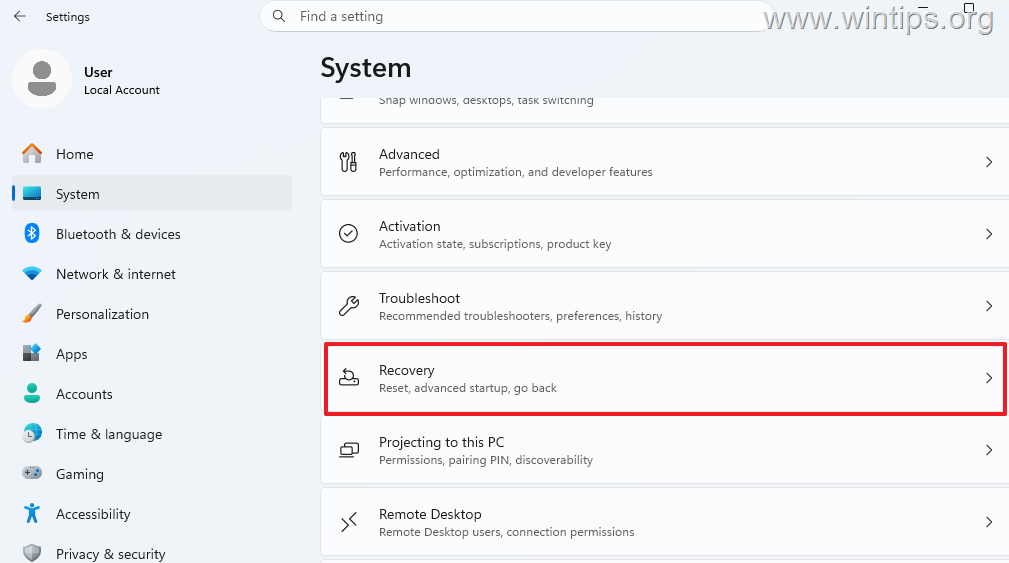
2. Find Fix problems using Windows Update and click Reinstall now.
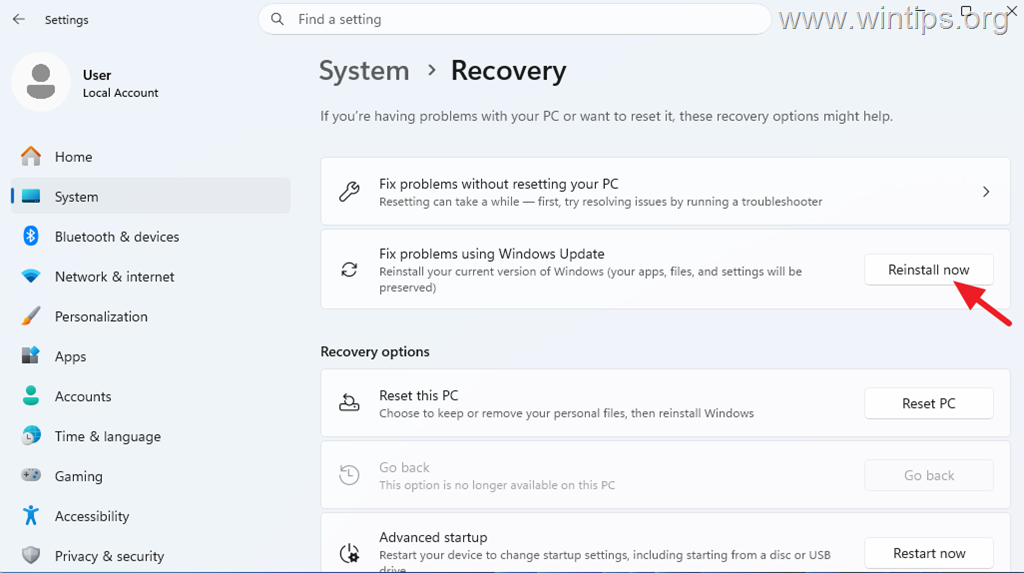
3. Follow the instructions to reinstall the current version of Windows. The process can take some time and the computer will need to restart.
4. When the repair is complete, navigate to Settings > Windows Update and Check for updates to download and install all available updates.
Additional Help: Check CBS.log
For a failed cumulative update, one of the most useful advanced diagnostic files is:
C:\Windows\Logs\CBS\CBS.log
Open the CBS.log file and look around the time the update failed. For example, for the Microsoft-confirmed KB5089549 security update which fail to install with error 0x800f0922, relevant entries included messages such as:
- SpaceCheck: Insufficient free space
- ServicingBootFiles failed. Error = 0x70
- SpaceCheck: <value> used by third-party/OEM files outside of Microsoft boot directories
If you find matching boot-servicing or free-space errors, the EFI partition may be involved.
Summary
Windows Update error 0x800F0922 on Windows 11 can occur for several different reasons, including insufficient disk space, corrupted Windows servicing components, Windows Update delivery problems, a Microsoft-known issue with a specific update, or—in some cases—insufficient free space on the EFI System Partition. This guide explains how to identify the likely cause and fix error 0x800F0922 using the safest troubleshooting steps first, including checking the failed KB, repairing Windows Update components, running DISM and SFC, and using Windows 11’s built-in repair reinstall feature when needed.
That's it! Which method worked for you?
Let me know if this guide has helped you by leaving your comment about your experience. Please like and share this guide to help others.
Frequently Asked Questions
What is Windows Update error 0x800F0922?
Error 0x800F0922 can occur during Windows 11 updates due to various reasons, including insufficient disk space, corrupted update files, or specific Microsoft update issues. It may also be caused by insufficient free space on the EFI System Partition or network connectivity issues interfering with updates.
How do I identify which Windows update failed with error 0x800F0922?
To identify the failed update, go to Start > Settings > Windows Update and note the KB number of the update that failed to install with error 0x800F0922.
What should I do before troubleshooting Windows Update error 0x800F0922?
Before troubleshooting, check Microsoft's support information and Windows Release Health for any known issues with the specific KB that failed. Restart your PC, disconnect from any VPNs, and ensure you have adequate free disk space.
How can insufficient free space on the EFI System Partition be related to error 0x800F0922?
Insufficient free space on the EFI System Partition can result in error 0x800F0922 during certain updates or maintenance scenarios, such as with updates like KB5089549, as confirmed by Microsoft for some systems.
Still having trouble fixing this issue?
💬 Get WinTips Remote Support →

- How to Set Microsoft Edge as the Default Browser on iOS Devices Using Intune. - November 2, 2026
- How to Fix SecurityHealthSystray.exe – Bad Image Error (0xc000012f) on Windows 11. - October 26, 2026
- FIX: Windows Hello for Business PIN error 'Your credentials could not be verified' with 'status: 0xc000005e substatus: 0x0' or 'status: 0xc0000bb, substatus: 0x0'. - October 20, 2026