
How to FIX: Word is Slow to Open or Close. (Solved)
One common problem faced on many computers is the slow launching or termination of Microsoft Word. This issue is frequently due to a corrupted or problematic "Normal.dot" template. The "Normal.dot" template is where Word saves all default settings, such as font type and size, and it is utilized with every Word file—blank or otherwise—that you open.
This tutorial addresses the following problems with Word: slow startup, document loading, or closure.
To resolve these issues, locate the Word templates folder and delete the "Normal.dot" (or "Normal.dotm" for Word 2007/2010) file. Follow these steps:
- With your MS Word application closed, go to Start > Run
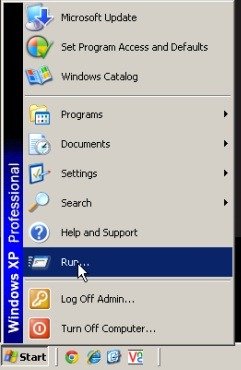
- In the "Run command box," copy and paste one of the following commands based on your operating system version, and then press OK:
- For Windows XP:
%USERPROFILE%\Application Data\Microsoft\Templates\ - For Windows Vista / Windows 7 / Windows 8 & Windows 10:
%appdata%\Microsoft\Templates
- For Windows XP:
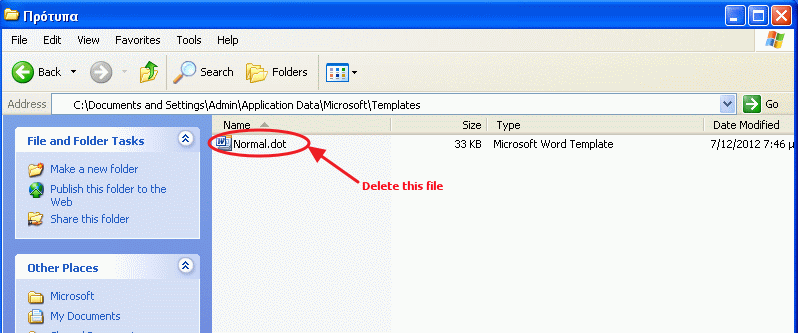
- Locate the file called "Normal.dot" if you have Word 2003, or the "Normal.dotm" file if you have Word 2007, 2010, 2013, or a later version of MS Office, and delete it. Don't worry about the deletion. The next time you open MS Word, a new, clean Normal Template (Normal.dot, Normal.dotm) will be created.
Now open MS Word and enjoy writing!
Additional help: If Word remains slow when launching or closing, restore it to its default settings by following these steps:
- Close Word.
- Open the Registry Editor. (To do this, in the "Run" command box, type REGEDIT and press Enter.)
- In the Registry Editor, navigate to the following registry location according to the installed Word (Office) version:
- Office 2007:
HKEY_CURRENT_USER/Software/Microsoft/Office/12.0/Word - Office 2010:
HKEY_CURRENT_USER/Software/Microsoft/Office/14.0/Word - Office 2013:
HKEY_CURRENT_USER/Software/Microsoft/Office/15.0/Word - Office 2016, 2019 & Office 365:
HKEY_CURRENT_USER/Software/Microsoft/Office/16.0/Word
- Office 2007:
- Delete the following keys under the Word key:
- Data (e.g.,
HKEY_CURRENT_USER/Software/Microsoft/Office/16.0/Word/Data) - Options (e.g.,
HKEY_CURRENT_USER/Software/Microsoft/Office/16.0/Word/Options)
- Data (e.g.,
- Close the Registry Editor and start Word. The problem should be resolved now.
Additional Solutions
1. Disable Add-ins: Sometimes, third-party add-ins can cause Word to slow down. Open Word in Safe Mode by holding the Ctrl key while starting Word. If Word opens quickly, disable add-ins by going to File > Options > Add-Ins. Click on Go next to Manage: COM Add-ins and uncheck unnecessary add-ins.
2. Repair Office Installation: If the above methods do not work, consider repairing your Office installation. Go to Control Panel > Programs and Features, select your Microsoft Office installation, and click Change. Choose Repair and follow the instructions.
Summary
In summary, slow performance in Microsoft Word can often be attributed to issues with the Normal.dot template or registry settings. By deleting the template file and resetting the registry keys, you can often resolve these problems. Additional steps, such as disabling add-ins and repairing the Office installation, can further enhance Word's performance.
Let me know if this guide has helped you by leaving your comment about your experience. Please like and share this guide to help others.
Frequently Asked Questions
What causes slow launching or termination of Microsoft Word?
The slow launching or termination of Microsoft Word is frequently due to a corrupted or problematic 'Normal.dot' template. This template saves all default settings and is utilized with every Word file you open.
How can I fix the slow startup issue in Microsoft Word?
To fix this issue, close Word, navigate to the Word templates folder via specific commands based on your OS, and delete the 'Normal.dot' or 'Normal.dotm' file. A new, clean template will be created the next time you open Word.
What should I do if Word is still slow after deleting the 'Normal.dot' template?
If Word remains slow, you can restore it to its default settings by using the Registry Editor. Locate and delete the relevant data and options keys under the Word registry, then restart Word.
Are there additional solutions if the primary steps don't resolve the slowdown issue?
Yes, you can disable third-party add-ins by starting Word in Safe Mode, or repair the Office installation through the Control Panel by selecting your Office installation and choosing the Repair option.


- Remote Desktop (RDP/RDS) Stops Working After September 2026 Windows Update: How to Fix - September 15, 2026
- Windows 11 KB5124008 Causes No Sound or USB Audio Code 10: How to Fix - September 14, 2026
- Copilot Missing or Grayed Out in Outlook: How to Fix - September 10, 2026




February 8, 2023 @ 2:29 pm
This worked for me –
1) Delete Normal.dotm
2) Delete the following keys under the Word key:
Data (e.g. HKEY_CURRENT_USER/Software/Microsoft/Office/16.0/Word/Data)
Options (e.g. HKEY_CURRENT_USER/Software/Microsoft/Office/16.0/Word/Options)
(even before trying the second options performance had improved a lot. May be step 2 is not required.)
November 18, 2022 @ 11:37 pm
IT REALLY WORKED !! THANK YOU -NIL
July 30, 2022 @ 8:28 am
Perfect ❤️❤️
June 7, 2022 @ 2:18 am
That worked. Thanks.
May 26, 2022 @ 3:48 pm
It worked! Thank you so much!
March 24, 2022 @ 8:04 pm
I really liked this post because it helped me thanks man!!!!!!!!!!!!!!!!
February 4, 2022 @ 7:30 pm
Fantastic! It worked. I am on windows 10 and mine was opening fine. I use Microsoft Word for the Business Admin and IT course I am on. Everytime I shut a word file it was taking about 15 seconds to show it had closed. The first option in this page worked. Thank you so very much.
December 16, 2021 @ 2:15 pm
Great it worked-bit wary of deleting anything but took a chance and it's so quick now -Thanks
September 17, 2021 @ 8:14 am
Hello! I have office 2003, does'nt worked for me :(, i have not only 12 but 11 there i have find what you wrote and deleted still is open sloooow
September 9, 2021 @ 11:23 am
You are amazing!! Could kiss you!
September 7, 2021 @ 9:55 am
My gosh, changing the registry keys solved the problem. It now snaps open and closes the same. Thanks a million.
September 1, 2021 @ 9:58 am
Thank you so much!
June 3, 2021 @ 8:40 am
Brilliant, thanks
May 9, 2021 @ 6:10 pm
Thanks, bro, it helped my slow close time
February 24, 2021 @ 9:03 pm
Wow! That was unreal! All the delays vanished!
January 12, 2021 @ 8:28 pm
Solution: Just disable Office sync on OneDrive settings or use Google Drive.
April 21, 2021 @ 2:58 am
Friends don't let friends use google spy. (-;
April 29, 2020 @ 5:58 pm
Works for me only for the first time after deleting. any suggestions?
May 28, 2020 @ 9:52 am
Repair or Reinstall the MS OFfice.
October 23, 2019 @ 10:42 pm
Thank you. Worked like a champ
May 31, 2019 @ 3:25 am
I use Word 10 to create documents. I also have Word 7 on my computer but never use it intentionally. However whenever I try to open a Word 10 document the computer uses Word 7 and I must wait while the computer configures Word 7 and 30 seconds later the Word document will open. How do I correct this.
Thank you
May 31, 2019 @ 9:21 am
@Ray Cummins: This happens, because you cannot have 2 different versions of Office on the same PC.
January 18, 2019 @ 11:21 am
Brilliant – fixed my word problem. an easy, well documented solution
Thanks
August 30, 2018 @ 3:56 am
It was very helpful. Thanks!
February 10, 2018 @ 6:01 pm
This only worked the first time I opened word after deleting normal.dotm. Then its back to the old slow opening.
Any suggestions?
TY
February 11, 2018 @ 10:26 am
@mark: Proceed and uninstall all third party add-ins and then delete again the Normal.dotm
March 20, 2018 @ 9:32 pm
Excellent
January 31, 2018 @ 8:43 am
Thanks man. This really solved the problem.
February 14, 2017 @ 6:50 pm
Worked for me. Thank you for posting.
November 17, 2016 @ 9:02 pm
Hi,
I have a strange problem opening (not closing) MS Word 2007 files on Win 7.
The files open readily when I am NOT connected to the internet.
The files open readily when I AM connected to the internet via my USB dongle (with a sim card, mobile internet connection).
The files USED TO open readily when I was connected to the internet using broadband.
I have recently acquired a Wi-Fi Hub (JioFi 3) which has one USB port (for charging and for connecting to the net).
When I use tethering to connect to the internet using the Wi-Fi Hub, even a new, empty file takes almost a minute to open. Larger files take even longer.
When I disconnect the Wi-Fi Hub, the Word files again begin to open normally.
I did not configure the Wi-Fi Hub manually; it installed automatically without any errors (other than a Linux related one).
Also, I did not have to “connect” to the internet; the device connects to the internet as soon as it is powered on or connected to the PC.
There are no other people sharing the Wi-Fi Hub; I am the lone user.
On another PC with Win 7 and Office 2007, I could not replicate the problem.
A friend says to reinstall MS Office and turn off the online help option that comes during the installation. Does that make sense?
Can you help resolve this problem, please?
Best regards,
Ravi
November 18, 2016 @ 11:26 am
@Ravindra K. Banthia: This is strange. Try to disable all Add-ins: 1. Click the Microsoft Office Button and select "Word Options". 2. Click "Add-Ins" on the left. 3. At "Manage" select "COM Add-ins" and click "GO" 4. Disable (Clear) all Add-ins. and click OK 5. Close and re-open Word.
October 23, 2016 @ 10:38 am
As you have written. It opens as before at lightning speed. Thank you!
August 11, 2016 @ 9:54 pm
Worked! Thank you! It was taking at least a minute for the Word 2016 program to start up. Now it takes less than 5 seconds. You are awesome! Thanks again.
April 1, 2016 @ 10:18 am
Yes that worked but deleted all my Auto Text and Auto Correct, not pleased!!
April 2, 2016 @ 9:38 am
@vee. THis happens because in Normal templates are stored the custom user settings. But if Normal Template is problematic or corrupted, the Word is very slow.
January 23, 2016 @ 6:59 pm
It's good to get Word back up to speed! Your suggestion worked perfectly.
I have sent you a small contribution.
Thanks for your efforts.
October 27, 2015 @ 11:43 pm
Thanks a lot…
September 26, 2015 @ 6:17 am
Works fine for Word 2013. Thanks……..
September 3, 2015 @ 1:12 pm
Woody, thanks man. I have tried so many options that seem to work for others but not for me. I use office 2007 and i remembered after reading your solution that i had installed Soda PDF 5 recently. It turned out to be the causing the problem of my annoying slow start and closing of word documents. I'm happy….
July 30, 2015 @ 1:42 am
Wow ! !
Thanks A LOT Man ! !
It worked Like a dream !
You just saved hours of my life ! :D
I can't thank you enough. . .
May 2, 2015 @ 2:32 pm
Very helpful. Thanks you.
July 17, 2015 @ 10:18 am
thanks a lot
March 28, 2015 @ 5:34 pm
Solution to Microsoft Word 2003 slow to launch: it was taking one minute or more for Word to open. I discovered a PDF reader an-in that was loading at the same time. I went to: tool/options/advanced/Com ad-ins and I disabled the ad-in. Now the program loads normally.
November 27, 2014 @ 12:46 am
This was very helpful. Thanks a lot.
November 25, 2014 @ 6:39 am
normal.dotx for MS Word 2013
November 25, 2014 @ 10:56 am
Thanks, Updated.
September 3, 2014 @ 8:09 pm
i cant delete this file and its not normal dot its only normal
when i try to delete it it says file is open in ms work
September 4, 2014 @ 10:31 am
It is the same file…Restart your computer and then try to delete 'Normal.dot".
June 25, 2014 @ 4:53 pm
Hi, looking for some advice. Like Tom O'keefe, my MS Word was taking about 30 seconds to open, sometimes longer. I followed the tutorial and it fixed the problem for the next 2 times that I opend Wrod (Ver 2010) Then it was back to 30 seconds to open. I again deleted the mormal.dot and the problem was fixed but again for only opening the next two times. Seems like Word is contaminating the file. Any ideas on a fix?
June 26, 2014 @ 9:57 am
Hello Kevin. Try to disable one by one the Word Adds-Ins (Options > Add-ins) to find which one is cause the problem.
February 16, 2014 @ 1:07 am
it worked like a charm to me
December 1, 2013 @ 8:06 am
worked for me..
Thanks bro !!!
October 13, 2013 @ 6:57 pm
dump word go to word perfect
September 4, 2013 @ 12:37 am
MS Word 2007 starting about 30 seconds to open or close for me. After a couple of months being tormented by it I went into the Control Panel and removed most of the programs I has install in the current year that I was not familiar with or did not use. My MS Wood is now up to full speed again. Had I had time to do them one at a time and try opening word after each I would have found the one that gave the trouble.
June 18, 2013 @ 2:24 pm
thanks man
May 5, 2013 @ 11:29 pm
Yes, worked for me. Thanks