FIX: Windows couldn't connect to the update service despite being connected to the Internet.
The Windows Update service, normally downloads and installs updates and features automatically. However, in some cases, you may get the error: "We could not check for updates because you are not connected to the Internet", despite the fact that the computer is already connected to the Internet and you can browse or download files normally.
Problems that can fixed with this guide: On a Windows 10/11 computer with Internet access, it is not possible to check for and install Windows updates or install apps from the Microsoft Store because of one of the following errors:
- We couldn't connect to the update service. We'll try again later, or you can check now. If it still doesn't work, make sure you're connected to the Internet.
- You'll need the Internet for this. It doesn't look like you're connected to the Internet. Check your connection and try again. 0x800713AB
- We couldn't check for updates, because you aren't connected to the Internet. Make sure you have a cellular data or Wi-Fi connection and try again.

FIX: Windows Update could not connect to update service on Windows 11/10.*
* IMPORTANT: As the reported issue may occur while connecting via VPN, please disconnect from the VPN and check if the issue persists.
- Update Update Troubleshooter.
- Disable TCP/IP v6 & Change DNS.
- Restart ISP Modem/Router.
- Disable Security program.
- Reset Windows Updates.
- Registry fix.
- Repair Windows with DISM & SFC.
- Update Windows with MCT.
- Repair Windows with an In-place Upgrade.
- Reset Windows.
- Clean Install Windows.
Method 1. Run the Windows Update Troubleshooter.
The first method to solve problems in Windows Update, is to run the Windows Update Troubleshooter.
1. To run the Windows update troubleshooter, navigate to the following location according your OS version:
-
Windows 10: Navigate to Start -> Settings -> Windows Update -> Troubleshoot -> Additional troubleshooters -> Windows Update -> Run the troubleshooter.
-
Windows 11: Navigate to Start -> Settings -> System -> Troubleshoot -> Other troubleshooters -> Windows update -> Run.
2. Let the troubleshooter to run and fix the problem(s). Then close the troubleshooter and check for updates.

Method 2. Disable TCP/IP v6 Protocol & Change DNS Server addresses.
In most cases, the Windows update error "we could not connect to the update service" despite being connected to the Internet is caused because the DNS servers of your ISP have not been properly updated with the correct IP addresses of the Microsoft update servers. To fix this, do the following:
1a. Press the Windows  + R keys to open the Run command box.
1b. Type ncpa.cpl and press OK or hit Enter to open Network Connections.

2. Right click on the active network connection and choose Properties.

3. In network connection properties, uncheck the Internet Protocol Version 6 (TCP/IPv6) checkbox (1), then highlight the Internet Protocol Version 4 (TCP/IPv4) (2) and click Properties (3).

4. Here, select "Use the following DNS server addresses" and type below the following Google's DNS Server addresses in Preferred & Alternate DNS server fields:
- 8.8.8.8
- 8.8.4.4
5. When done, click OK (twice) to save and close the network properties.

6a. Now, open Command Prompt as Administrator. (To do that, type "cmd" in Search and then at "Command Prompt" result, select "Run as Administrator")

6b. Now, type the following command and press Enter to clear the DNS cache:
- ipconfig /flushdns

7. Finally, restart you computer and check for updates again.
Method 3. Restart your Router.
Sometimes, the mentioned Windows Update error occurs because your ISP router is not working properly. So, do the following:
1. Turn OFF your router for 30 seconds, and then shut down the PC.
2. Turn ON the the router and wait until all the lights are ON and stable.
3. Finally, turn on your PC and check for updates.
Method 4. Temporarily Disable or Uninstall your Antivirus/Security Suite.
In some cases, I have noticed that some antivirus programs like Avast or AVG Antivirus can cause network connectivity issues after updating their engine or after a Windows update.
Therefore, if you use an anti-virus or firewall program that protects you from Internet traffic, disable the Internet (Web) protection or completely uninstall the security program from your computer. Then try checking for updates again, and if the Windows Update problem is fixed, install the updates and then reinstall the latest version of your security program.
Method 5. Force Windows to Recreate the Windows Updates Store folder.
A common method to solve errors in Windows Update, is to force Windows to recreate the Windows Update Store folder ("C:\Windows\SoftwareDistribution"), which is the location where Windows stores the downloaded updates. To do that:
1a. Press the Windows + R keys to open the Run command box.
1b. In run command box, type "services.msc" and press Enter to open the Windows Services control panel.

2. Right-click on Windows Update service and select Stop.

3. Then, open Windows Explorer, navigate to C:\Windows folder and open it to explore its contents.
4. Select and Delete the “SoftwareDistribution” folder. (Click Continue at "Folder Access Denied" window).
* Notes:
1. After deleting this folder, the next time the Windows Update will run, a new empty "SoftwareDistribution" folder will be automatically created by Windows to store updates.
2. If you cannot delete the folder because of error "Folder in use – try again", then delete it after starting Windows in "Safe Mode".

5. Restart your computer and then try to install updates.
Method 6. Fix "Windows couldn't connect to the update service" in Registry.
An invalid registry entry can cause Windows to be unable to connect to Microsoft Update Servers. To fix the problem through the registry, first back up the registry and continue with the instructions below:*
* Important: Since making changes to Registry settings is risky because even a small mistake can lead to system damage, it is important to back up the registry before modifying it and to create a System Restore point.
1. Simultaneously press the Windows + R keys to open Run command box.
2. In run command box, type "regedit" and press Enter.

3. In Registry Editor navigate to this path:
- HKEY_LOCAL_MACHINE\SYSTEM\CurrentControlSet\Services\NlaSvc\Parameters\Internet
4. Look at the right pane and make sure the below listed registry values have the following value data and if not change them accordingly:
"ActiveDnsProbeContent"="131.107.255.255"
"ActiveDnsProbeContentV6"="fd3e:4f5a:5b81::1"
"ActiveDnsProbeHost"="dns.msftncsi.com"
"ActiveDnsProbeHostV6"="dns.msftncsi.com"
"ActiveWebProbeContent"="Microsoft Connect Test"
"ActiveWebProbeContentV6"="Microsoft Connect Test"
"ActiveWebProbeHost"="www.msftconnecttest.com"
"ActiveWebProbeHostV6"="ipv6.msftconnecttest.com"
"ActiveWebProbePath"="connecttest.txt"
"ActiveWebProbePathV6"="connecttest.txt"
"CaptivePortalTimer"=dword:00000000 (0)
"CaptivePortalTimerBackOffIncrementsInSeconds"=dword:00000005 (5)
"CaptivePortalTimerMaxInSeconds"=dword:0000001e (30)
"EnableActiveProbing"=dword:00000001 (1)
"PassivePollPeriod"=dword:0000000f (15)
"StaleThreshold"=dword:0000001e (30)
"WebTimeout"=dword:00000023 (35)

5. When done, close Registry Editor and restart your computer if you have made changes to the registry, otherwise continue to next method.
Method 7. Fix "Windows Update could not connect to update service" error by repairing system files.
The next method to fix problems in Windows 10/11 Update, is to repair the Windows installation and System Files using the DISM and SFC tools.
1. Open Command Prompt as Administrator. (To do that, type "cmd" in Search and then at "Command Prompt" result, select "Run as Administrator")

2. At the command prompt window, type the following command & press Enter:
- dism.exe /Online /Cleanup-Image /Restorehealth
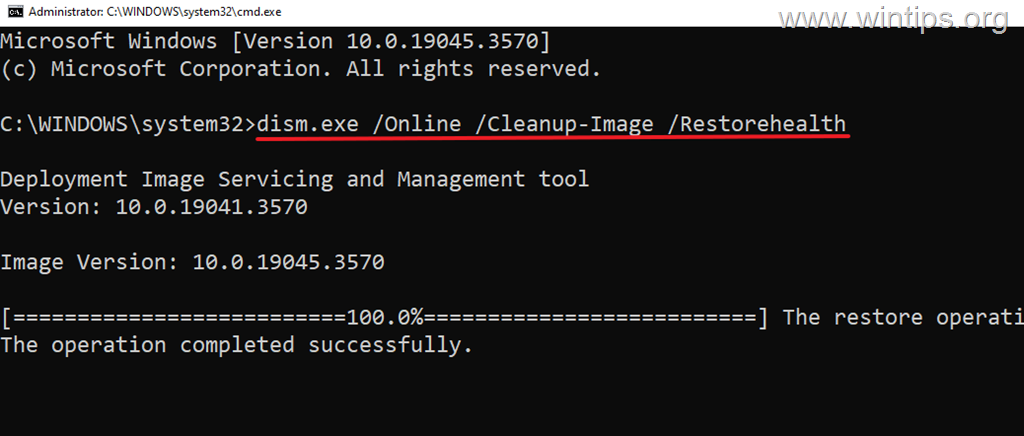
3. Be patient until 'Deployment Image Servicing and Management' (DISM) tool repairs the component store.
4. When the operation is completed, give the command below to repair the system files and press Enter:
- sfc /scannow
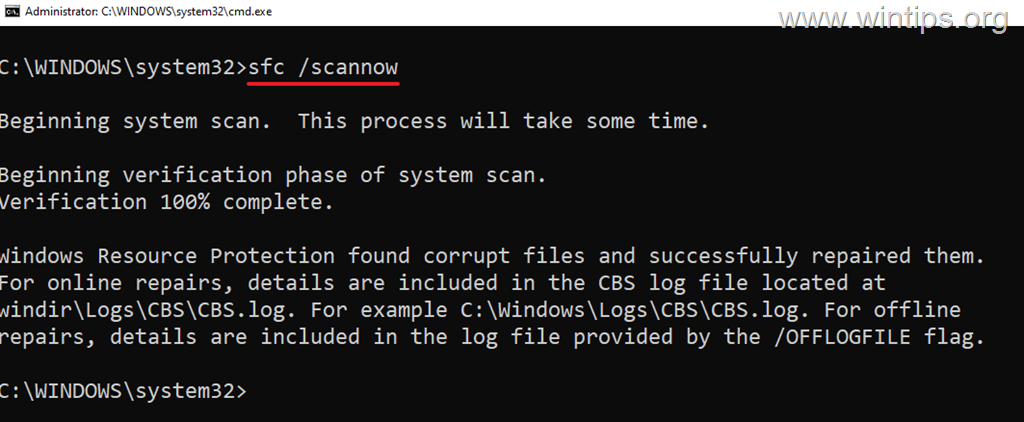
5. When SFC scan is completed, restart your computer.
6. After restarting try to install the updates again.
Method 8. Install Updates using the Media Creation Tool.*
The "Media Creation Tool" is an official tool from Microsoft that allows users to upgrade their Windows 10 systems to the latest version, or to create an installation USB Media to reinstall Windows 10/11.*
* Note: This method works only in Windows 10.
1. Navigate to Windows 10 download site and click Download Now under "Create Windows 10 Installation media":

2. When the download is completed, close all open programs and double-click at the downloaded "MediaCreationTool.exe" to run it.

3. Accept the License Terms at the first window and then click Upgrade this PC now and click Next.

4. At Ready to install screen, ensure that the "Keep personal files and apps" is checked and click Install.

5. The Windows installation process will begin. Wait until the installation is complete and do not interrupt it until your system reboots to the desktop.
6. When it does, go to Windows Update center and check if there are any other updates available to install. If so, let Windows to install them and you're done!
Method 9. Repair Windows 10/11 with an in-place Upgrade using Windows ISO file.
Another method to solve Windows 10/11 update or other problems is to repair & upgrade Windows from a Windows ISO file. For this task, read the instructions in the articles below, according to your operating system version.
- How to Repair Windows 10 with an In-Place Upgrade.
- How to Repair Windows 11 with an In-Place Upgrade.
Method 10. Reset Windows.
Resetting Windows to their default state, is another method to fix problems in Windows 10/11. For this task, read the instructions in the articles below, according to your operating system version.
Method 11. Clean Install Windows.
The final method to fix Windows problems, is to backup your files and to perform a fresh installation of Windows. For this task, read the instructions in the articles below, according to your operating system version.
That's it! Which method worked for you?
Let me know if this guide has helped you by leaving your comment about your experience. Please like and share this guide to help others.
Frequently Asked Questions
Why do I receive the error 'We couldn't check for updates because you aren't connected to the Internet' despite having a stable connection?
The error can occur due to issues with DNS servers, problems with the ISP router, or connection settings that might be altered, like being connected through a VPN.
How can I troubleshoot Windows Update errors on Windows 10/11?
You can troubleshoot Windows Update errors by running the Windows Update Troubleshooter, disabling TCP/IP v6, changing DNS server addresses, restarting your router, disabling security programs, resetting Windows Updates, and repairing Windows using tools like DISM & SFC.
What is the first step to fix Windows Update connection issues?
The first step is to run the Windows Update Troubleshooter. On Windows 10, navigate to Start -> Settings -> Windows Update -> Troubleshoot -> Additional troubleshooters -> Windows Update -> Run the troubleshooter. On Windows 11, go to Start -> Settings -> System -> Troubleshoot -> Other troubleshooters -> Windows update -> Run.
How do I change the DNS server to resolve Windows Update errors?
To change the DNS server, open the Network Connections, right-click on the active connection, and choose Properties. Uncheck the Internet Protocol Version 6 (TCP/IPv6), highlight Internet Protocol Version 4 (TCP/IPv4), and click Properties. Select 'Use the following DNS server addresses' and enter 8.8.8.8 for Preferred and 8.8.4.4 for Alternate DNS server. Save changes and restart your computer.


- Windows Update Uninstall Failed with Error 0x800F0825: How to Fix - October 7, 2026
- Apps and Games Crash After KB5124010 Due to AC-3 Audio: How to Fix - October 5, 2026
- How to Fix Windows 11 Update Error 0x80073712 - October 5, 2026