How to reset Mozilla Firefox browser's settings to factory default values
If you face errors or problems (crashes, slow speed, etc.) while you are using your Firefox browser, then you can reset its settings in order to bypass these errors. This means that all your settings (homepage, extensions, search provider) will be reverted to their default state (as in a fresh installation).
Do you need help with your Windows computer? Try our remote support service.
Learn More About WinTips.org Remote Support →How to reset Firefox browser settings to default.
1. From Firefox menu, go to “Help” > “Troubleshooting Information”.
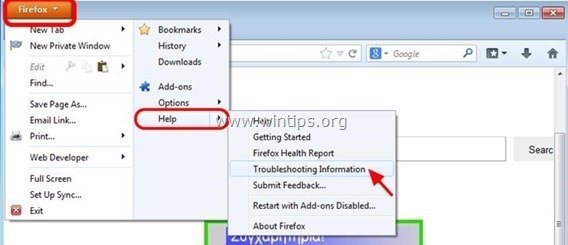
2. In “Troubleshooting Information” window, press “Reset Firefox” button to reset Firefox to its default state.

3. Press “Reset Firefox: again.

4. After the resetting job is completed, Firefox restarts.
Now see if your browser works smoothly, otherwise check your computer for malware infection by using this guide:
Malware Removal Guide to clean your infected computer.


- Windows Update Error 0x800F0989: How to Fix - November 24, 2026
- How to Deploy – Install Company Portal App in Intune Enrolled Windows Devices. - November 17, 2026
- How to Fix PowerShell Script Signature Errors After KB5132061. - November 13, 2026