
How to Enable Administrator Offline using Registry (Windows 10, 8, 7, Vista).
As you may know, the Administrator account is disabled by default in Windows 7, 8 or 10 OS, for security reasons. But sometimes there is a need to enable the disabled Administrator account, to troubleshoot Windows or to reset the forgotten password of other local accounts (non Domain or Microsoft accounts).
This tutorial provides detailed instructions on how to enable the hidden administrator account on a Windows 10, 8, 7, or Vista computer by modifying the Windows Registry offline. Use the instructions below if you cannot log in to Windows, or if you cannot log in to Windows using another account with administrator privileges *
How to Enable Administrator Account by Modifying Registry from Recovery Environment.
- Requirement: A Windows USB installation media according to your operating system version. *
* Note: Ιf you don't own a Windows installation media, then from another working computer create one by following the instructions in one of the following guides:
1. Power On your computer and boot from the Windows USB installation media.
2. At the Windows Setup screen press SHIFT + F10 to access command prompt, or choose Next –> Repair your computer –> Troubleshoot –> Advanced Options –> Command Prompt.
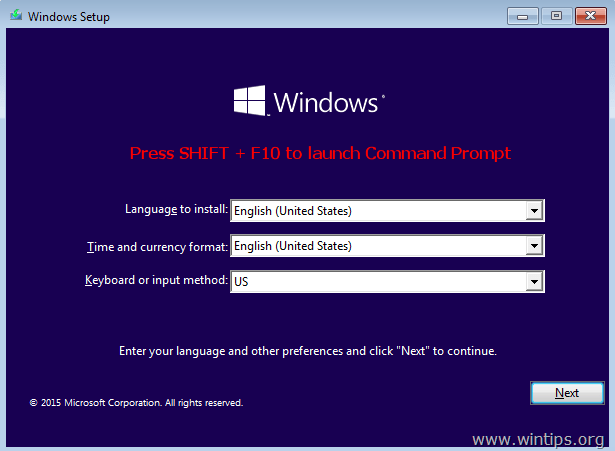
3. At command window, type "regedit" (without quotes) & press Enter.

4. In Registry Editor: Highlight the HKEY_LOCAL_MACHINE key.

5. From File menu, select Load Hive.
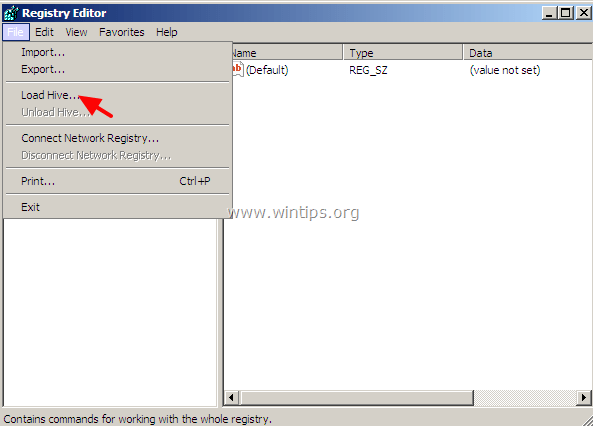
6. In the 'Load Hive' window:
a. Navigate to disk C:\ at the following location.*
-
C:\Windows\system32\config\
* Note: Go to the drive where Windows is installed (usually the "C:" drive where the "Users" folder is also located)
b. Select the "SAM" file and click Open.
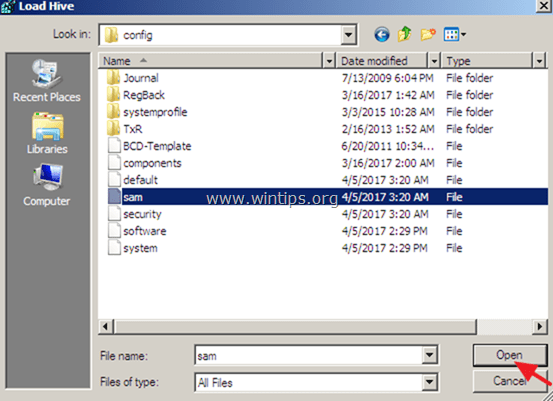
7. Then type a Key Name for the offline registry database (e.g. "Offline") and press OK.

8. Now under the HKEY_LOCAL_MACHINE key, you should have a new key, named Offline.
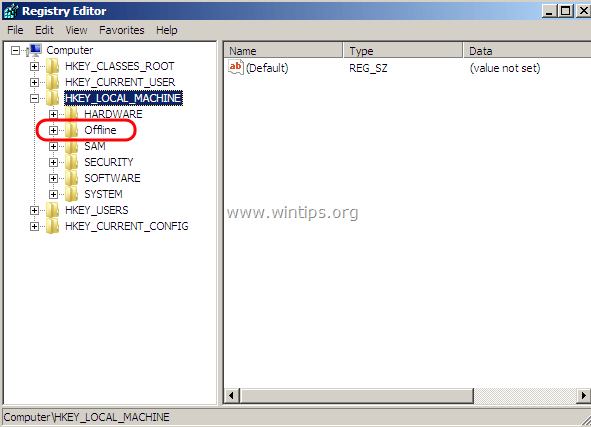
9. Next, from the left pane, navigate to the following key:
- HKEY_LOCAL_MACHINE\Offline\SAM\Domains\Account\Users\000001F4
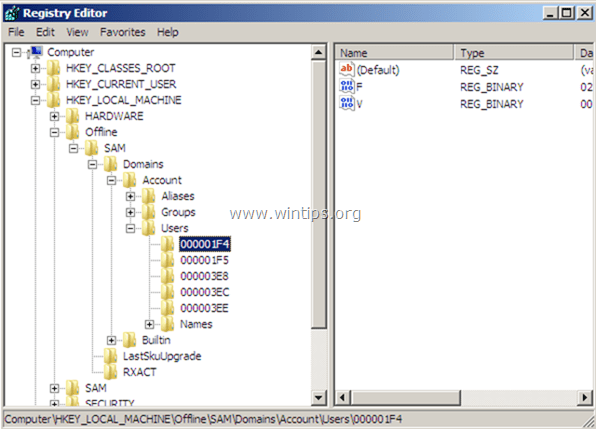
10. At the right pane, double click to open the "F" value.

11. By using the Down arrow key, navigate to line 0038.
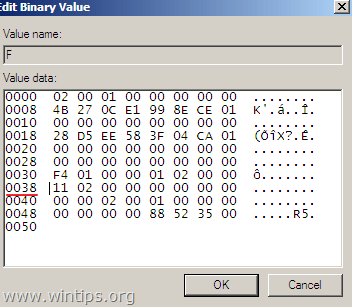
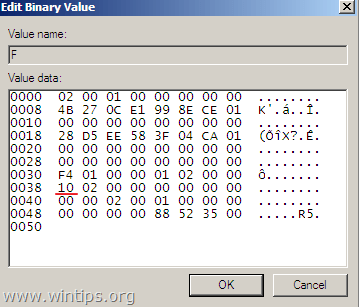
12. Press the Delete key once (to delete "11") and then type 10. When done, click OK.
13. Finally highlight the key you previously created (e.g. the "Offline" key ) and from the File menu, choose Unload Hive to write back the changes you made to the Registry.

14. Close all open windows and restart your computer normally (from the internal disk).
15. After the restart, select the Administrator account to login to Windows and press Enter . *
* Suggestion: When you finish you job , then proceed and disable the Administrator account to avoid security risks. To do that, open Command Prompt with Administrative privileges {Command Prompt (Admin)} and give this command:
- net user administrator /active:no
That's it! Let me know if this guide has helped you by leaving your comment about your experience. Please like and share this guide to help others.


- Remote Desktop (RDP/RDS) Stops Working After September 2026 Windows Update: How to Fix - September 15, 2026
- Windows 11 KB5124008 Causes No Sound or USB Audio Code 10: How to Fix - September 14, 2026
- Copilot Missing or Grayed Out in Outlook: How to Fix - September 10, 2026




November 17, 2024 @ 2:05 pm
This has just saved me. Much appreciated!
August 7, 2023 @ 7:41 pm
Still works with W10 Pro 22H2.
August 26, 2021 @ 5:31 pm
I have been searching for a way to enable the Administrator's account because the only account had it's password go south. This process finally worked. If tried instructions from about 7-10 other webpages. I highly recommend this one.
W. Russell
August 23, 2019 @ 5:09 am
Can you tell me why "net user administrator /active:yes" works to activate the admin account on some computers, but others won't? This reg edit works, but I don't understand why activating the admin account as above fails on some machines. I've also tried adding administrator to localgroup & that also fails.
August 28, 2019 @ 10:46 am
@T Thompson: In order to activate the admin account using the "net user administrator /active:yes" command, you must login with another account that already has administrative privileges.
November 4, 2018 @ 8:58 am
Hey, i managed to enable the administrator account using your instructions but how do i set the password? Or what’s the password for the Administrator account enabled this way?
As my Win 10 OS is Enterprise and connected to a Domain environment, how do i logon, as a Domain or Local account for this Administrator account?
November 4, 2018 @ 10:13 am
@You have to logon as a local administrator account, without any password. (At Login Screen, choose Other user > Administrator)